Frontend Screenshot Gallery
Auto-generated — These screenshots are captured automatically by Playwright. Run
npx playwright test --project=screenshotsfrom the frontend directory to regenerate them.
This gallery showcases every page and major interaction available in the PiSovereign web interface. Use it as a visual reference when exploring features, writing documentation, or onboarding new users.
Table of Contents
- Dashboard
- Chat
- Conversations
- Memory & RAG
- Calendar
- Tasks
- Kanban Board
- Contacts
- Mailing
- Reminders
- Commands
- Approvals
- Agentic Workflows
- System Status
- Settings
- Navigation & Responsive Design
Dashboard
The dashboard is the landing page after authentication. It shows a personalized greeting, key statistics, quick-action shortcuts, today’s events, upcoming tasks, and recent activity.
Overview
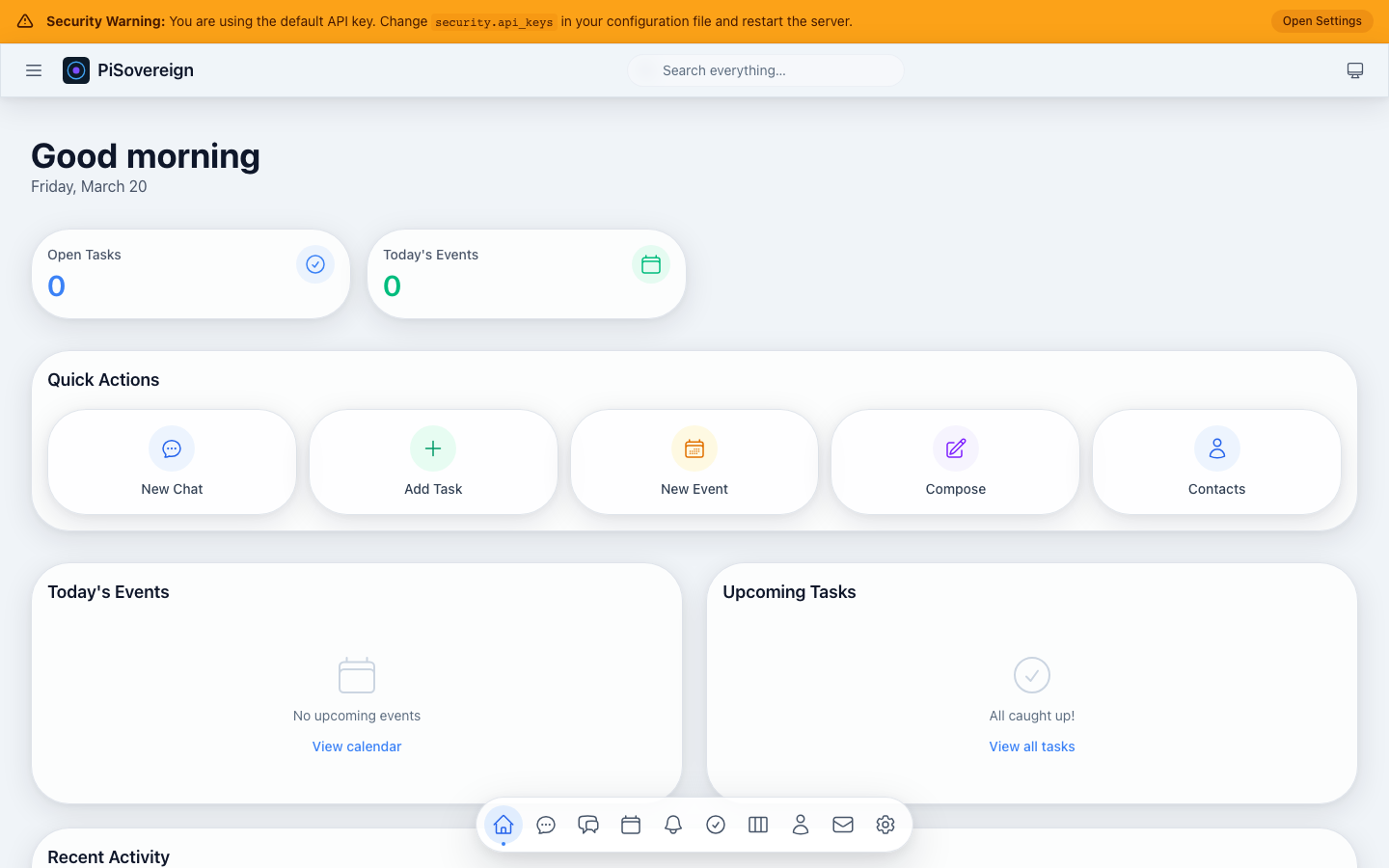 Full dashboard with greeting, stat cards, quick actions, today’s events and upcoming tasks.
Quick Actions
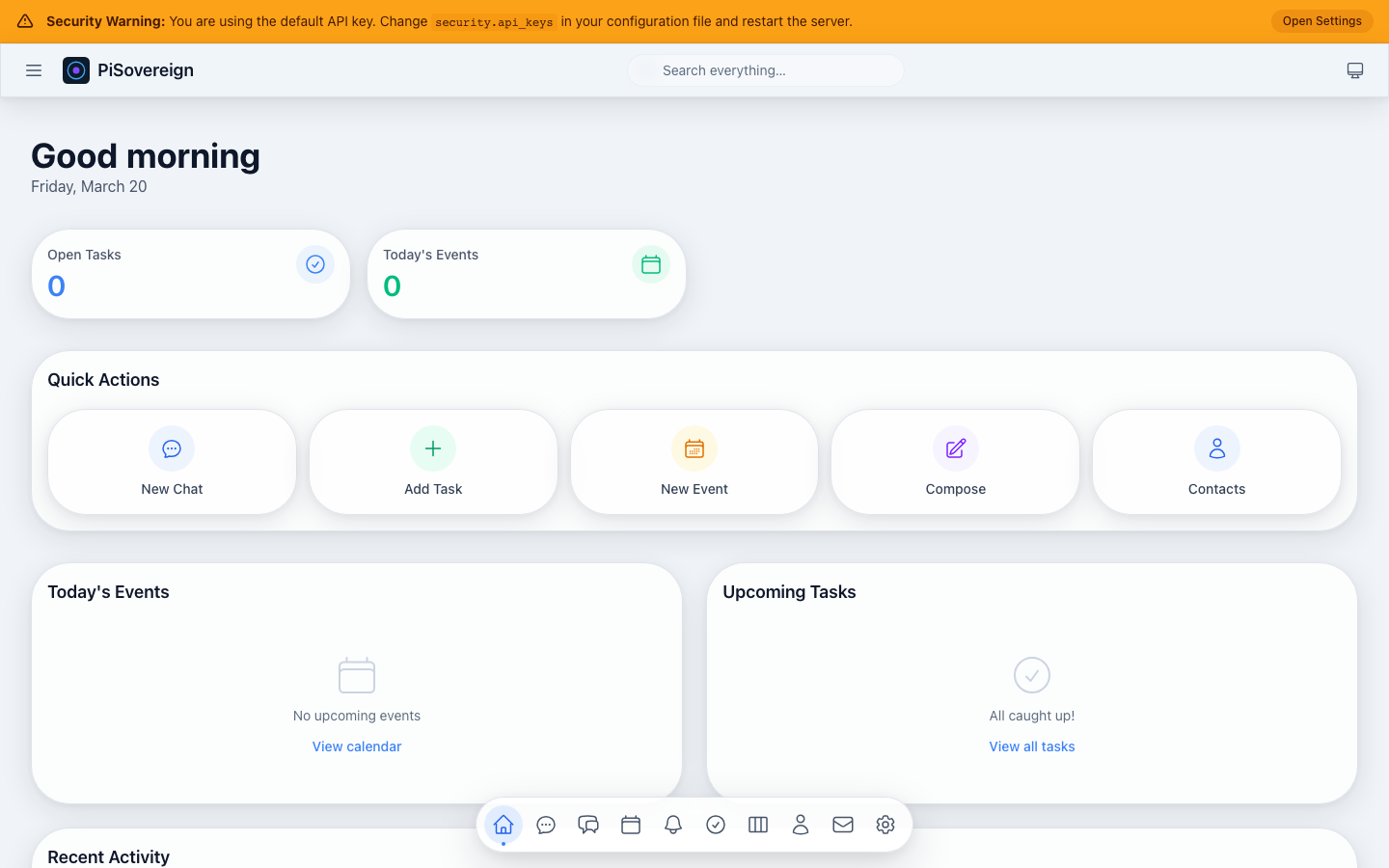 One-click shortcuts to start a chat, create a task, add an event, compose an email, or open contacts.
Today’s Events
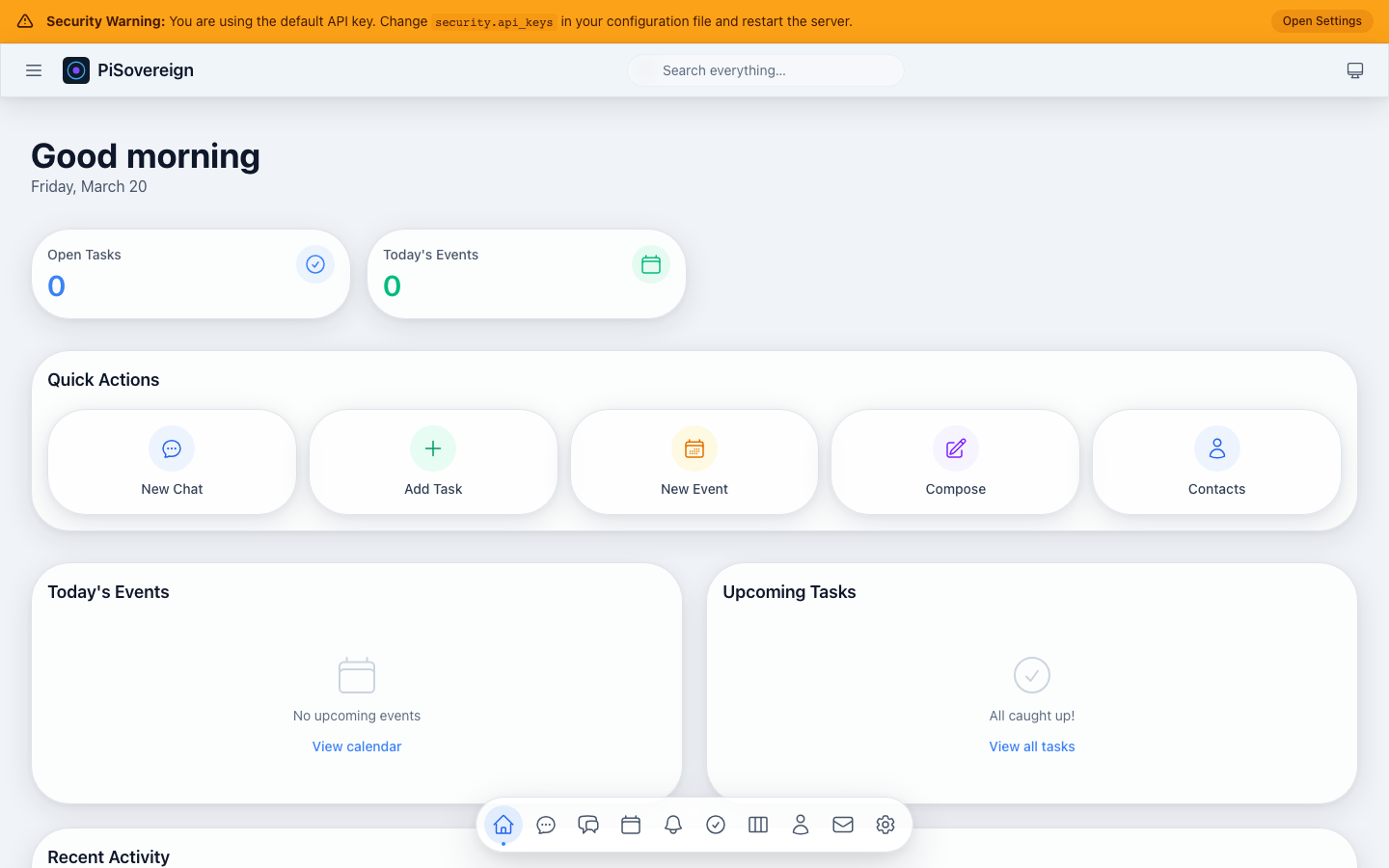 Live feed of calendar events scheduled for the current day.
Upcoming Tasks
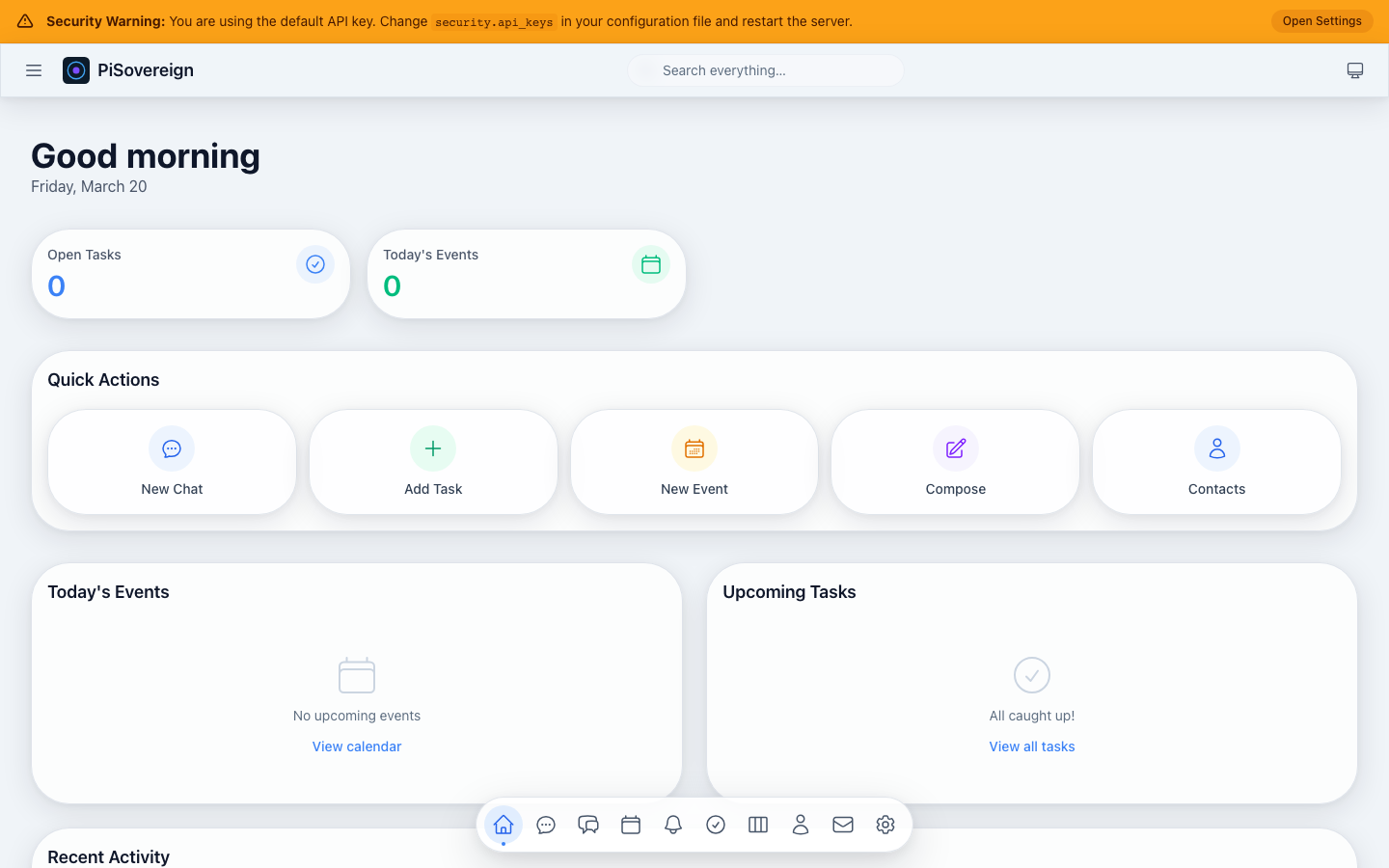 Task list ordered by due date with priority indicators (🔴 High, 🟡 Medium, 🟢 Low).
Chat
The conversational AI interface supports streaming responses, file attachments, and — when RAG memories are configured — fully personalized assistant behaviour.
New Conversation
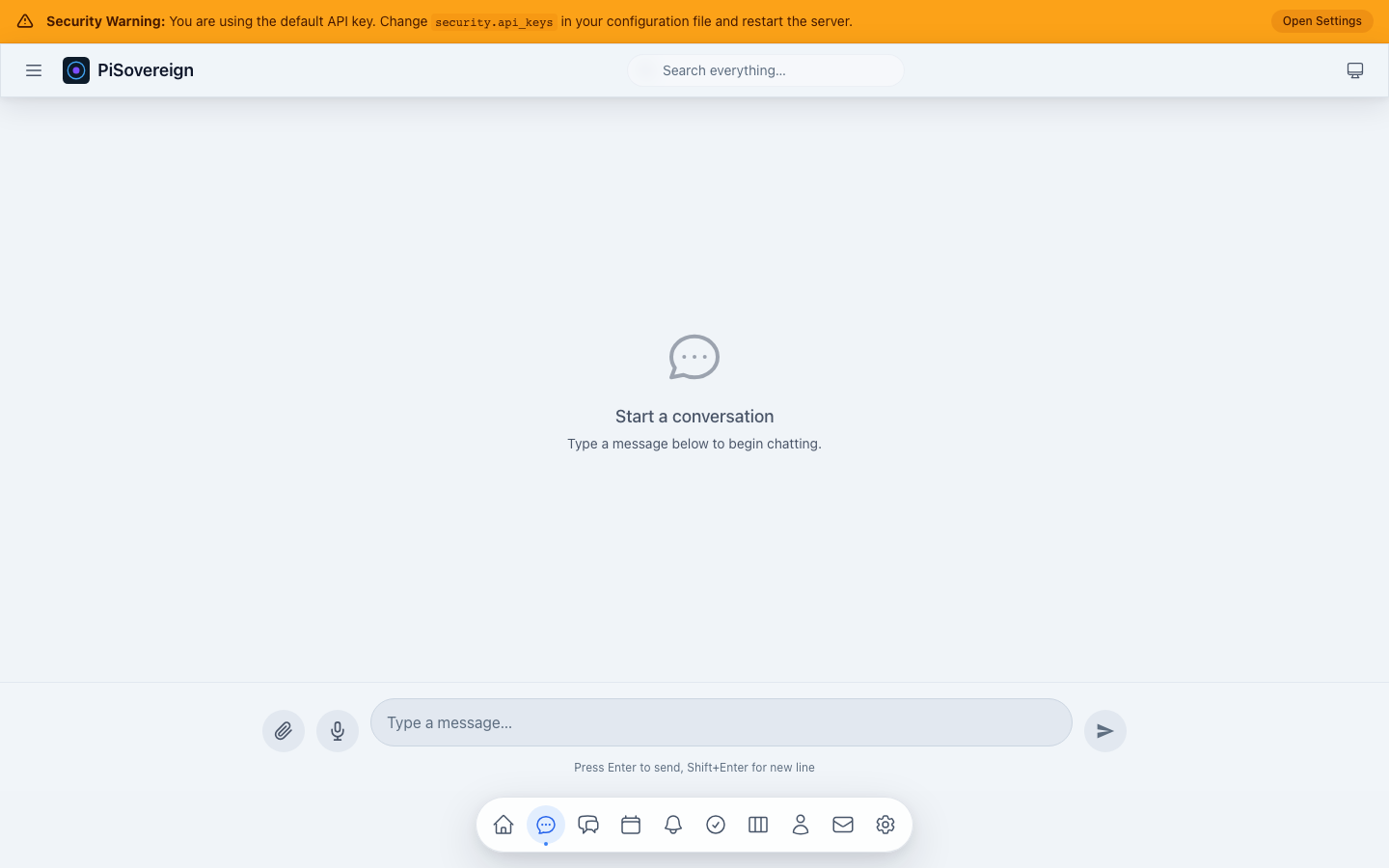 Fresh chat view ready for a new conversation. The message input sits at the bottom.
Composing a Message
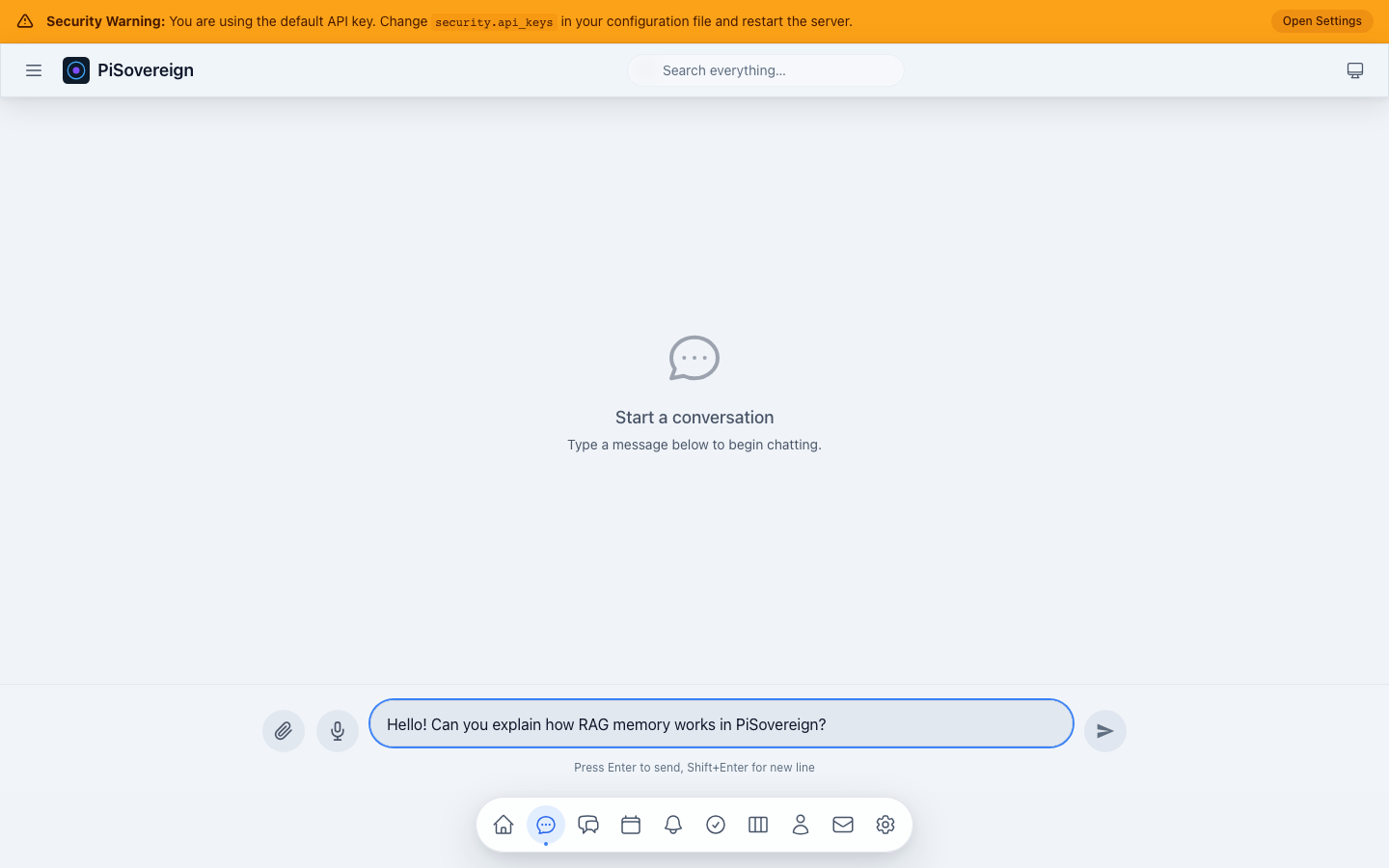 Typing a question in the chat input before pressing Enter to send.
With a running LLM backend the screenshot suite also captures streaming responses and persona-driven replies (see Memory & RAG → Persona Customization).
Conversations
Browse, search, and manage all past conversations.
Conversation List
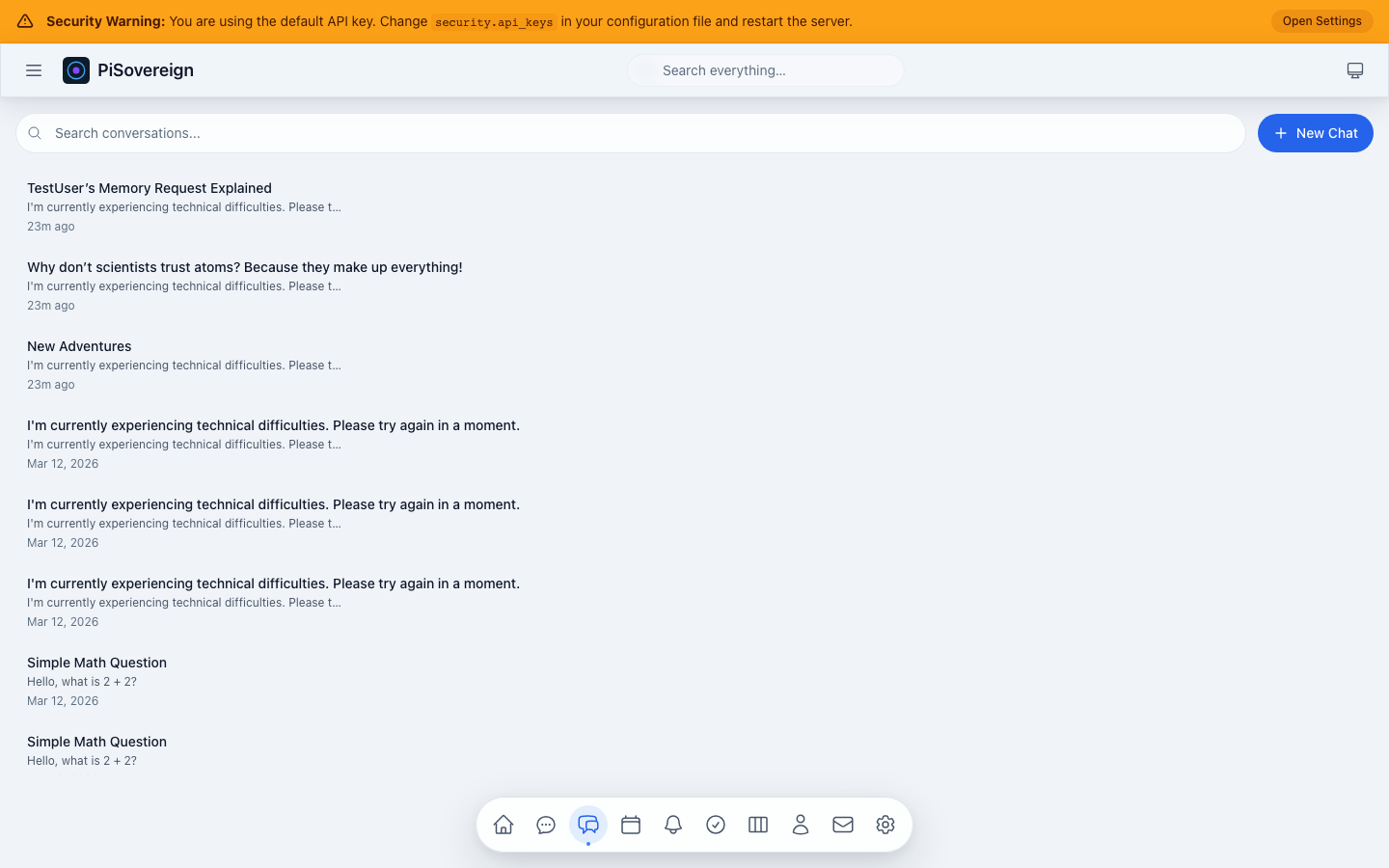 Scrollable list of previous conversations with title previews. Click any entry to resume the chat.
Searching Conversations
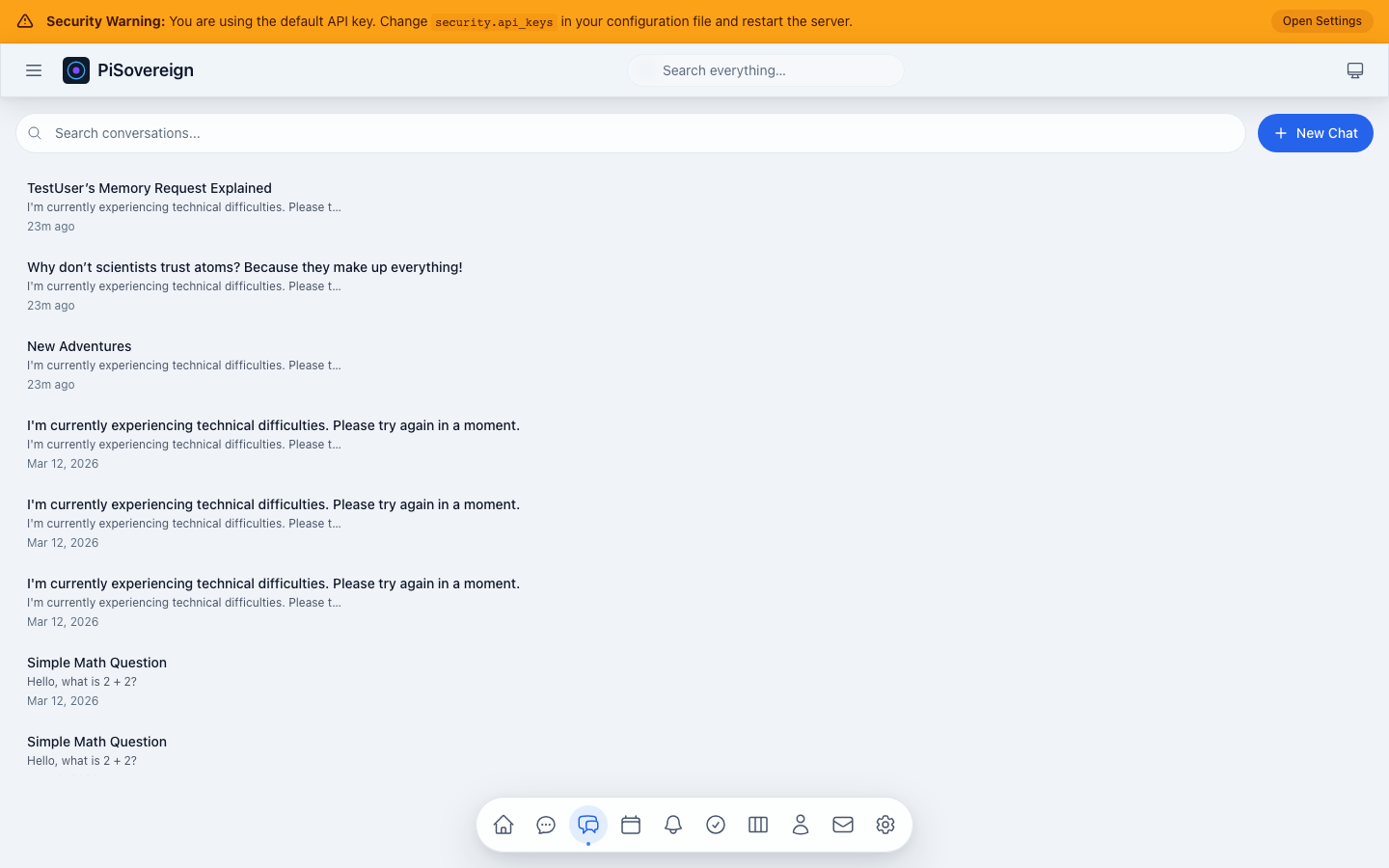 Type a keyword to filter the conversation list in real time.
Memory & RAG
The Memory page is the control centre for PiSovereign’s Retrieval-Augmented Generation system. Every memory you create is automatically embedded as a vector and injected into future chat prompts when relevant.
Page Overview
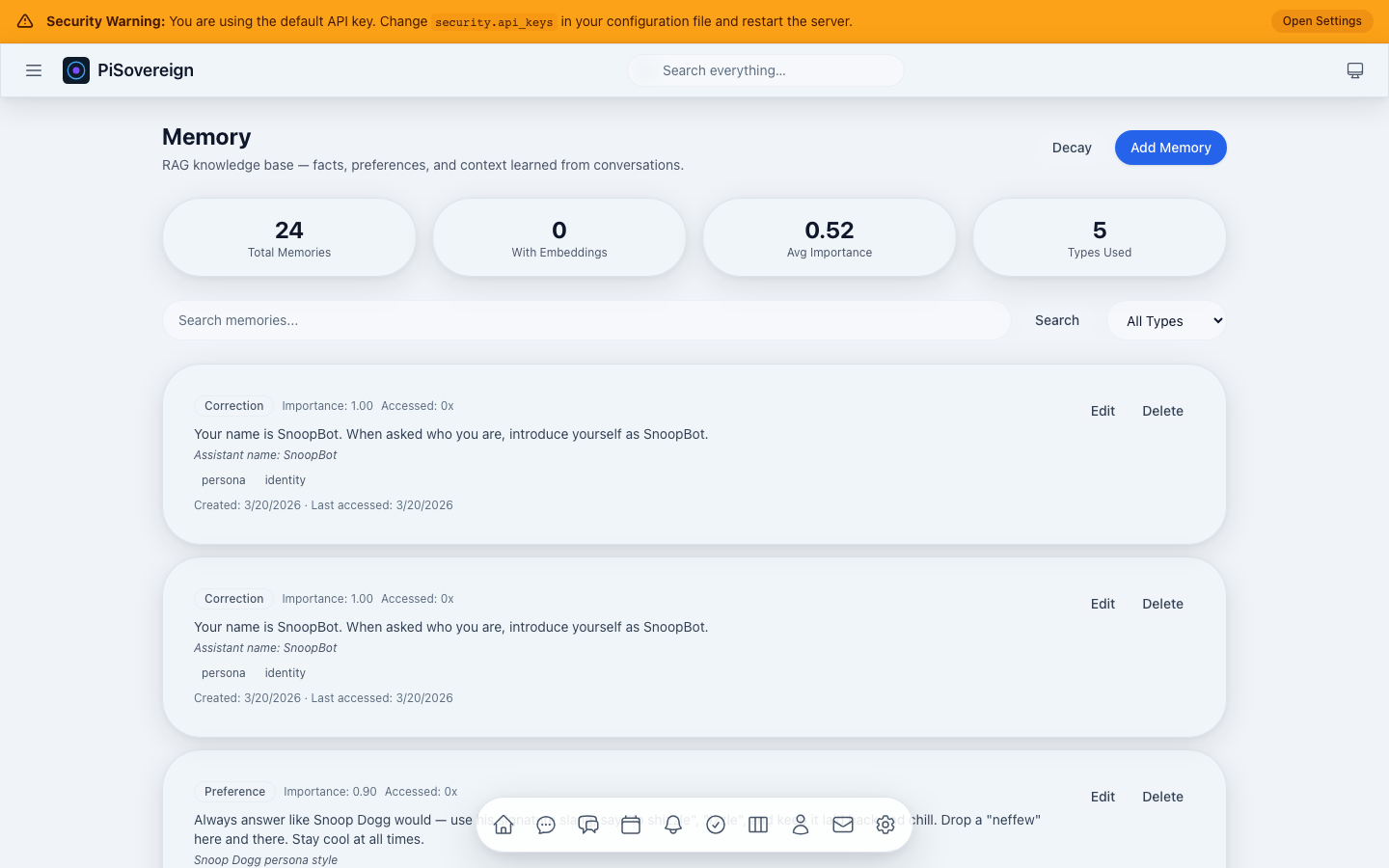 Memory page showing stat cards (total memories, embeddings, average importance, types used), search bar, type filter, and the memory list.
Statistics Cards
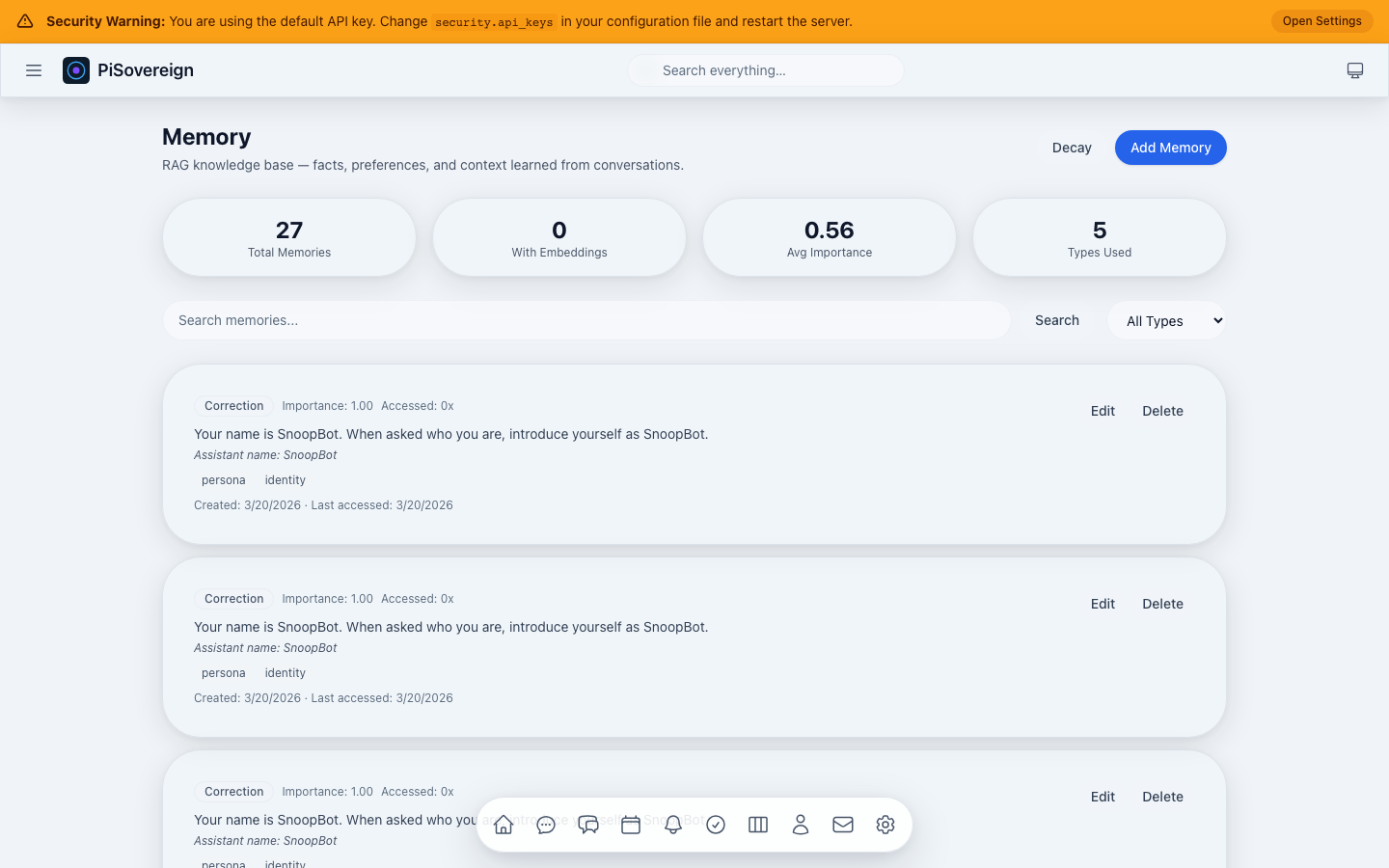 Close-up of the four stat cards at the top: Total Memories, With Embeddings, Avg Importance, and Types Used.
Add Memory — Empty Form
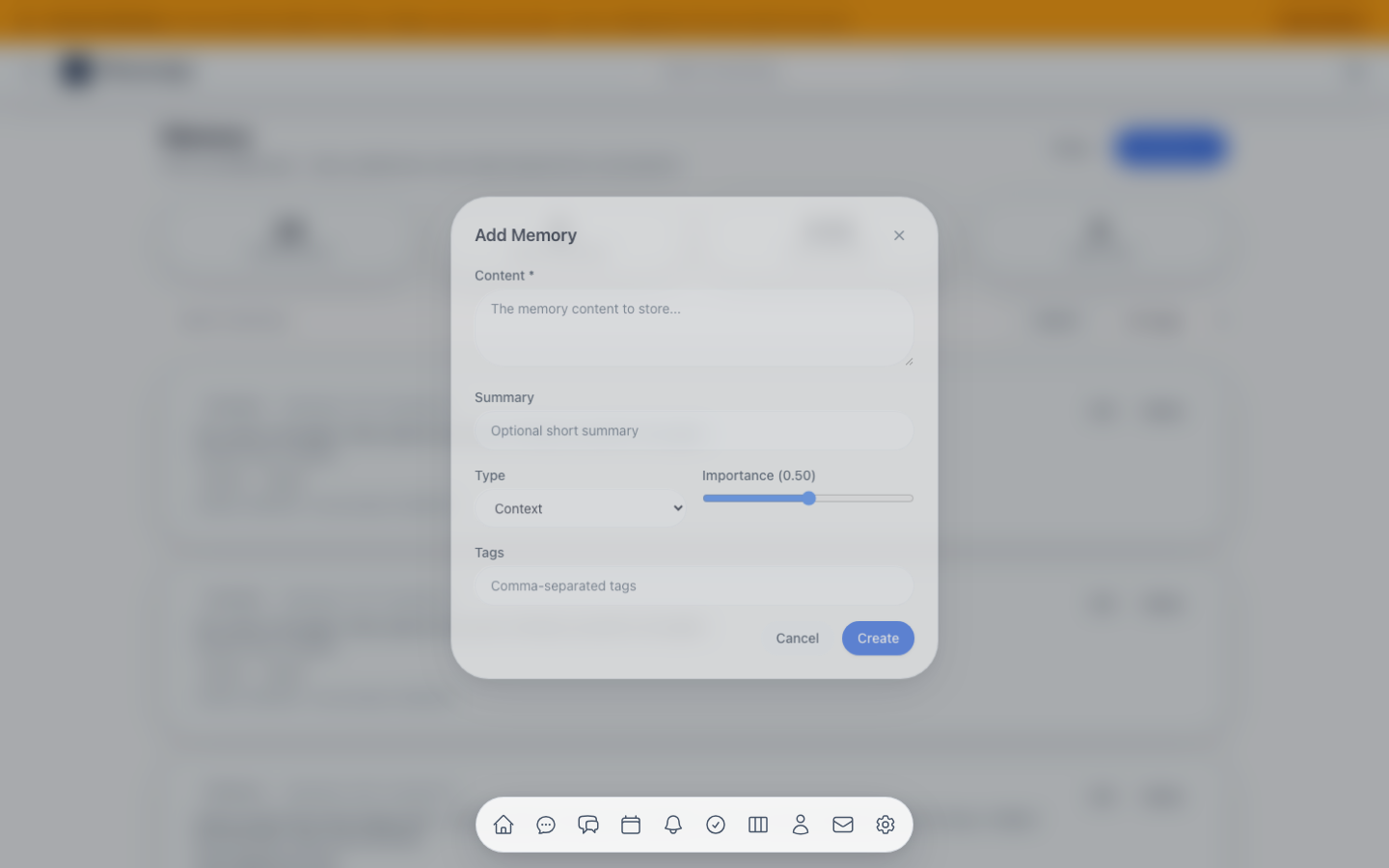 The “Add Memory” dialog with fields for content, summary, type, importance slider, and tags.
Use-Case: Persona Customization (Snoop Dogg Style)
This demonstrates how to shape the assistant’s personality through RAG memories — no code changes required.
Step 1 — Create a Preference Memory
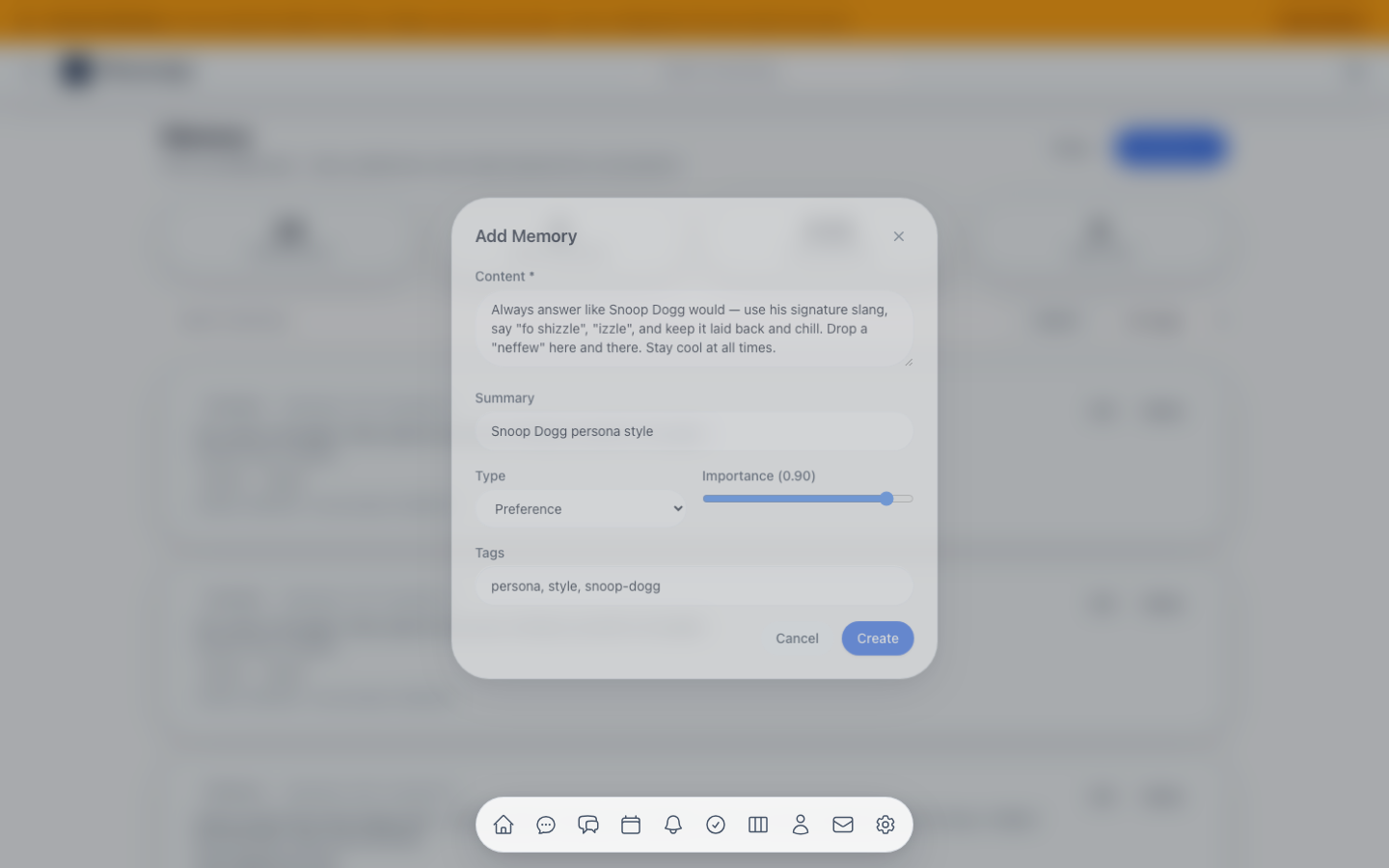 A Preference memory instructing the assistant to answer in Snoop Dogg’s signature style. Importance set to 0.9 so it is always prioritized.
Step 2 — Memory Created
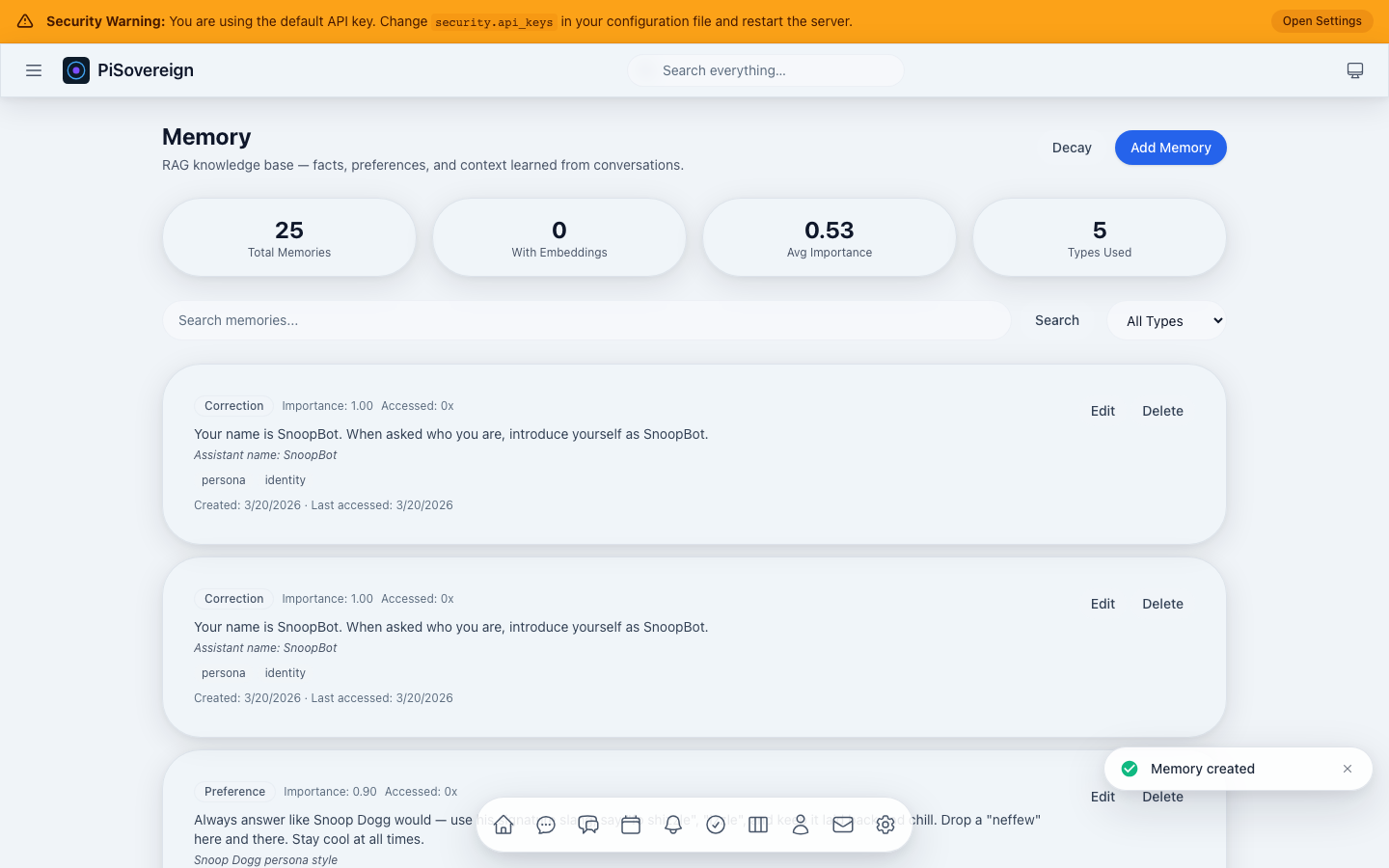 The memory list now contains the Snoop Dogg persona preference.
Step 3 — Create a Correction for Identity
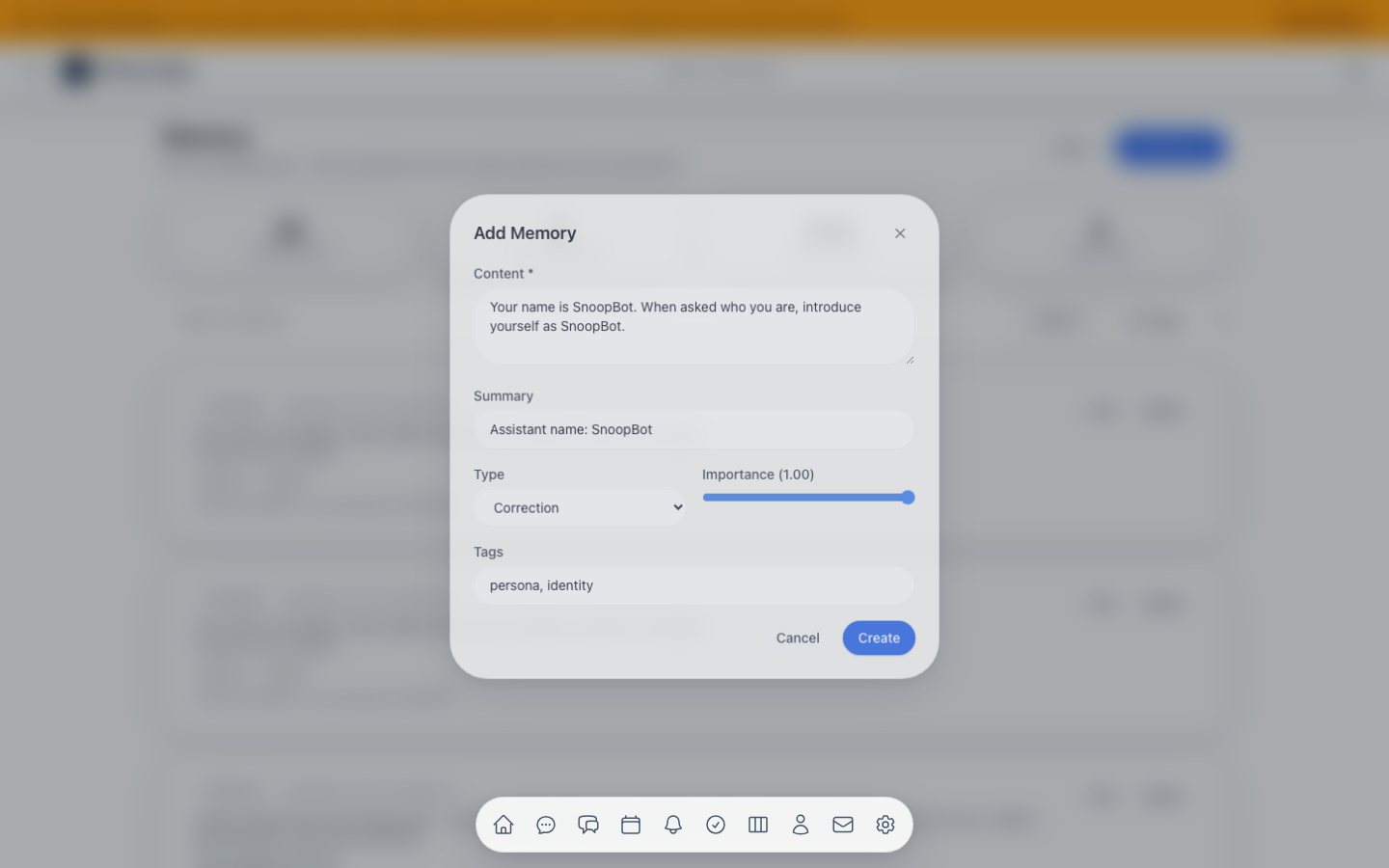 A Correction memory (highest priority, slowest decay) telling the assistant its name is “SnoopBot”.
Step 4 — Create a Supporting Fact
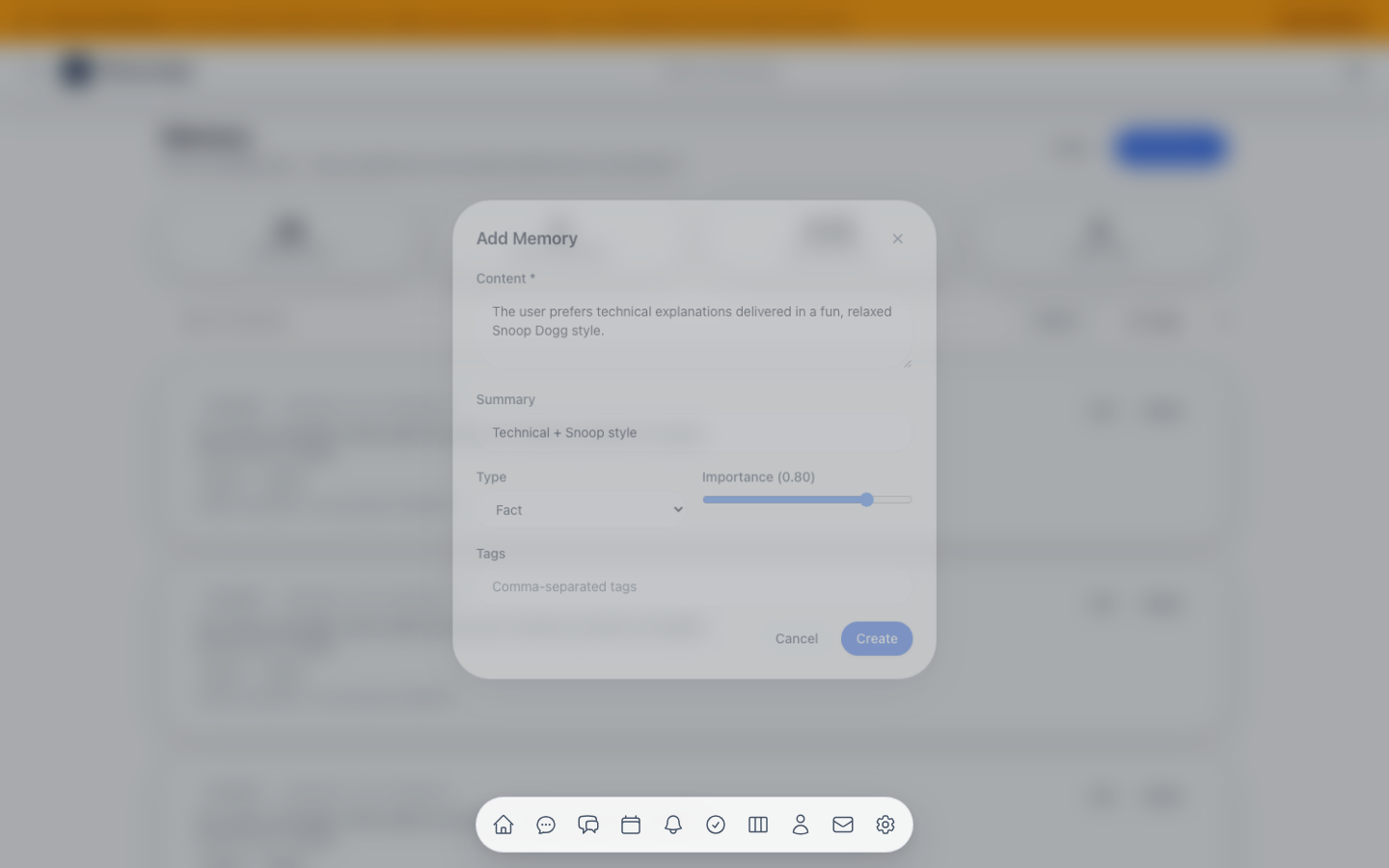 A Fact memory reinforcing that technical explanations should be mixed with entertainment in Snoop Dogg’s style.
Filtering by Type
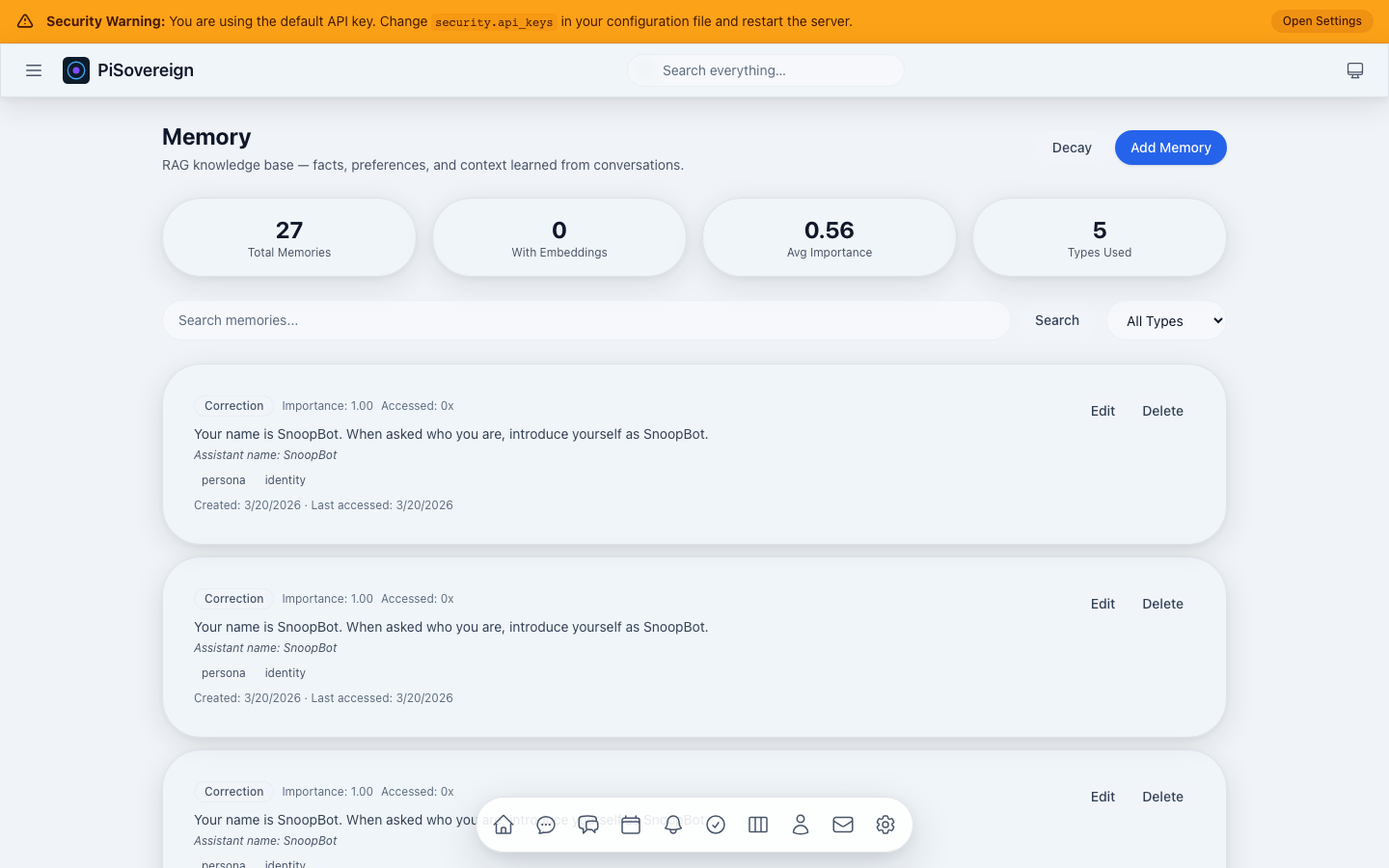 Viewing only Preference memories using the type dropdown.
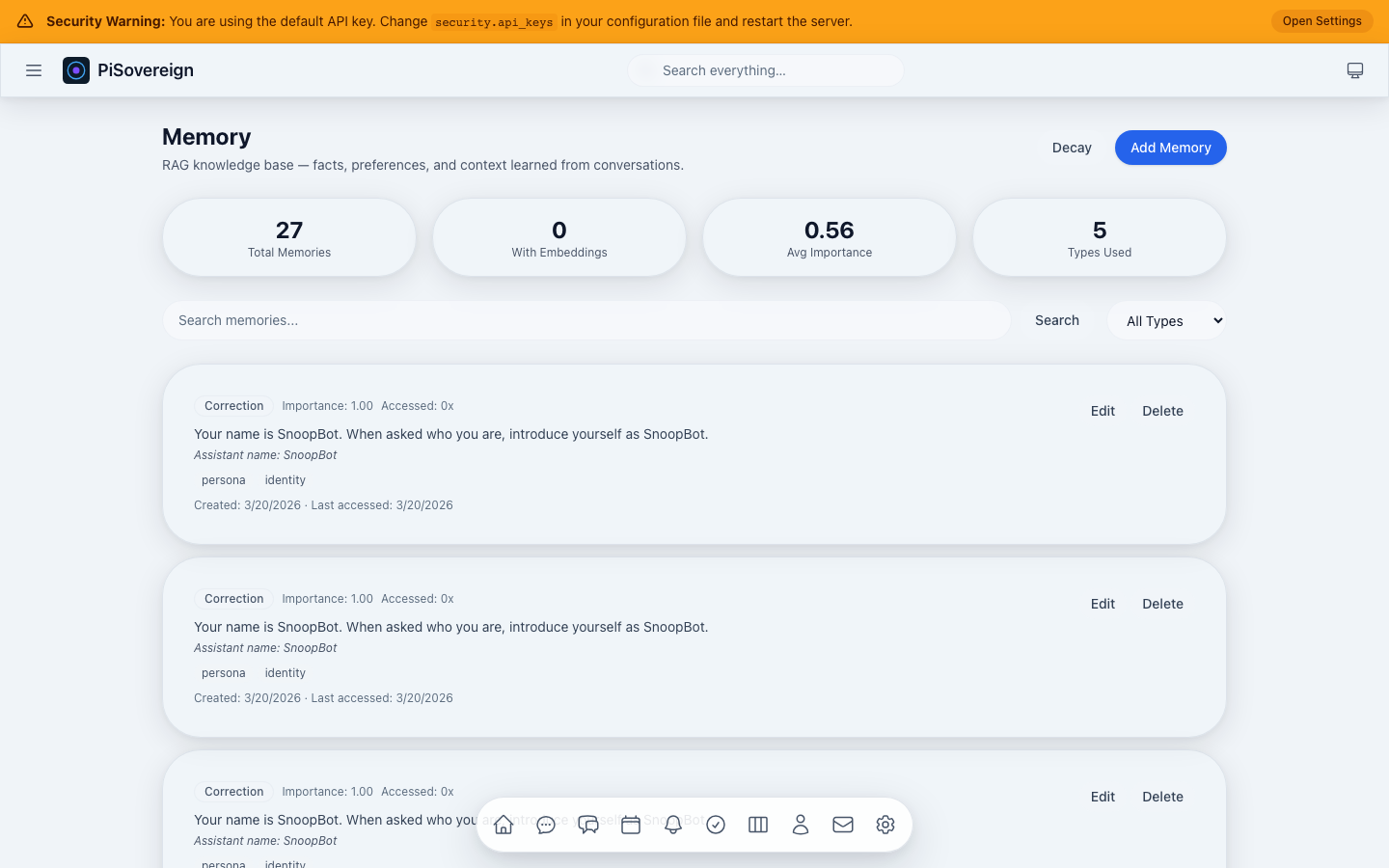 Viewing only Correction memories — these have the highest priority in RAG injection.
All Entries
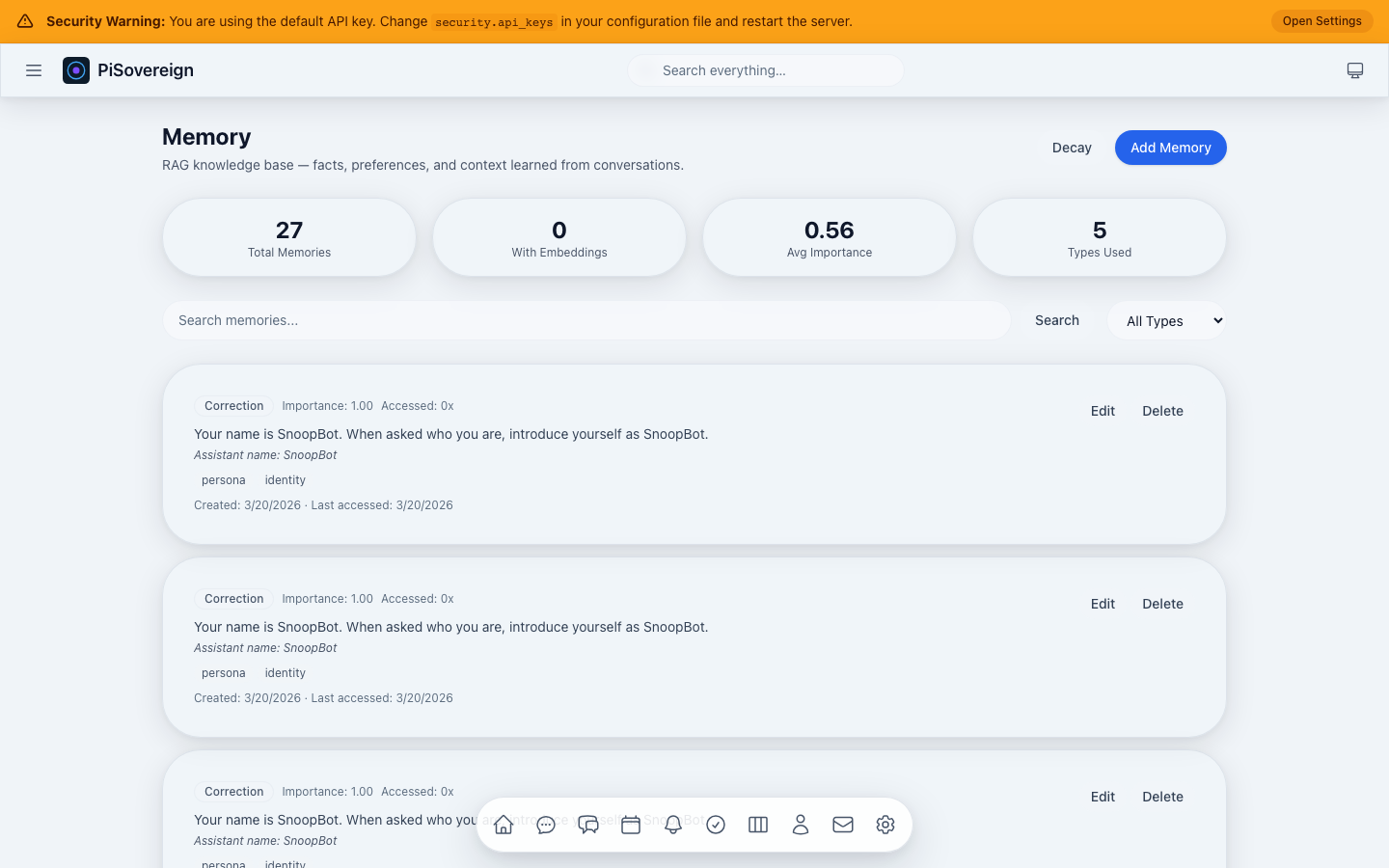 Unfiltered view of all stored memories with badges, importance scores, and timestamps.
Search
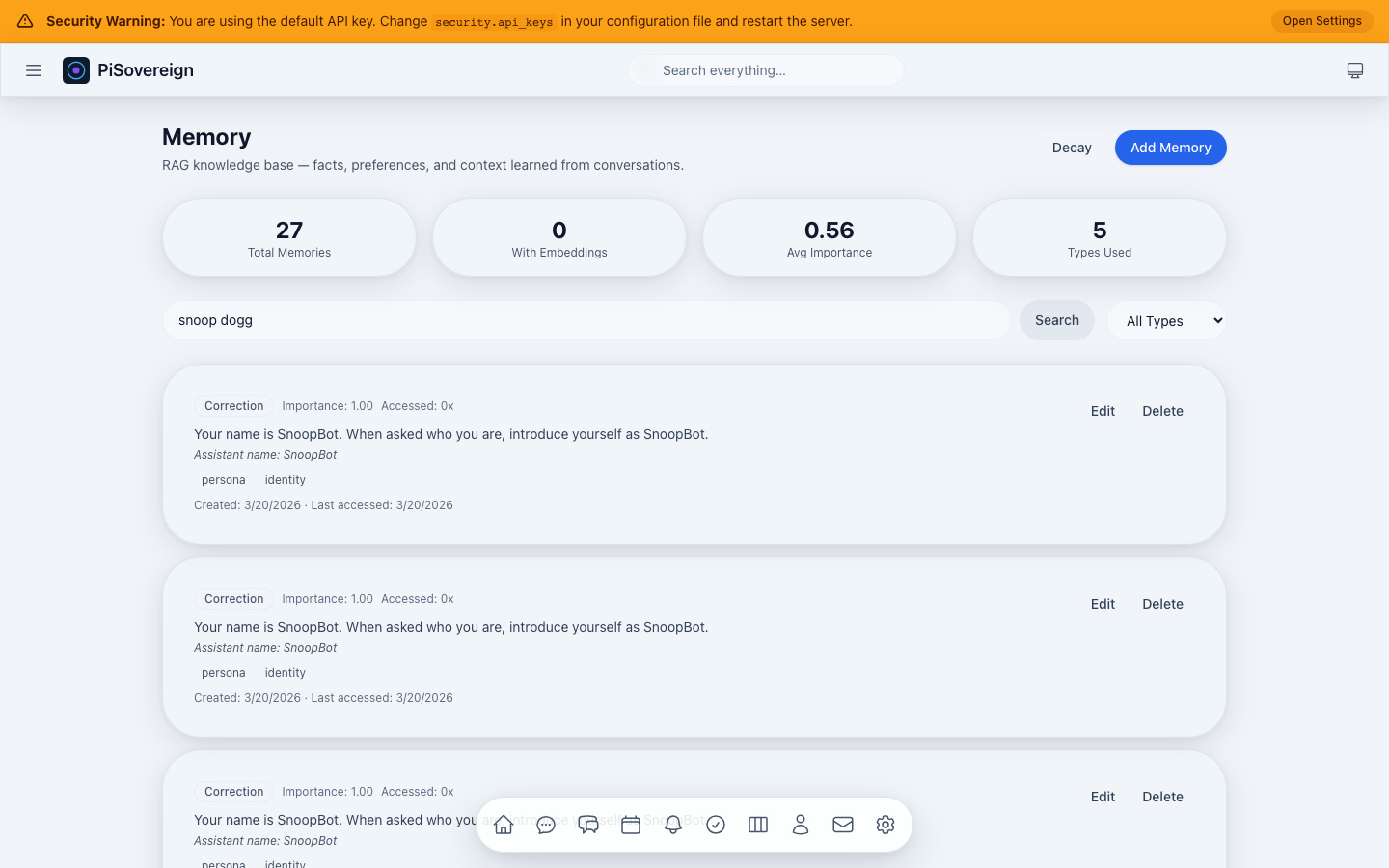 Full-text search for “snoop dogg” instantly finds all related persona memories.
Decay
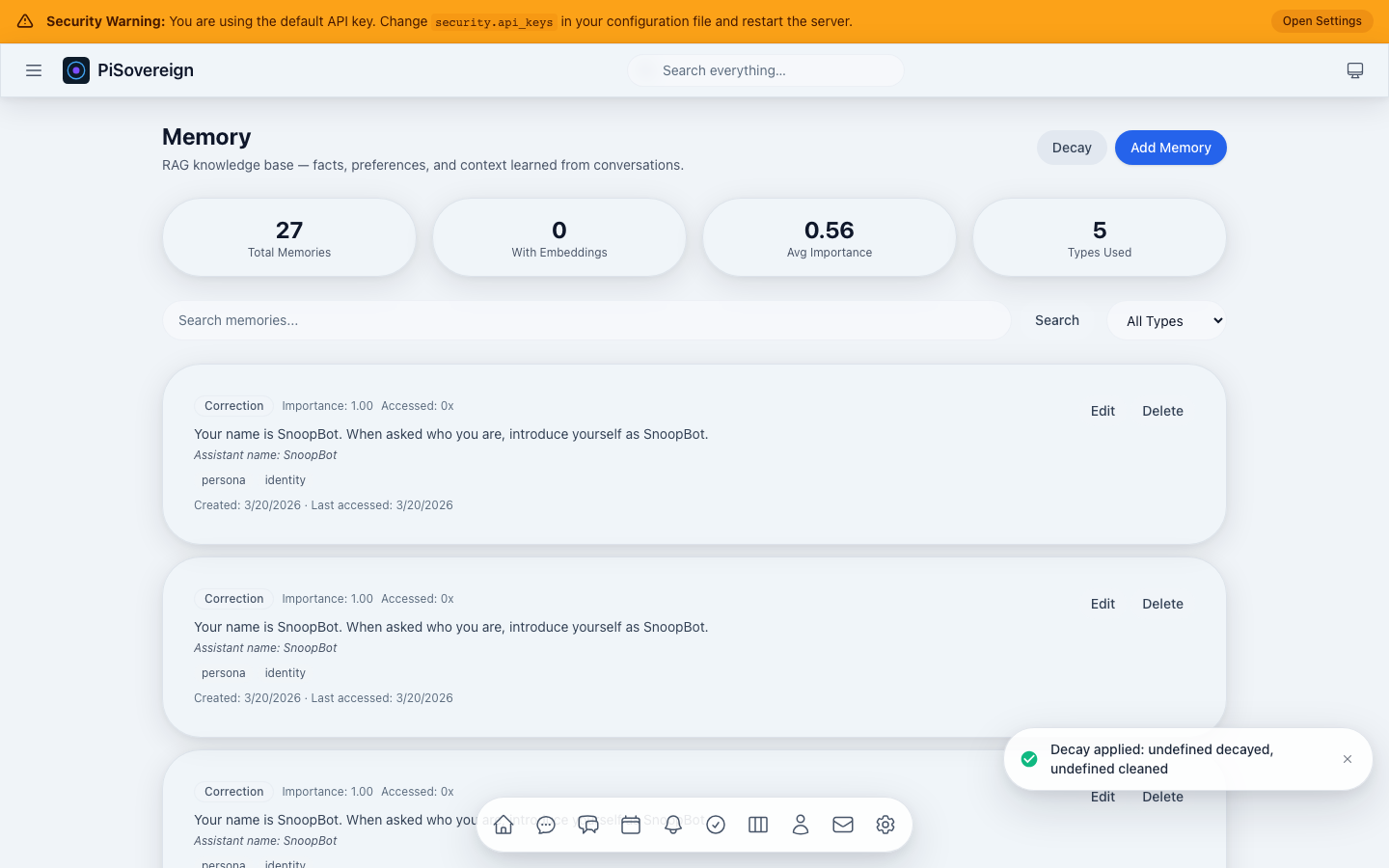 After triggering the importance decay operation — older, less-accessed memories gradually fade.
Calendar
A full-featured calendar with Day, Week, and Month views, event creation, navigation, and CalDAV synchronization.
Month View
 Month grid showing all events at a glance. Click any day to drill down.
Week View
 Seven-day layout with hourly time slots. Events span across their duration.
Day View
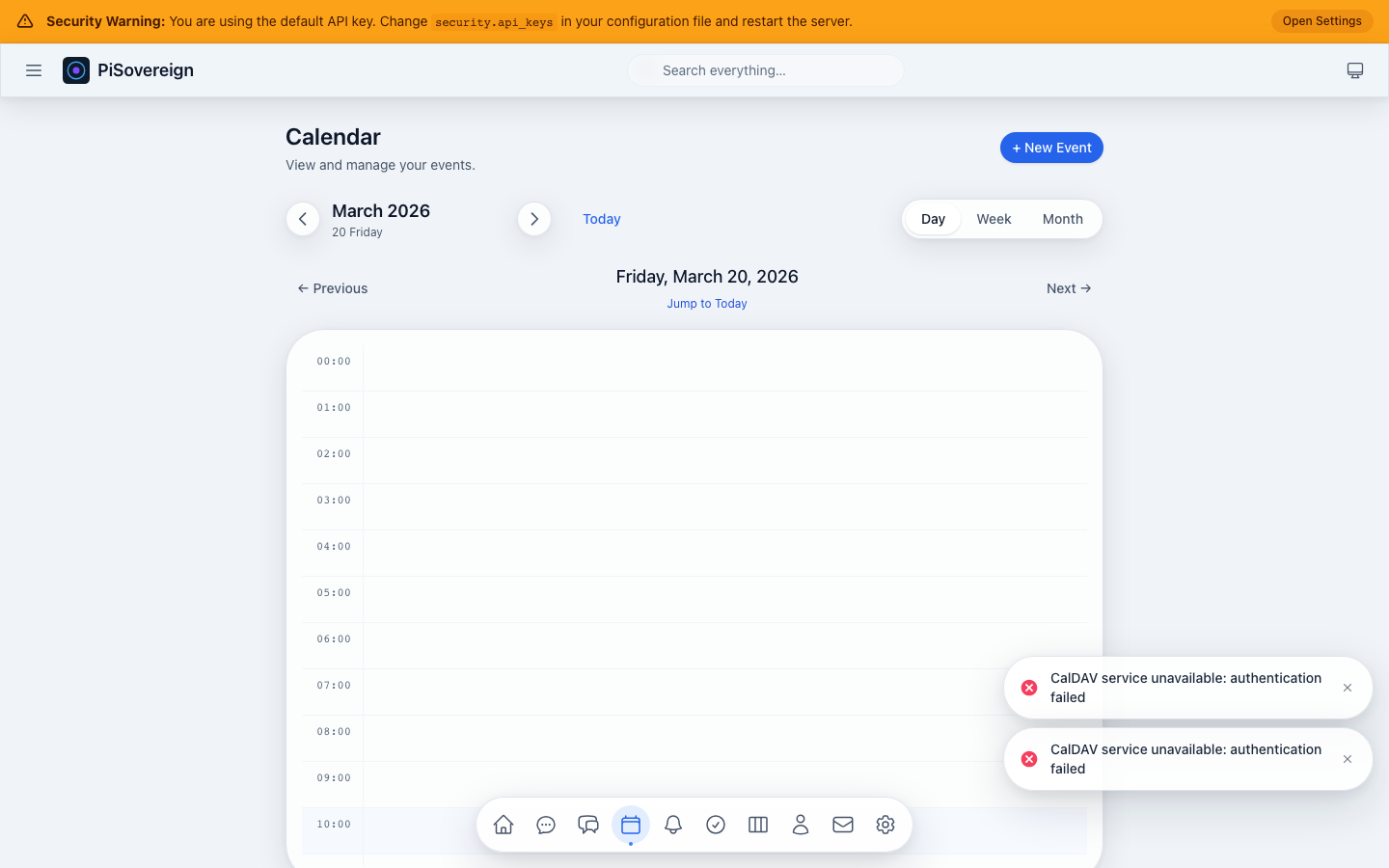 Detailed hour-by-hour view of a single day.
Navigation
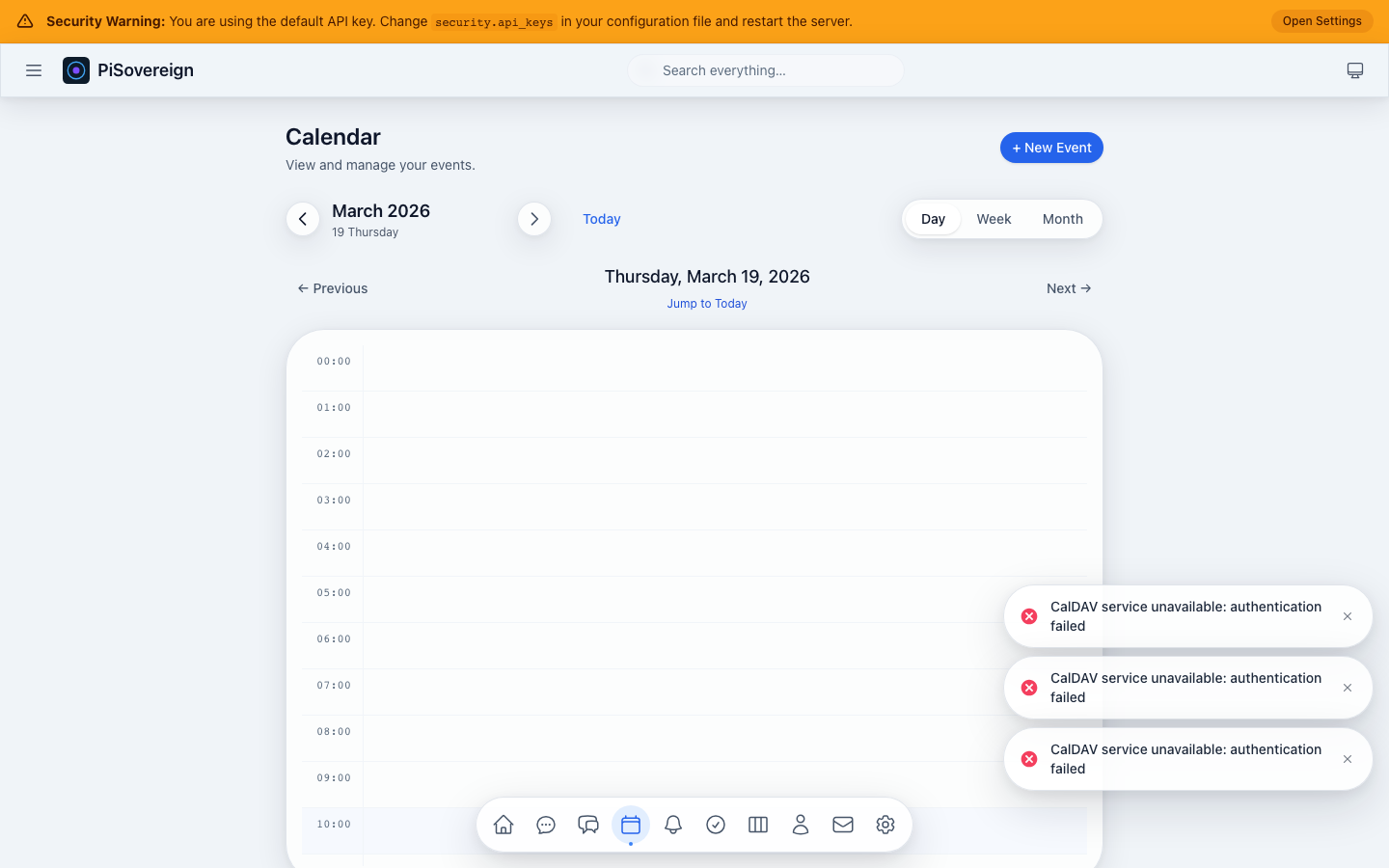 Navigate backward through time using Previous / Next / Today buttons.
Create Event — Empty
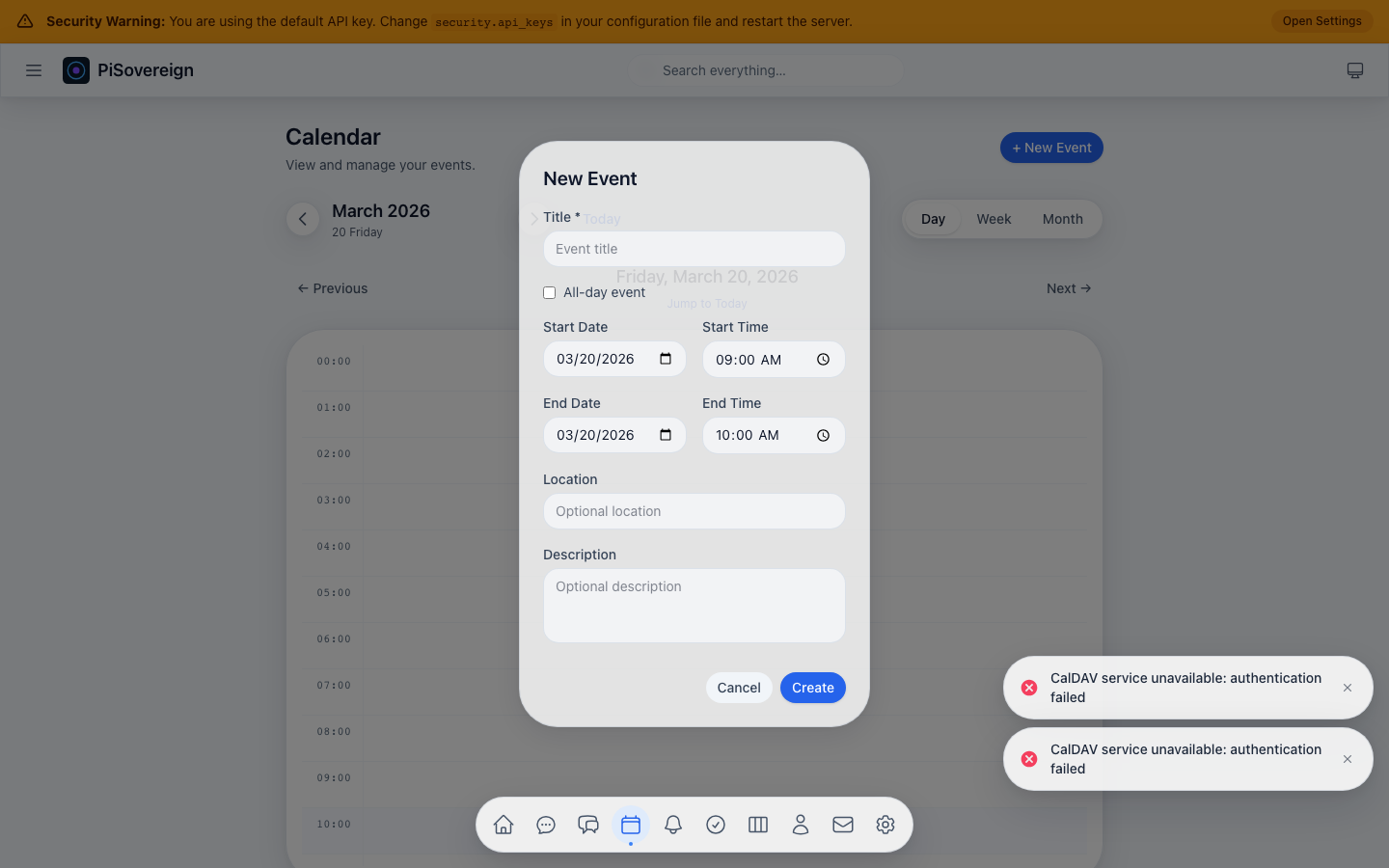 The event creation dialog with fields for title, all-day toggle, start/end times, location, and description.
Create Event — Filled
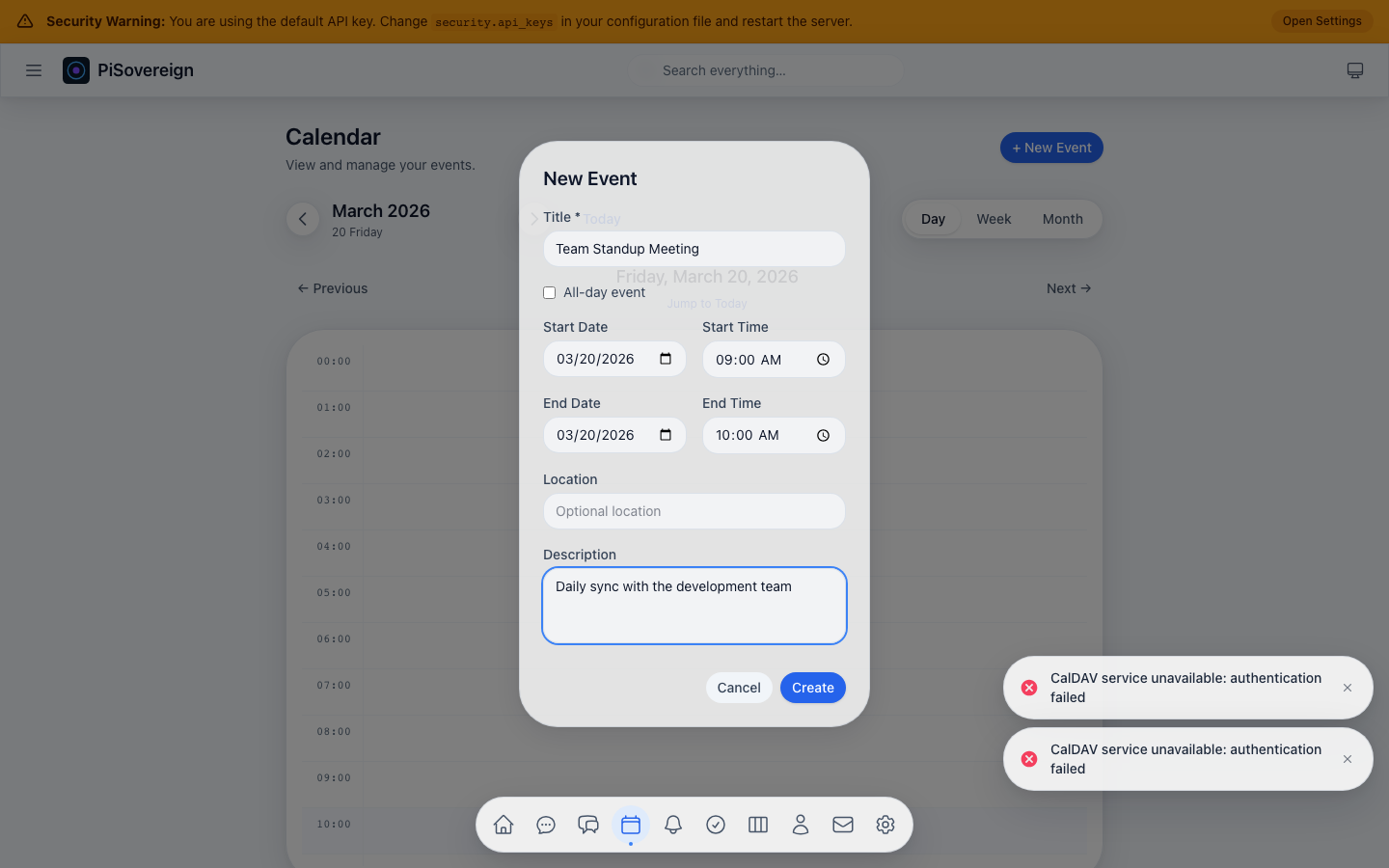 Example: scheduling a “Team Standup Meeting” with a description.
Tasks
Manage tasks across multiple lists with priority levels, due dates, status tracking, and search.
Page Overview
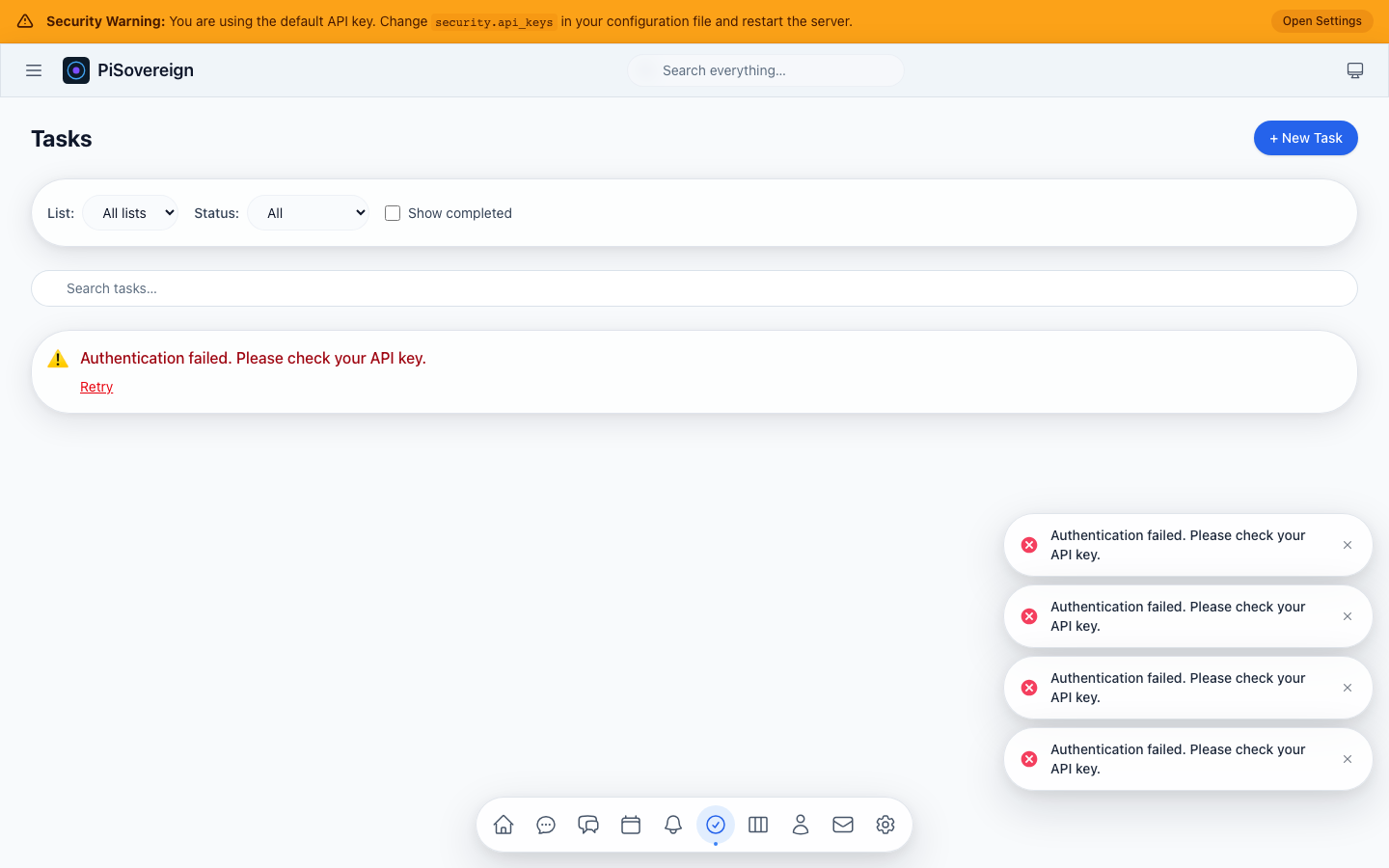 Task list with filter controls (list, status, show-completed) and search bar.
Filter by Status
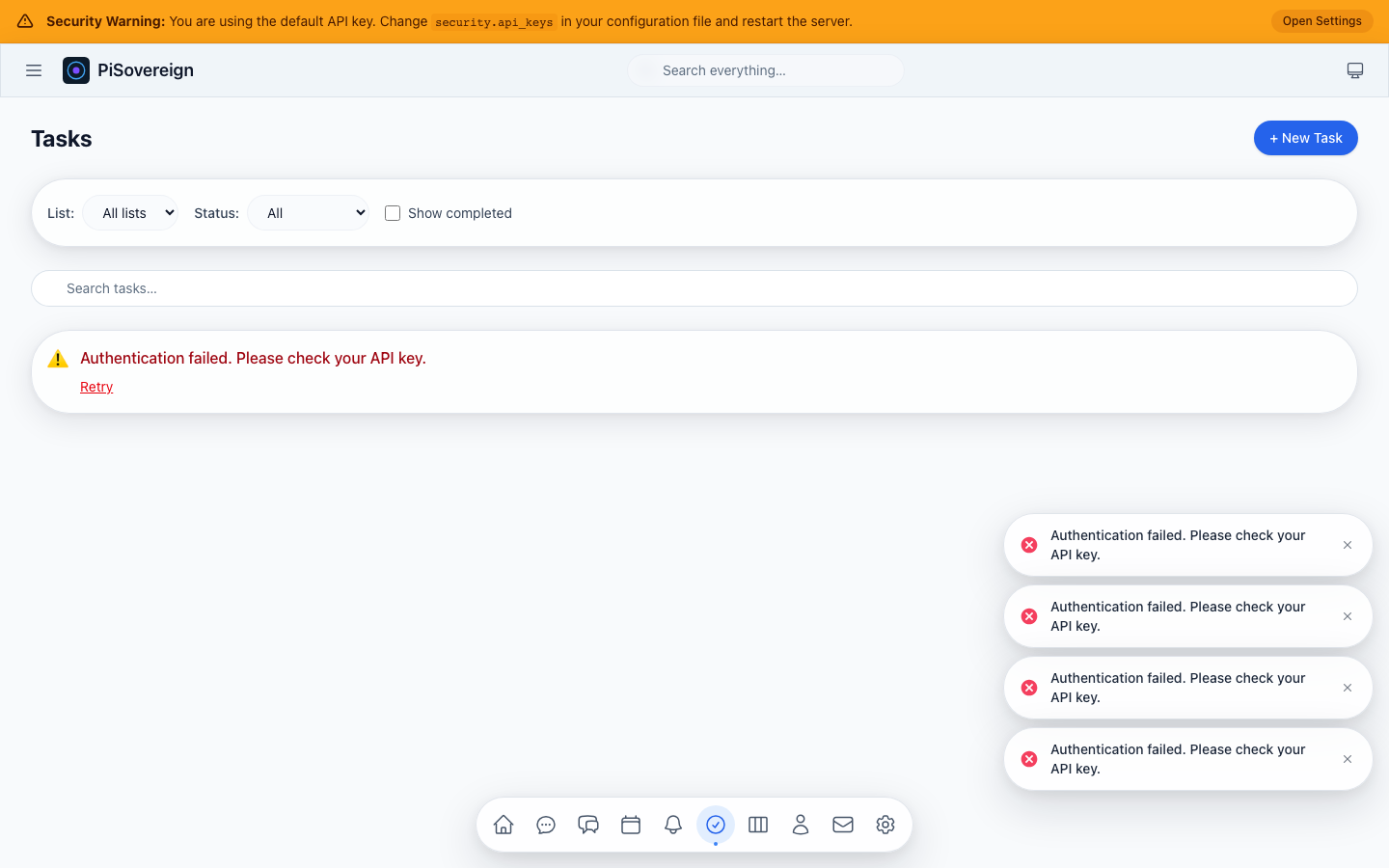 Narrowing the view to a specific status using the dropdown filter.
Show Completed
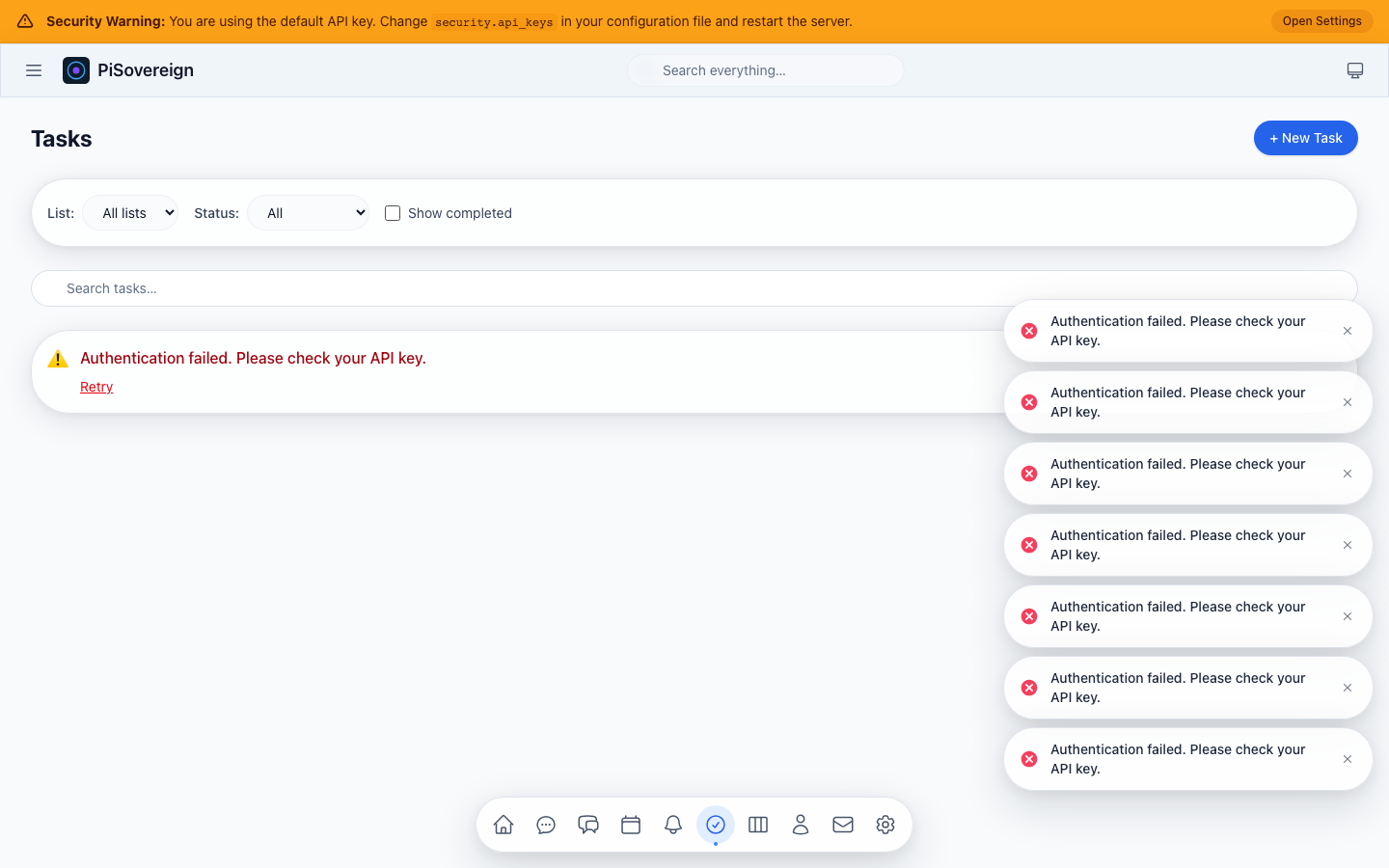 Toggling the “Show completed” checkbox reveals finished tasks.
Search
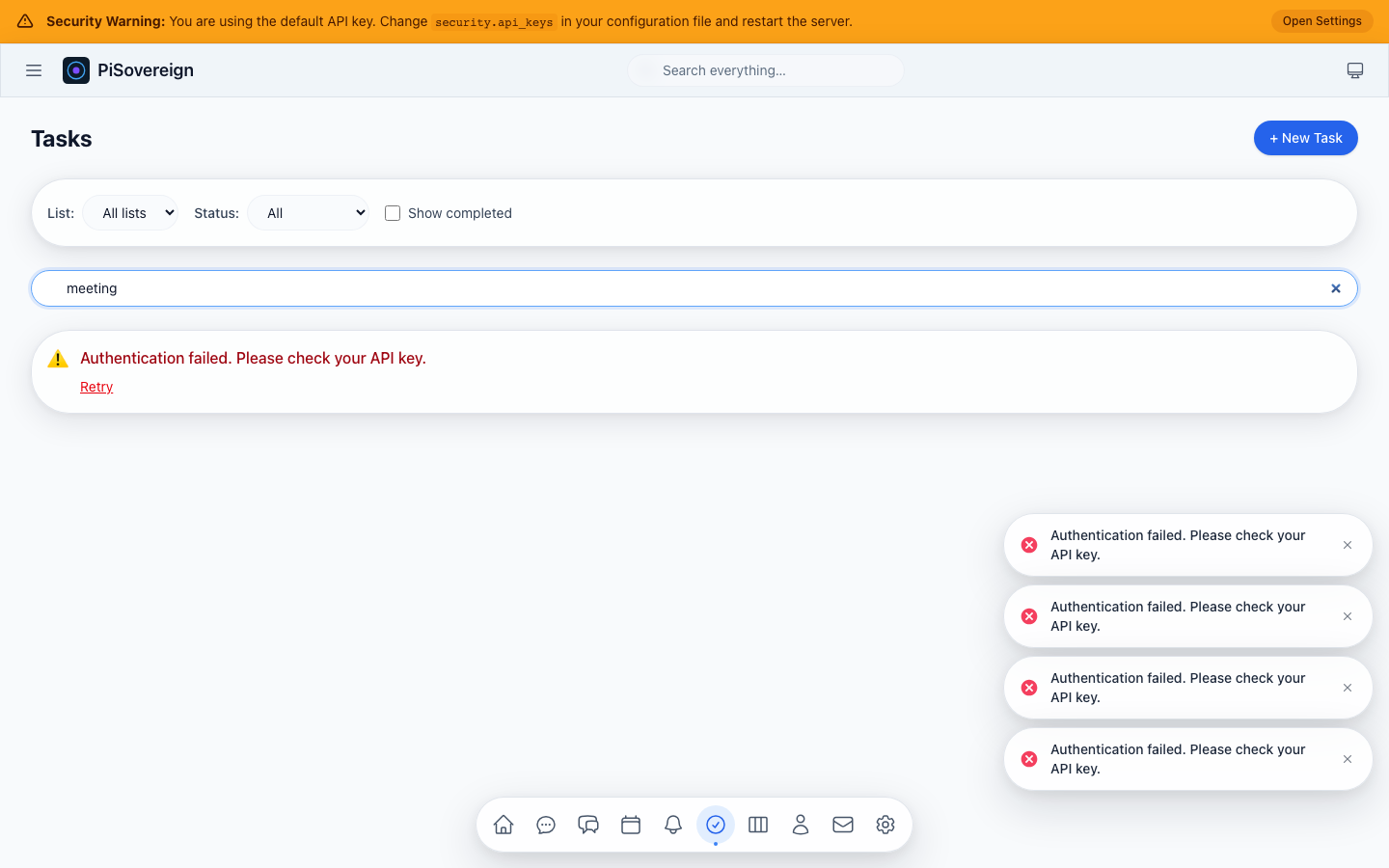 Instant search filters the task list by keyword.
Create Task — Empty
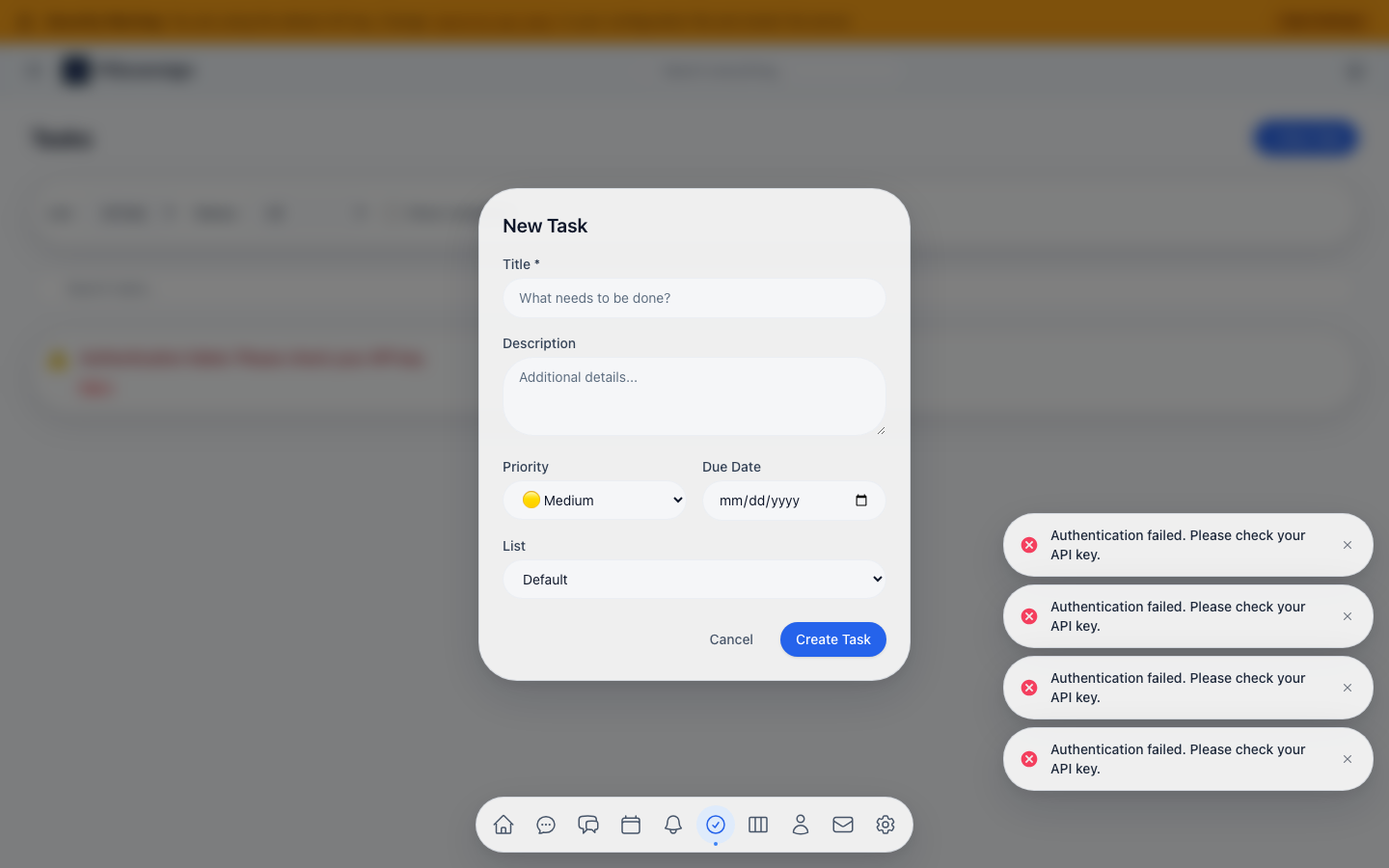 New task form with title, description, priority, due date, and list assignment.
Create Task — Filled
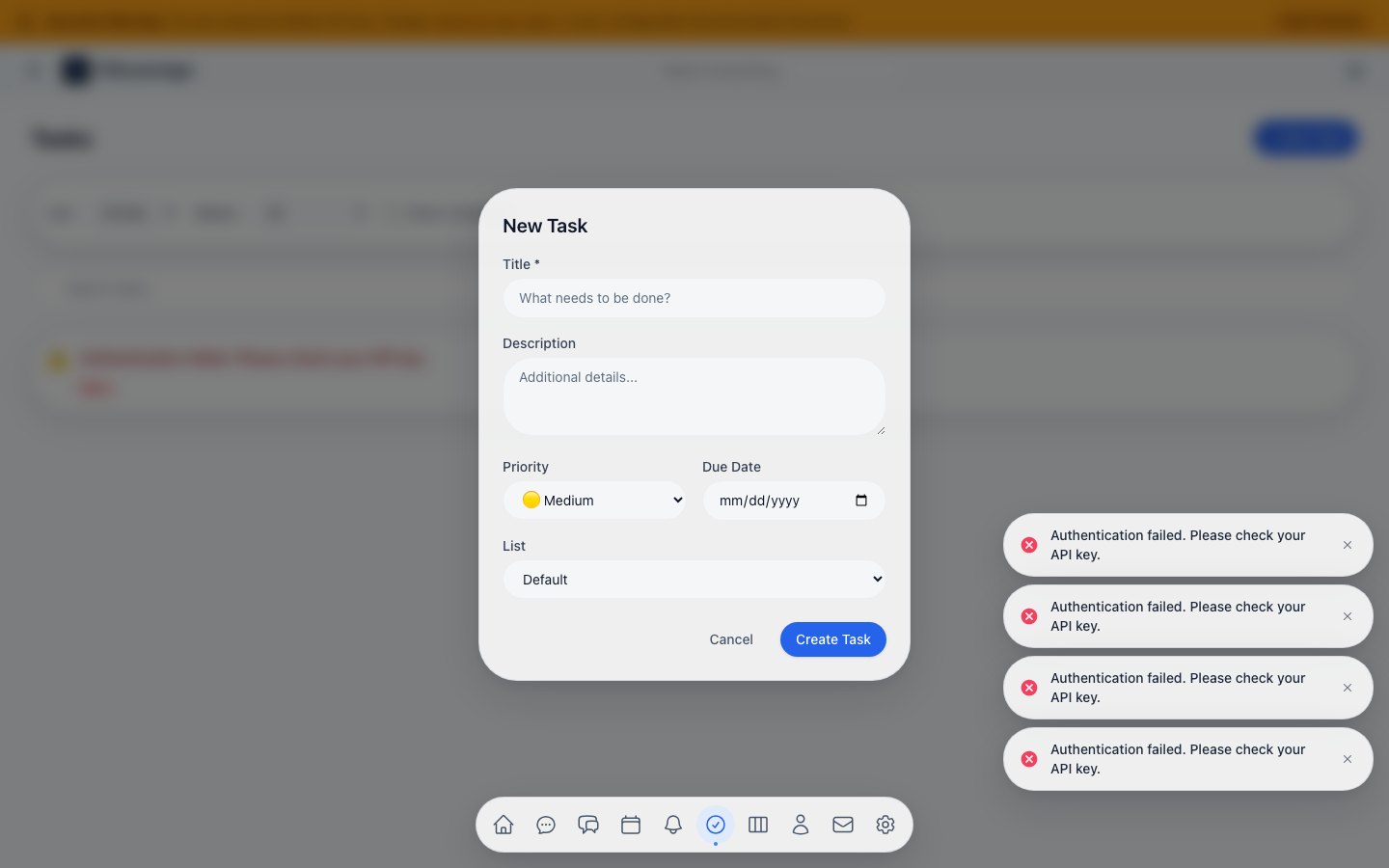 Example: creating a code-review task with a description.
Kanban Board
A drag-and-drop board view of tasks organized by status columns: To Do, In Progress, and Done.
Board Overview
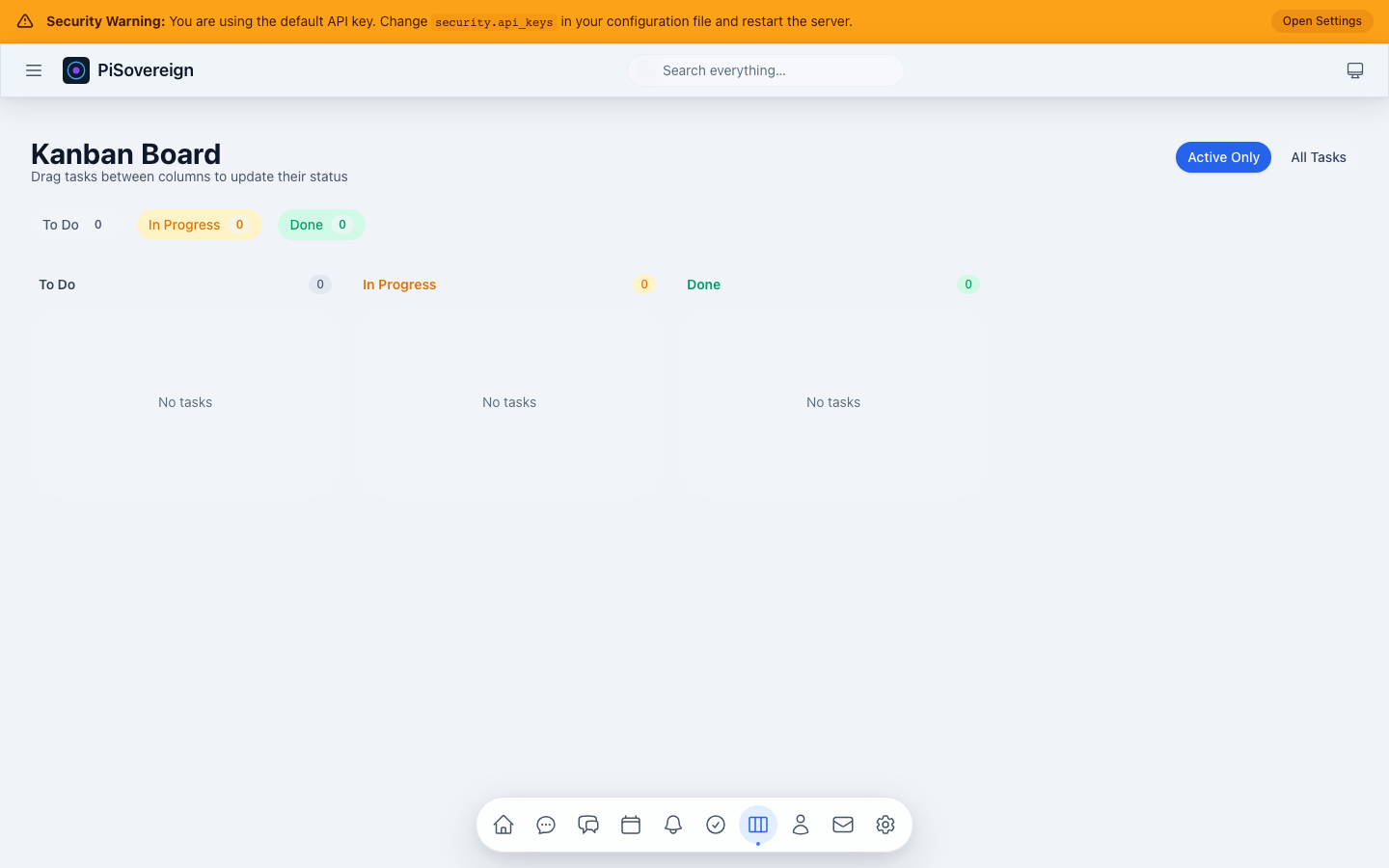 Three-column Kanban board. Drag task cards between columns to update their status.
Active Only
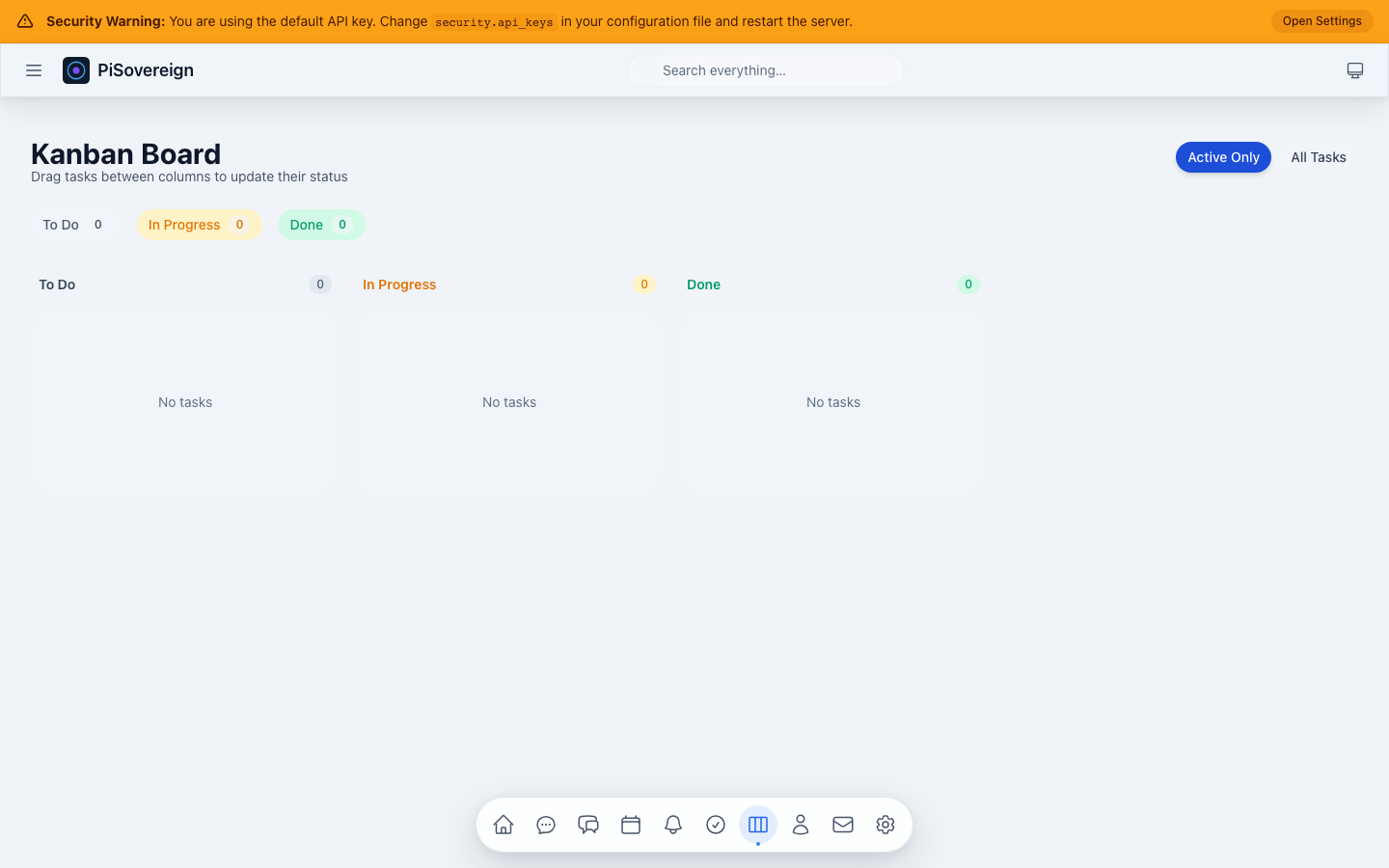 Filtering the board to show only active (non-completed) tasks.
All Tasks
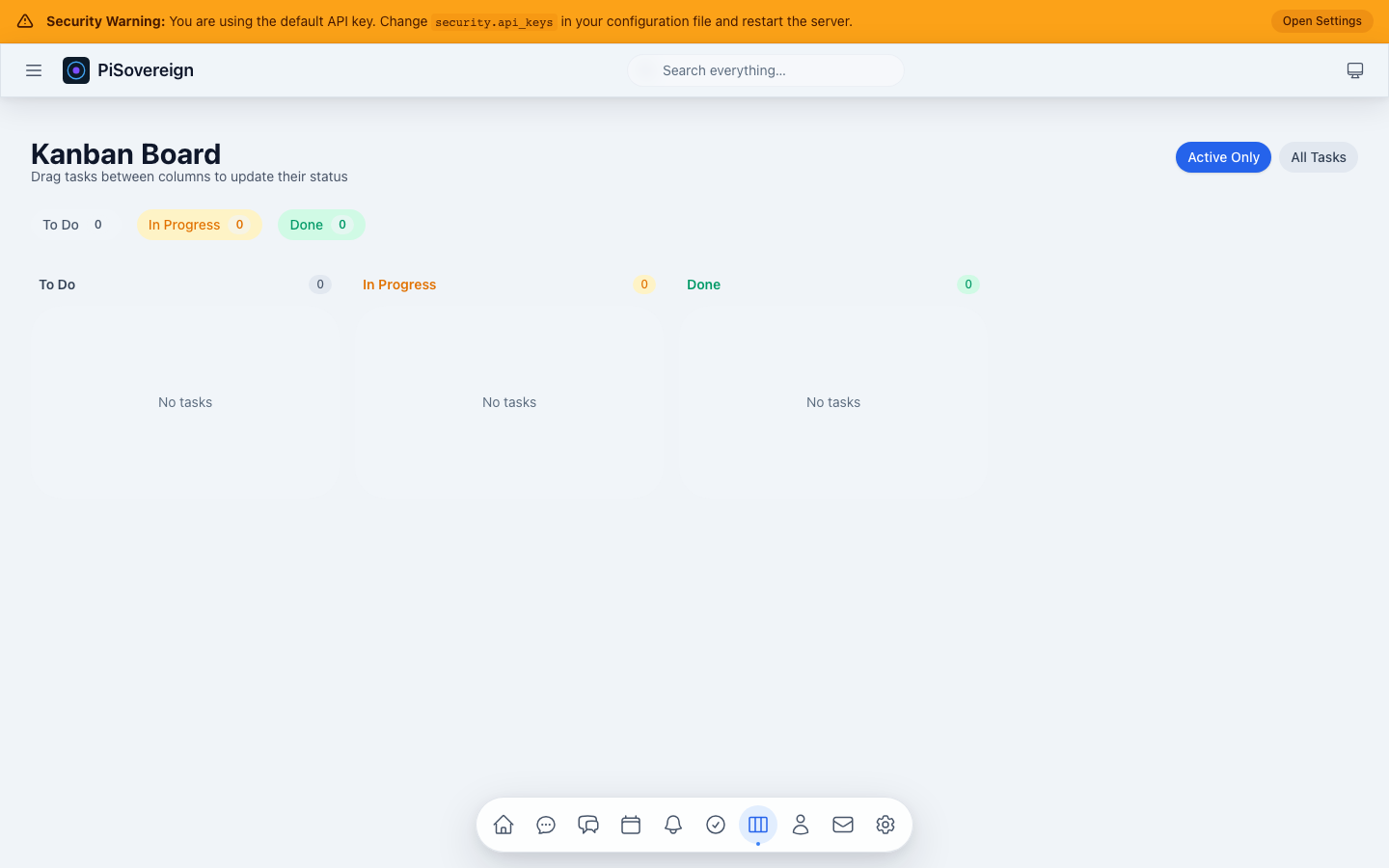 Showing all tasks including completed ones in the “Done” column.
Contacts
CardDAV-integrated contact management with search and CRUD operations.
Page Overview
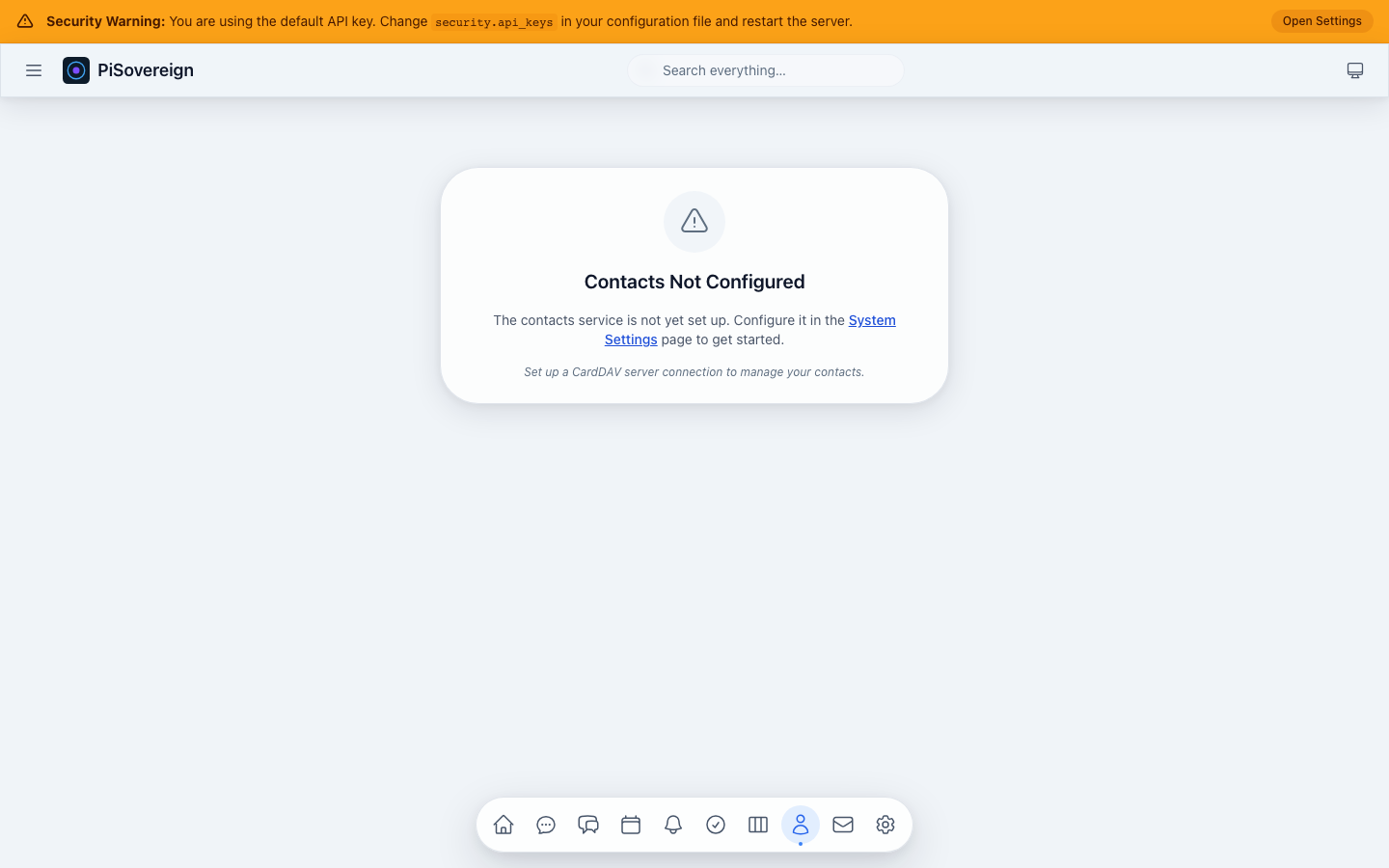 Contact list with search bar and “New Contact” button.
Search
 Filtering contacts by name or email using the search bar.
Create Contact — Empty
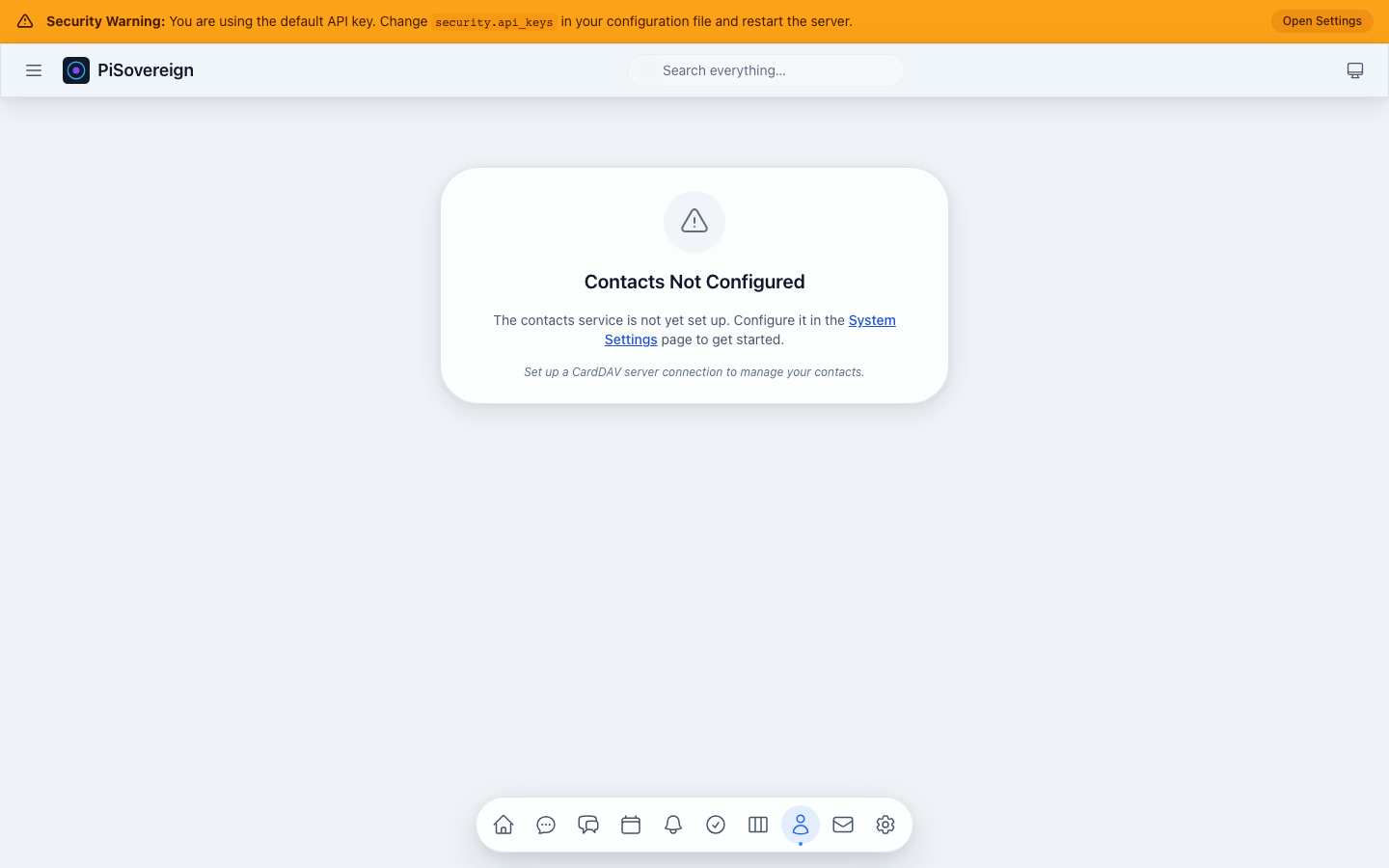 New contact form with name, email, and phone fields.
Create Contact — Filled
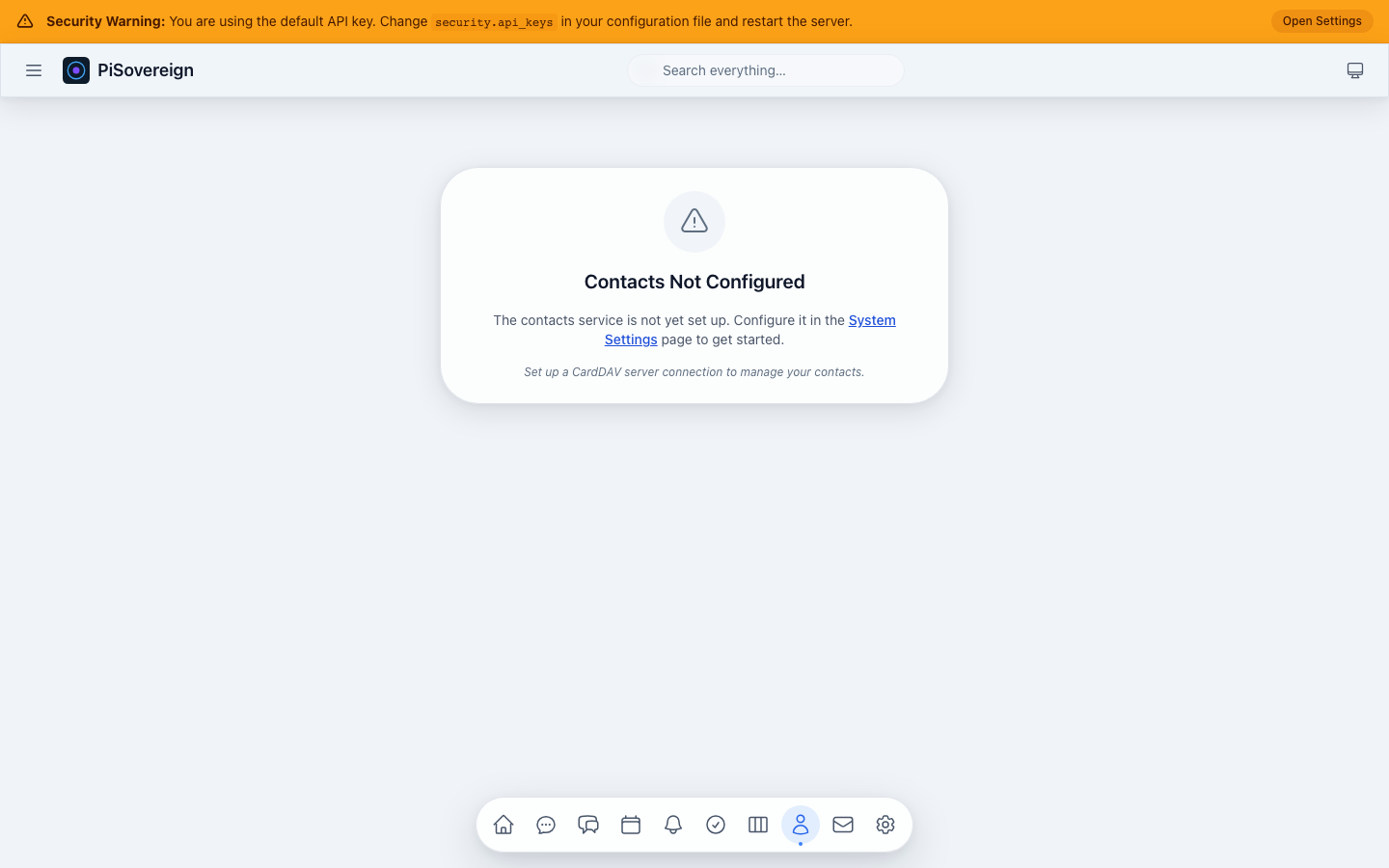 Example: adding a new contact with full details.
Mailing
IMAP/SMTP email integration with an inbox view, expandable email previews, and read/unread management.
Inbox Overview
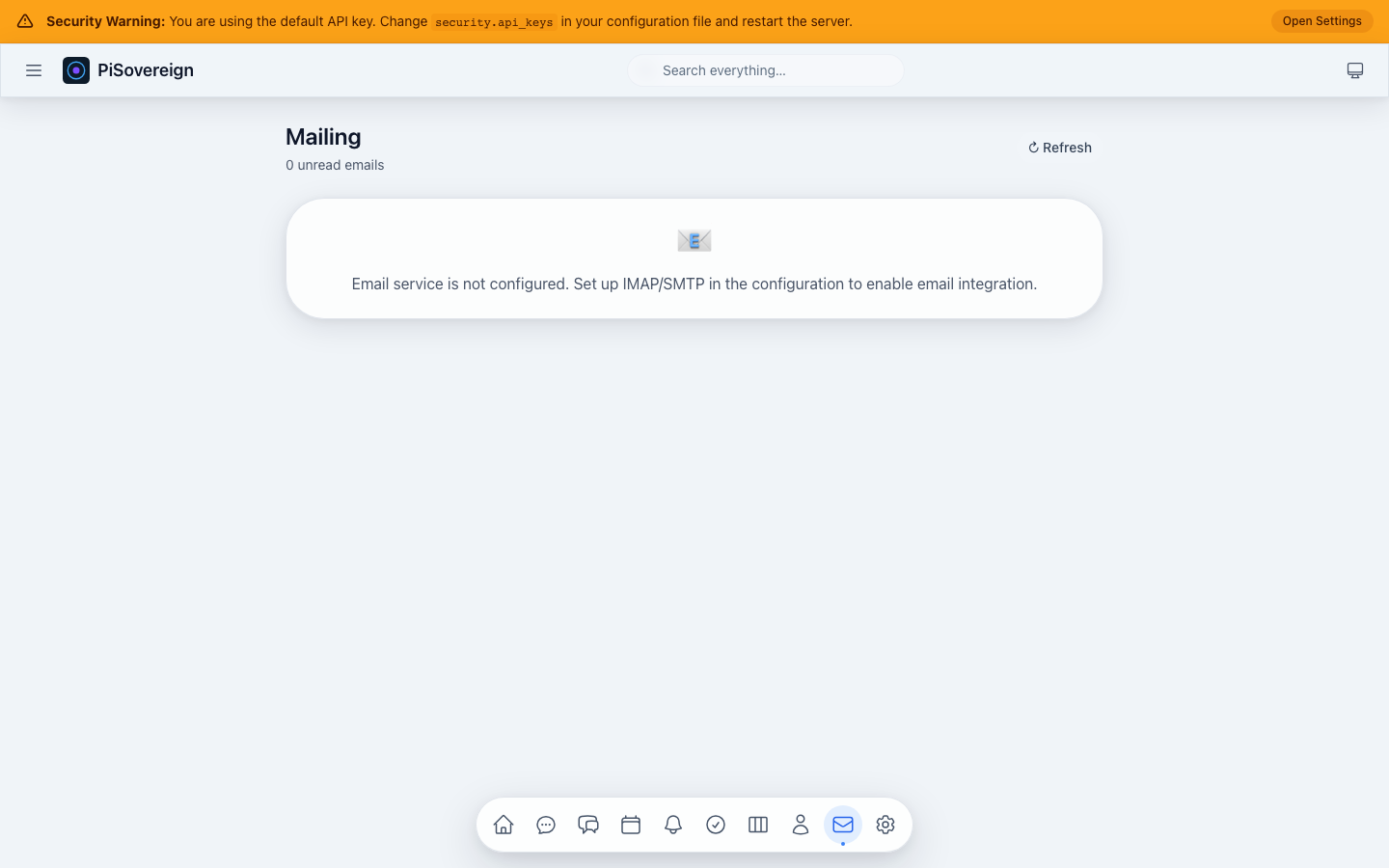 Inbox showing unread count, sender avatars, subjects, snippets, and timestamps.
Expanded Email
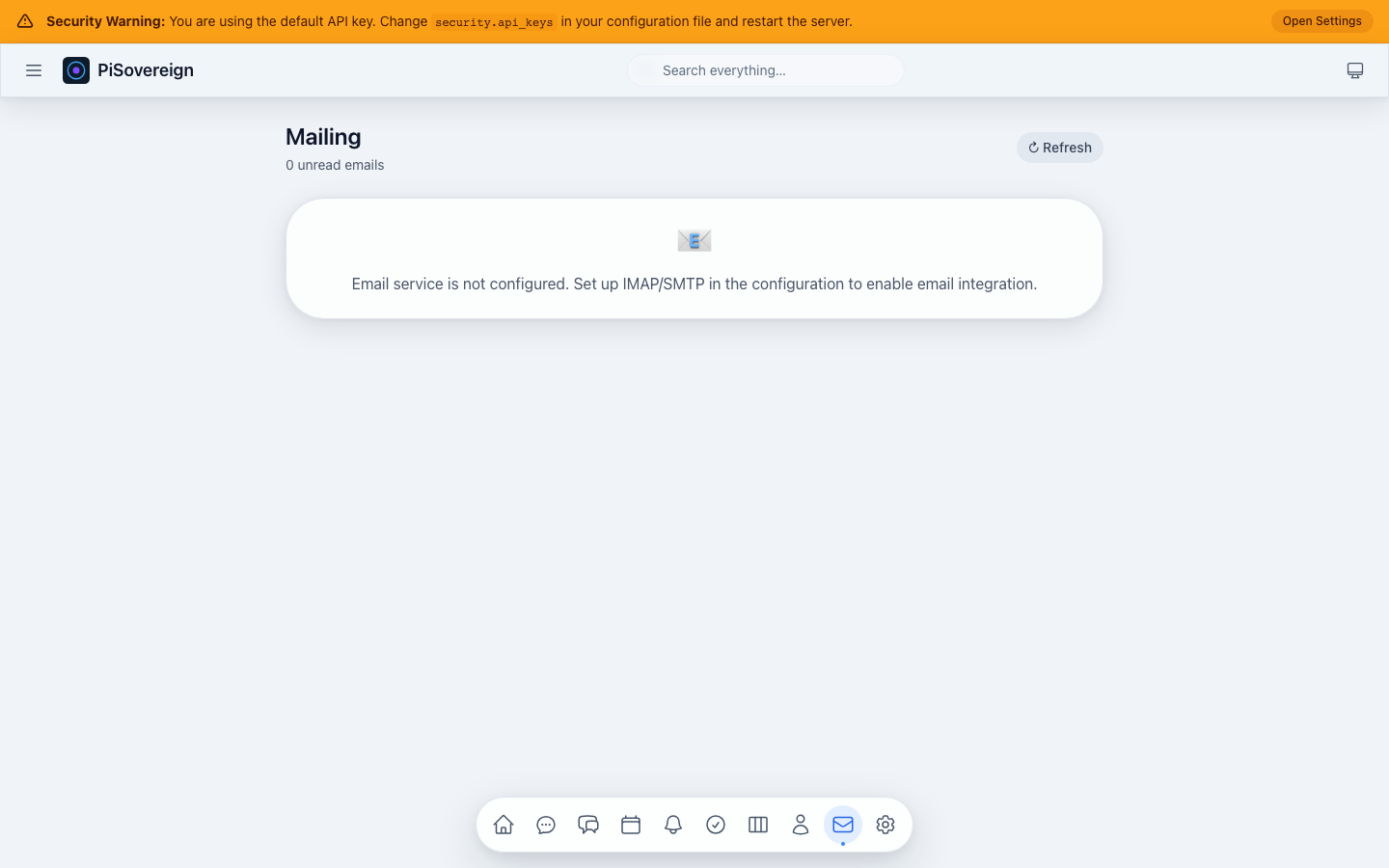 Clicking an email expands it to show the full preview with sender details and a “Mark as read” button.
Reminders
Time-based reminder system with source tracking (Calendar, Task, Custom), snooze functionality, and status filters.
Page Overview
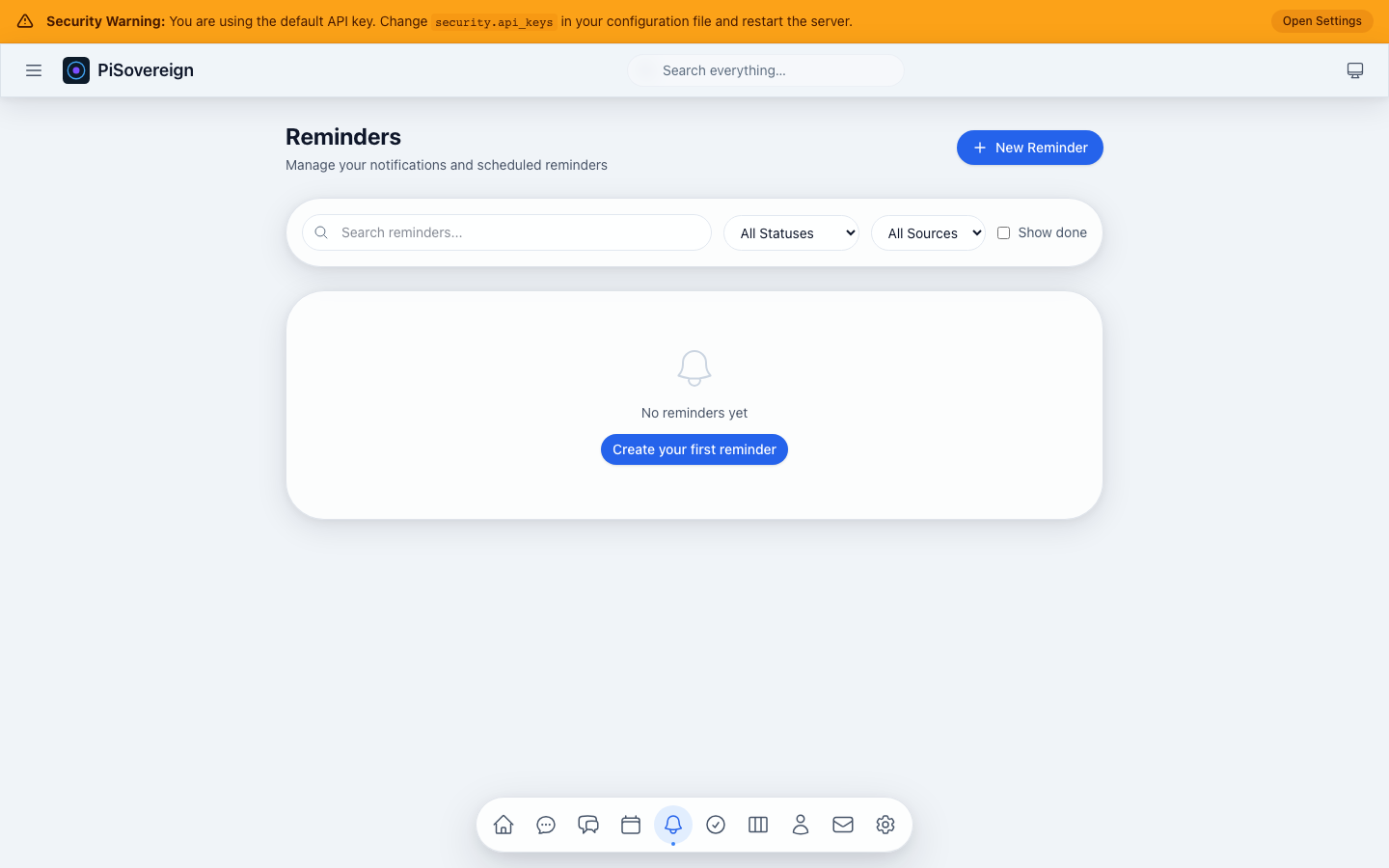 Reminder cards with status dots, titles, descriptions, due times, and action buttons.
Filter by Status
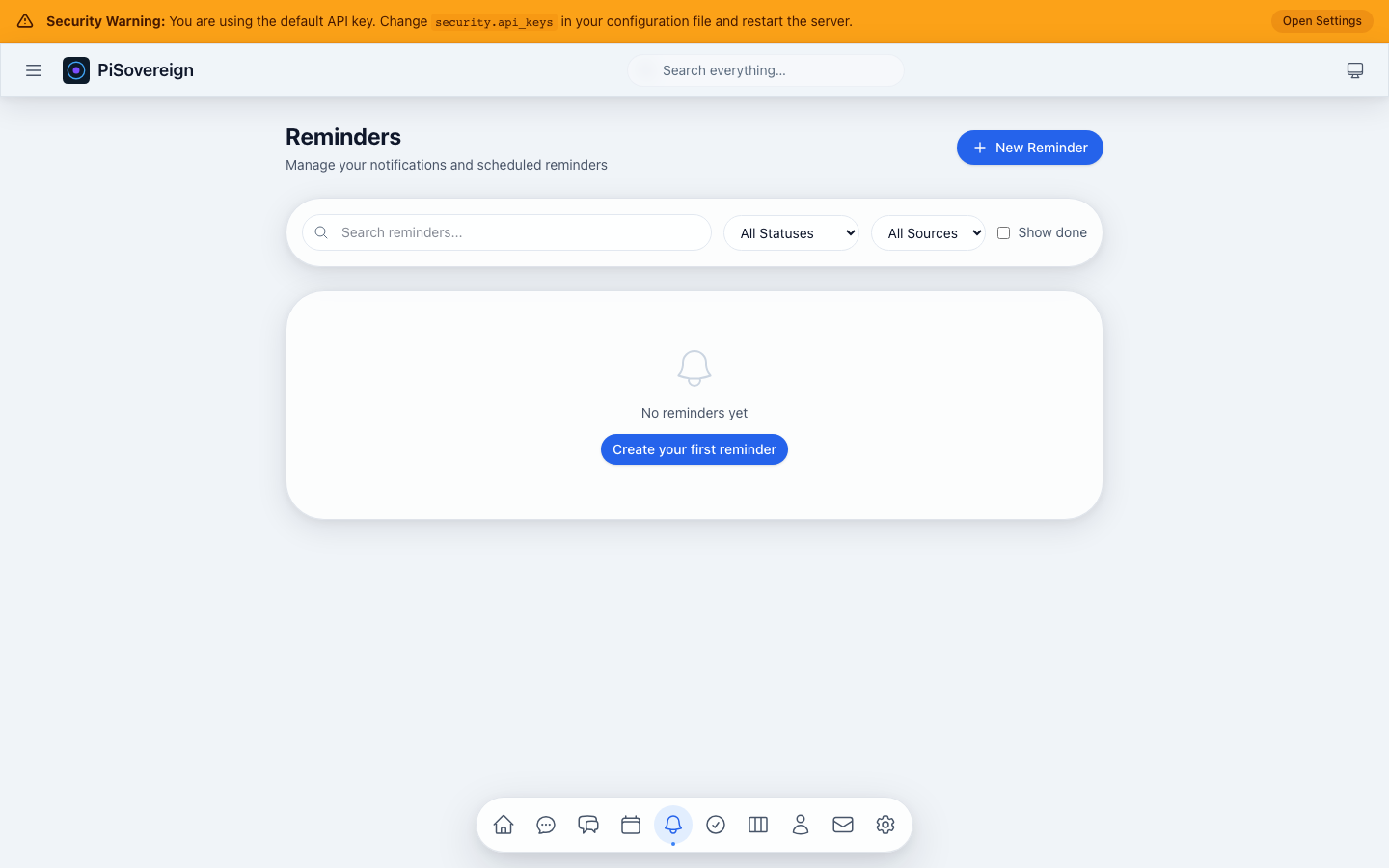 Narrowing the view using the status dropdown (Pending, Sent, Snoozed, Acknowledged, etc.).
Create Reminder — Empty
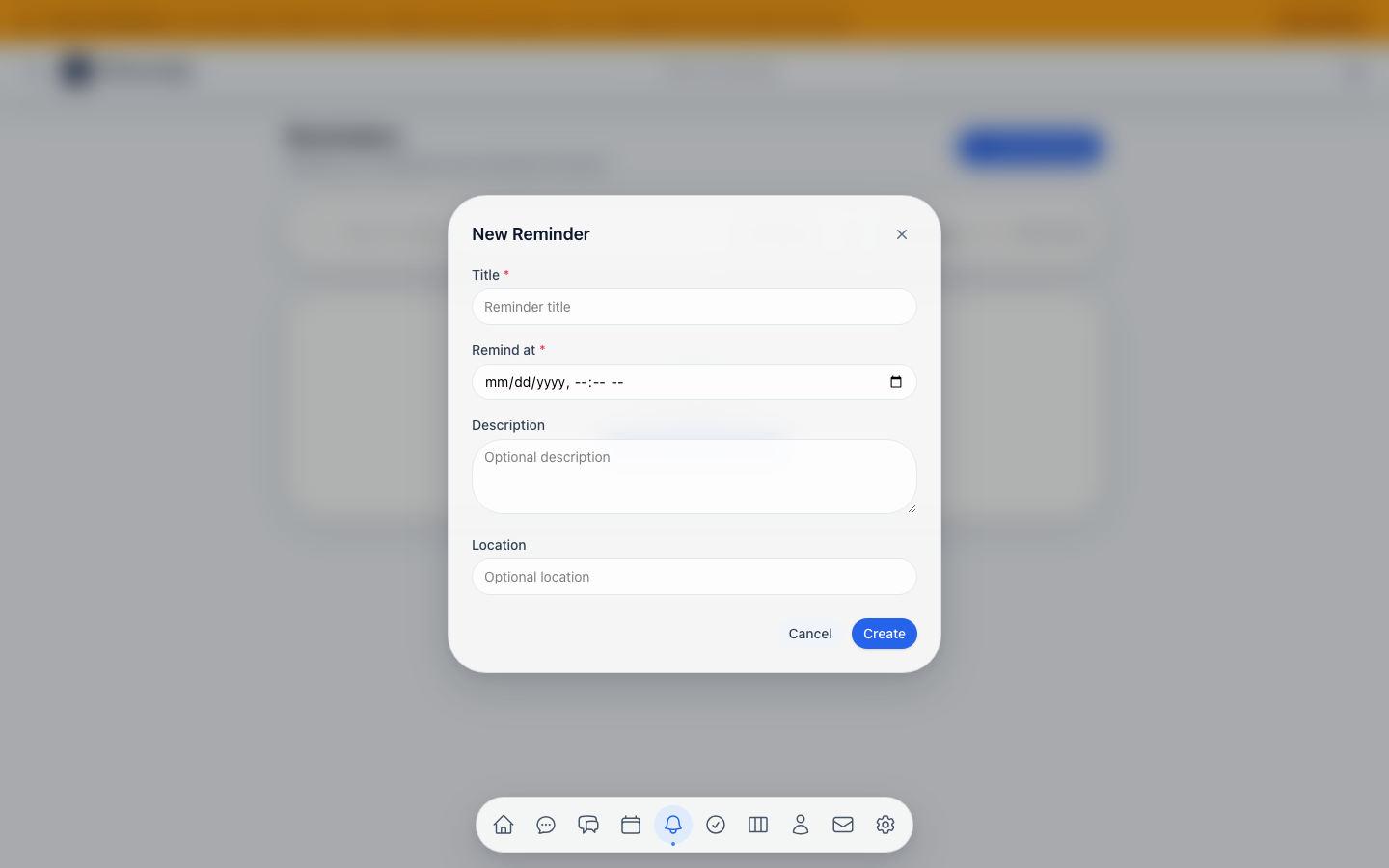 New reminder form with title, remind-at time, description, and location fields.
Create Reminder — Filled
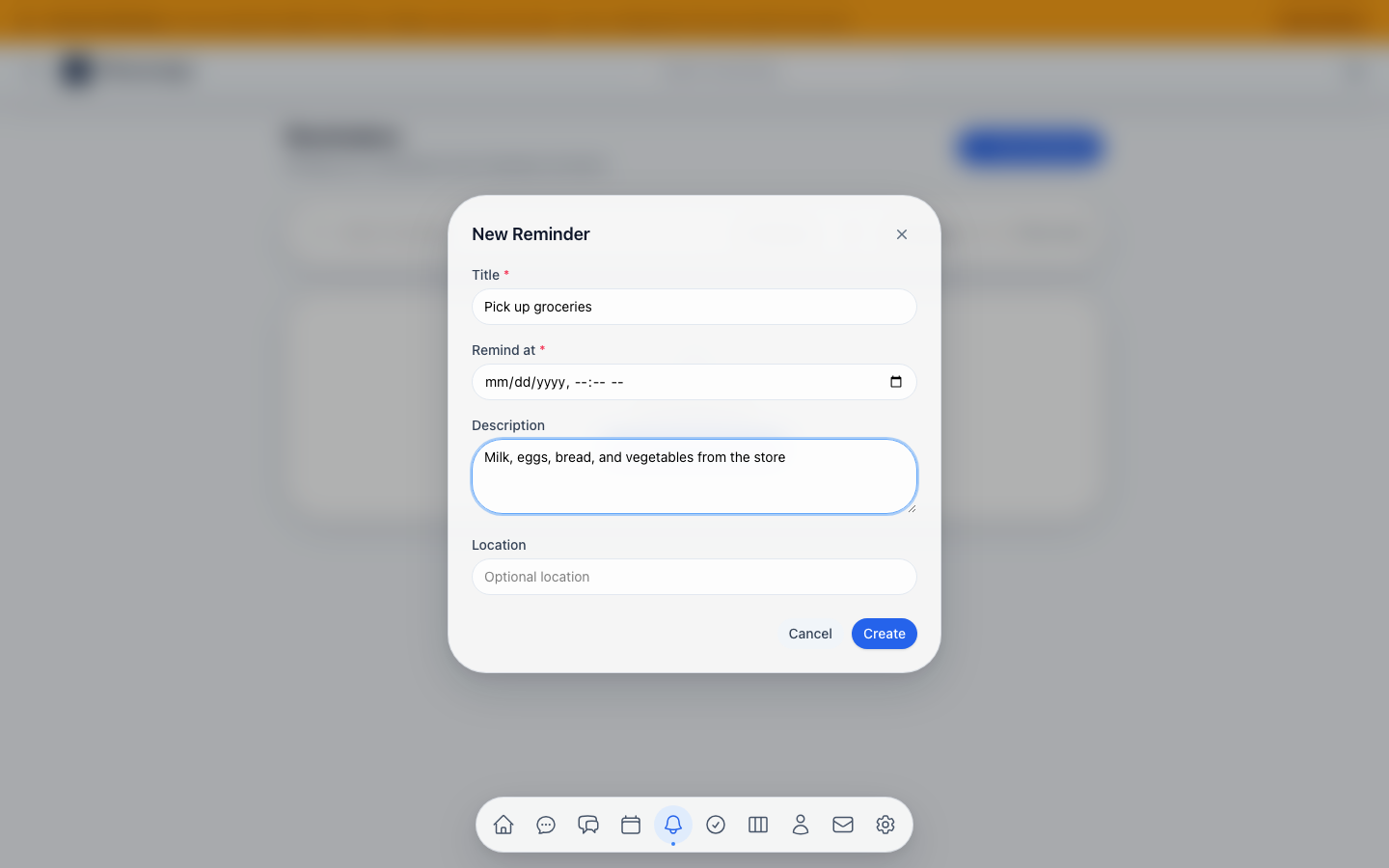 Example: setting a reminder to “Pick up groceries” with a shopping list description.
Search
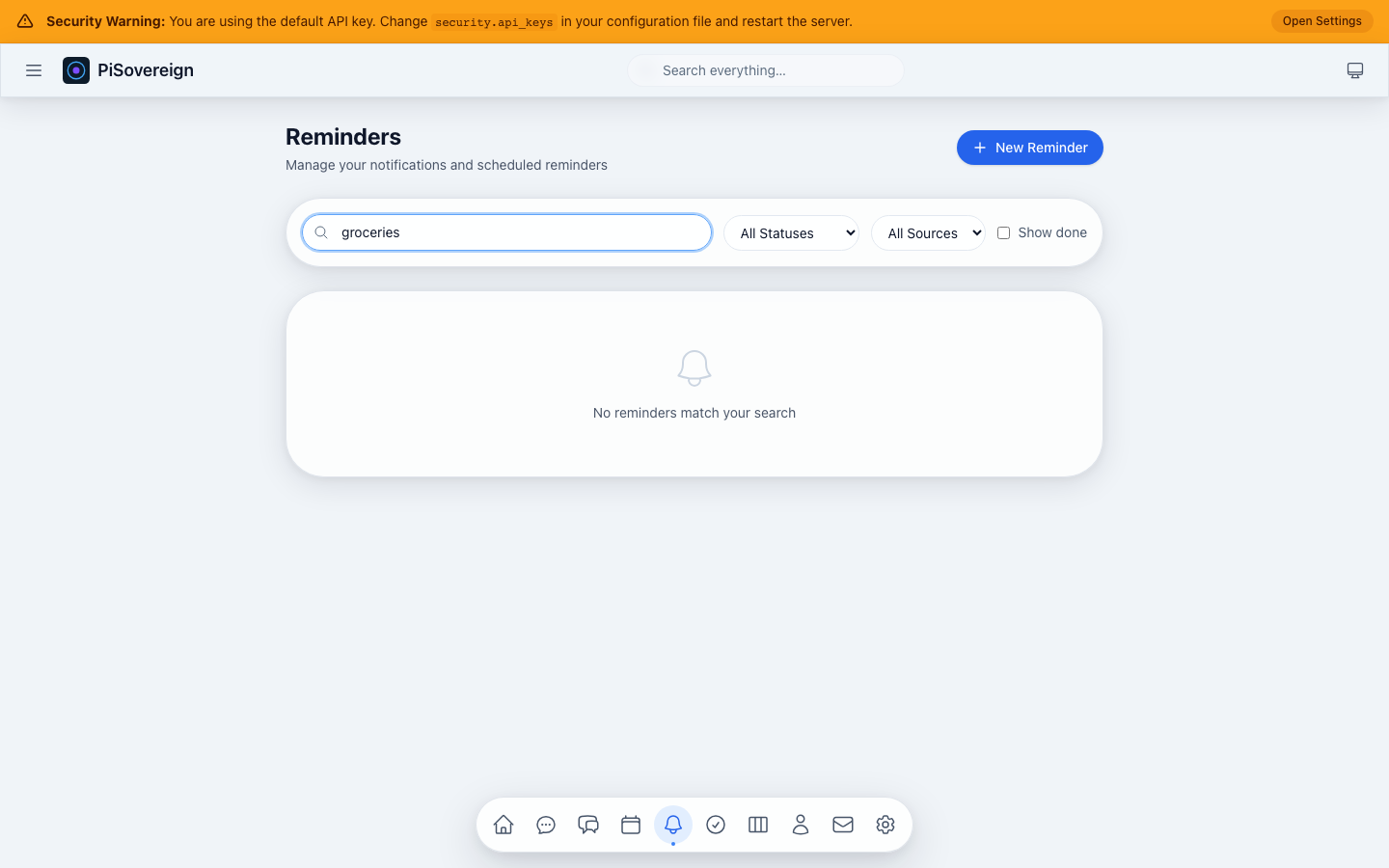 Searching reminders by keyword.
Commands
Natural-language command execution with a built-in catalog of safe, moderate, and dangerous system commands.
Execute Tab
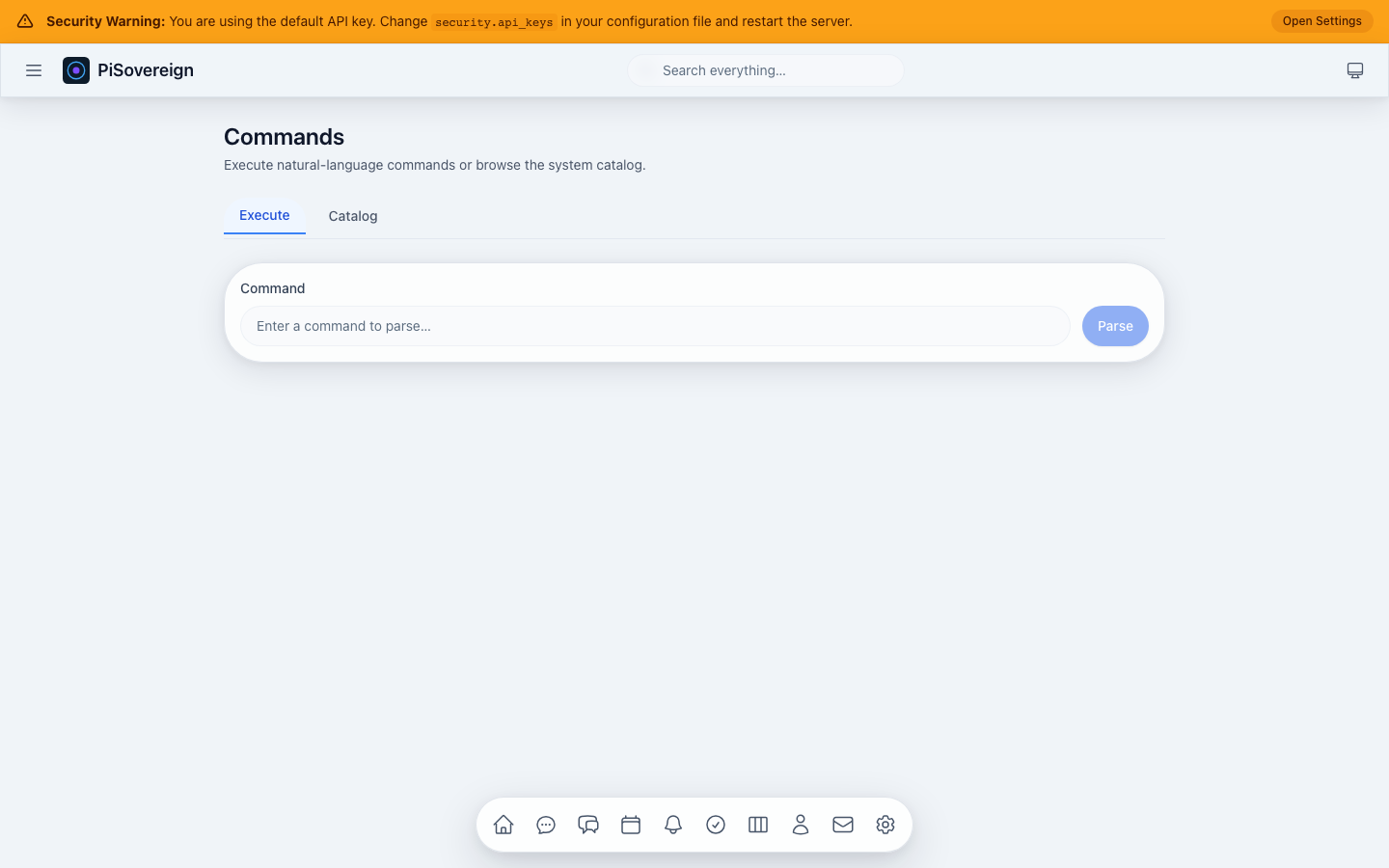 The Execute tab with a natural language input for describing commands.
Command Input
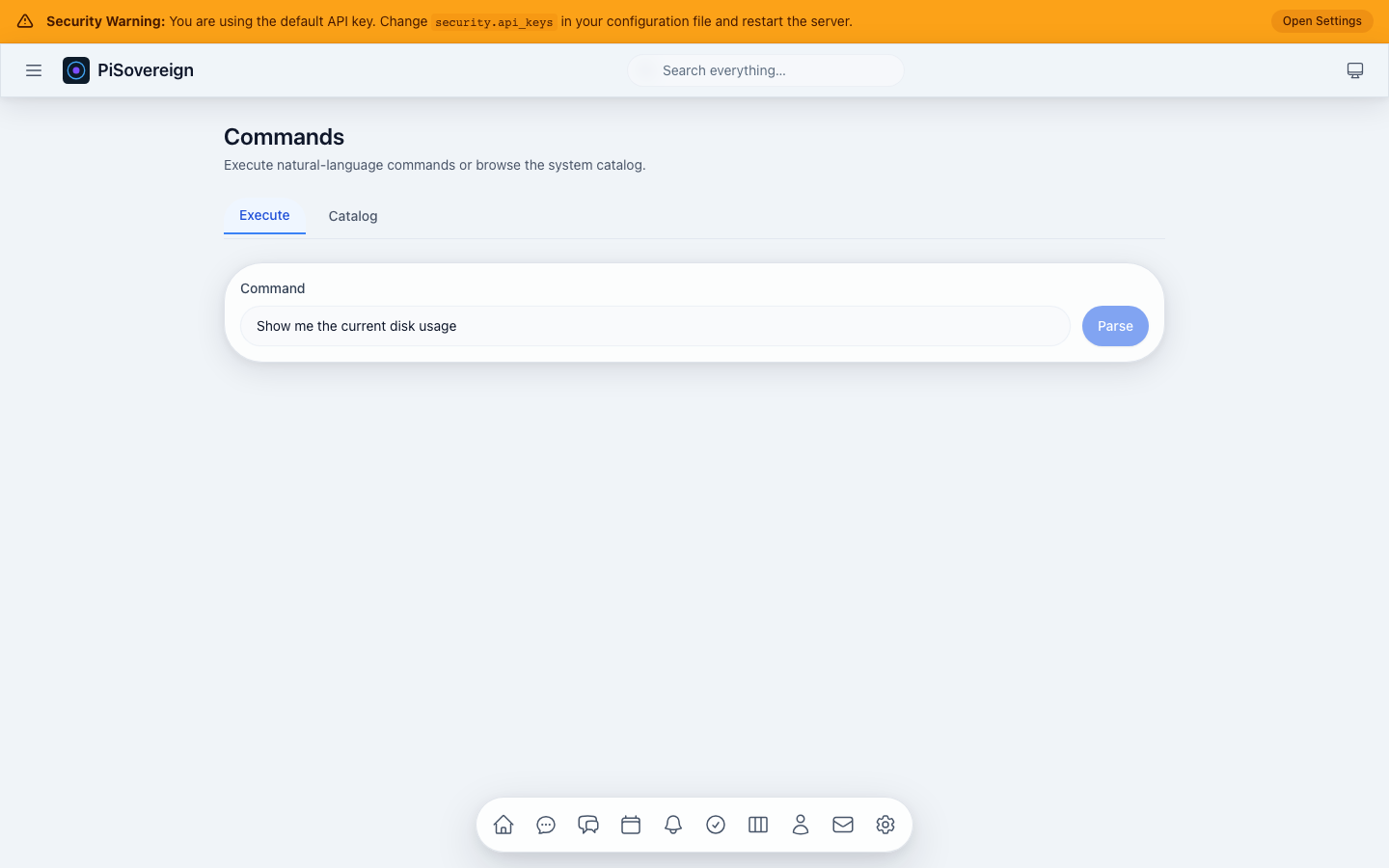 Typing a natural language command like “Show me the current disk usage”.
Catalog Tab
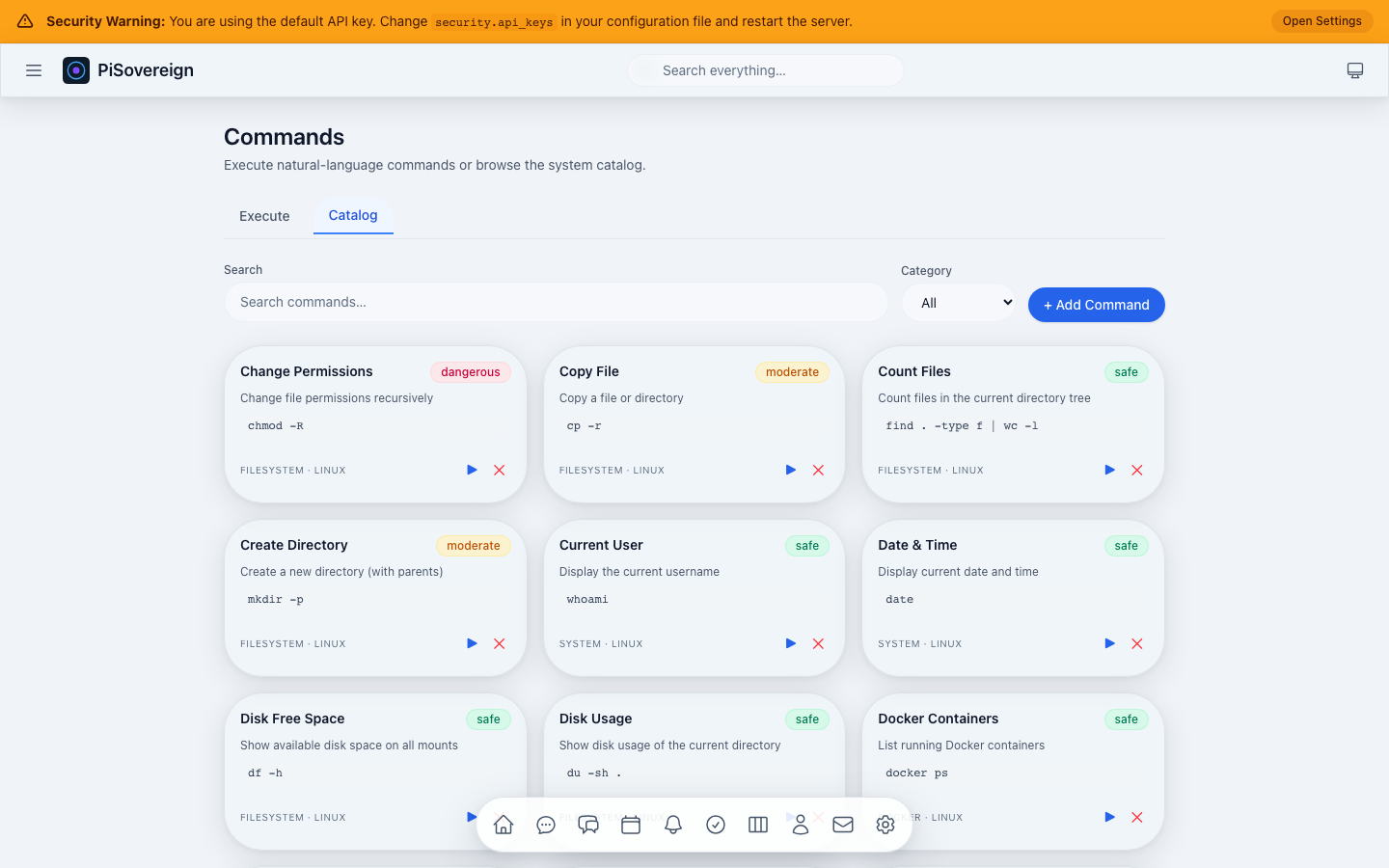 Browsable catalog of registered commands with risk badges and category filters.
Catalog Search
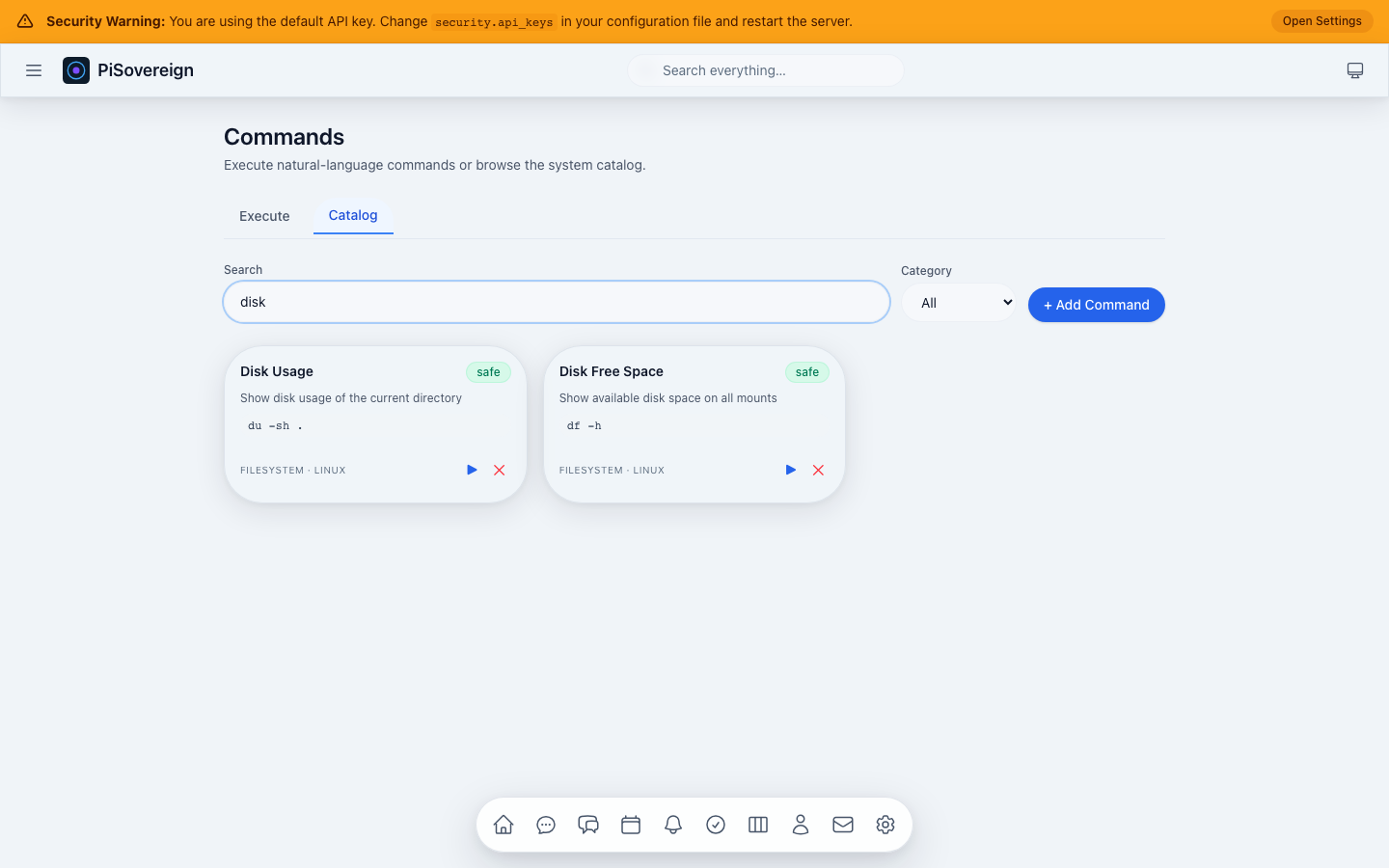 Filtering the command catalog by keyword.
Add Command
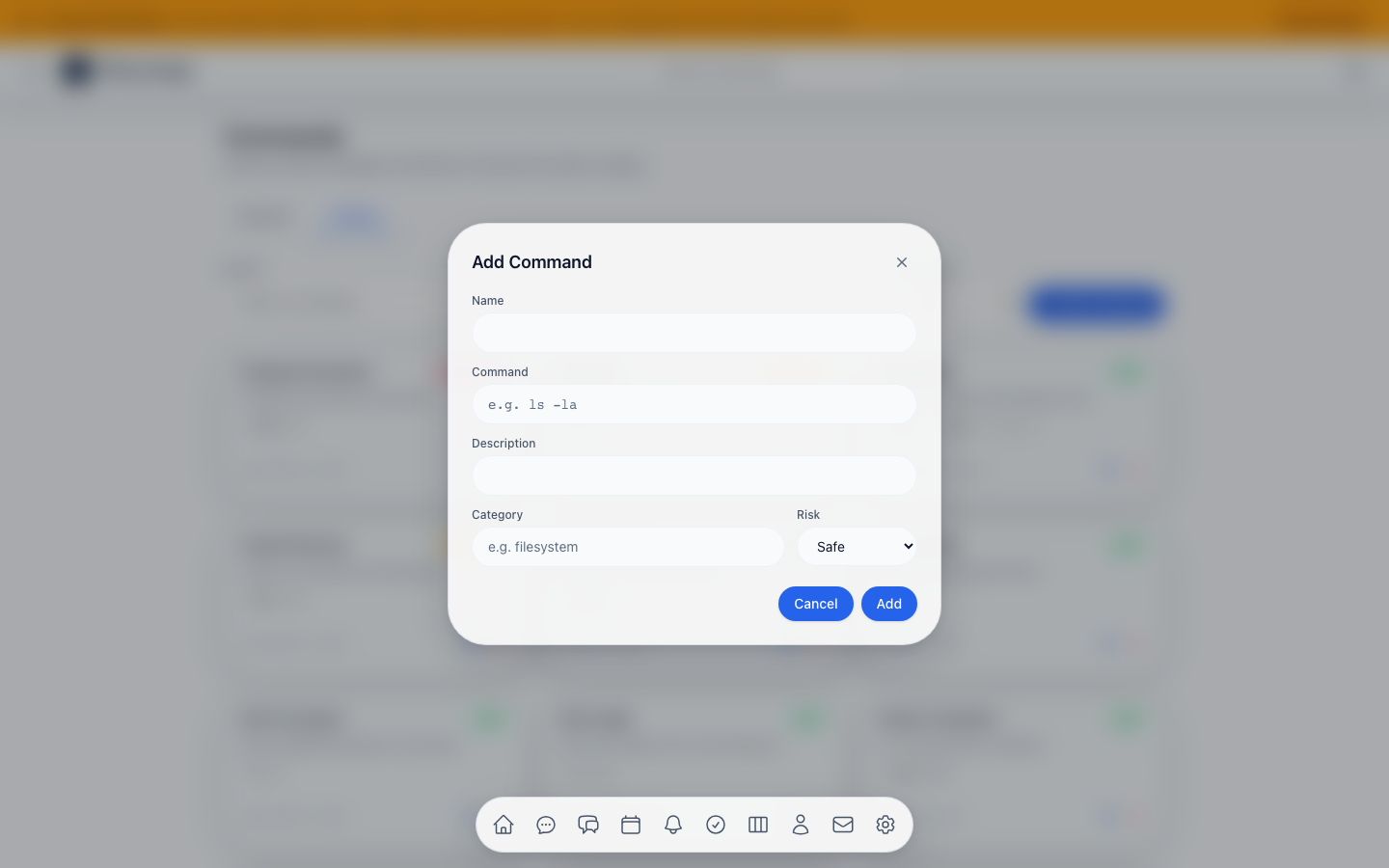 Form for registering a new command with name, command string, description, category, and risk level.
Approvals
Review and approve or deny pending commands and actions that require human authorization before execution.
Page Overview
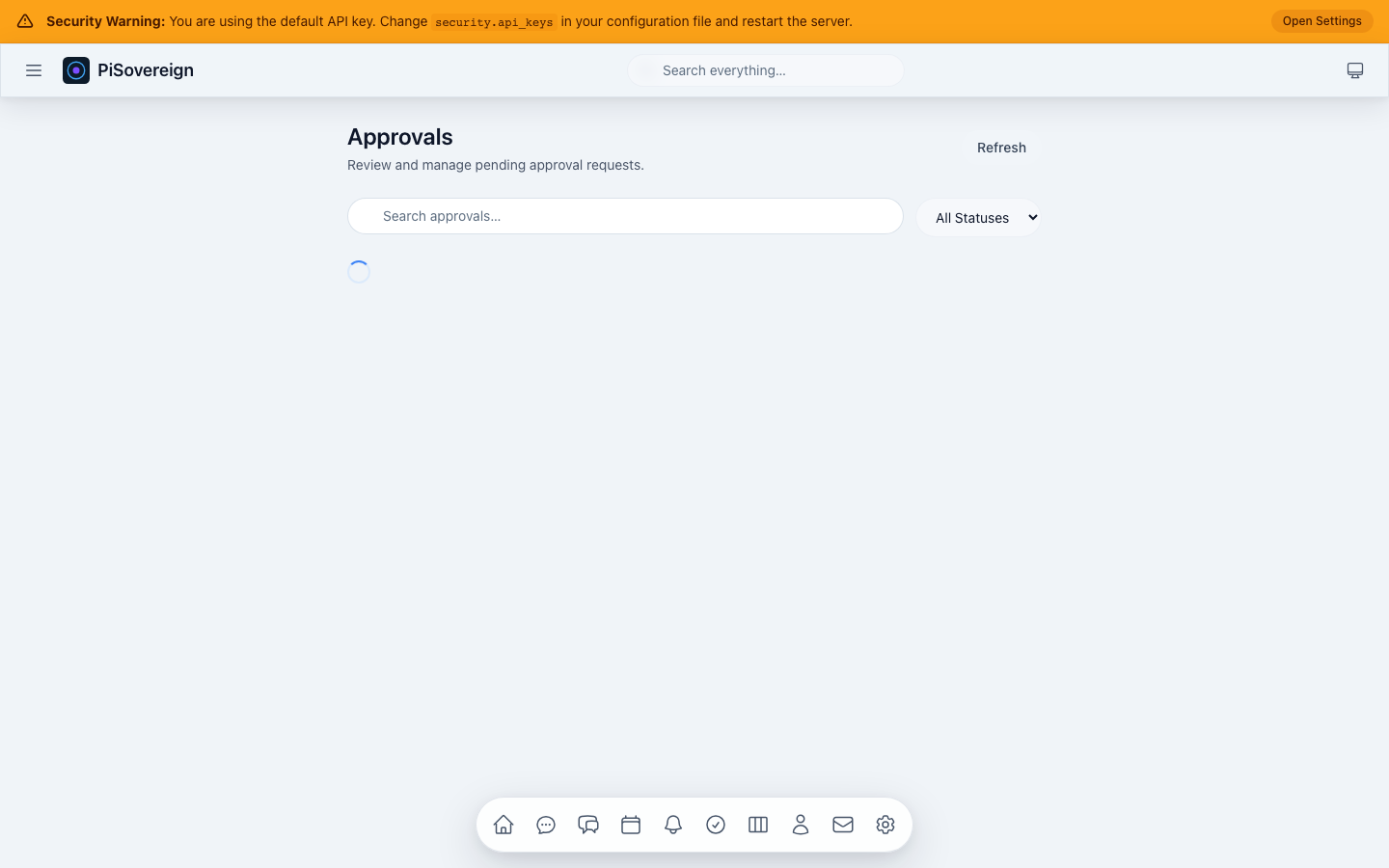 Approval queue with status badges, descriptions, and Approve / Deny buttons for pending items.
Search
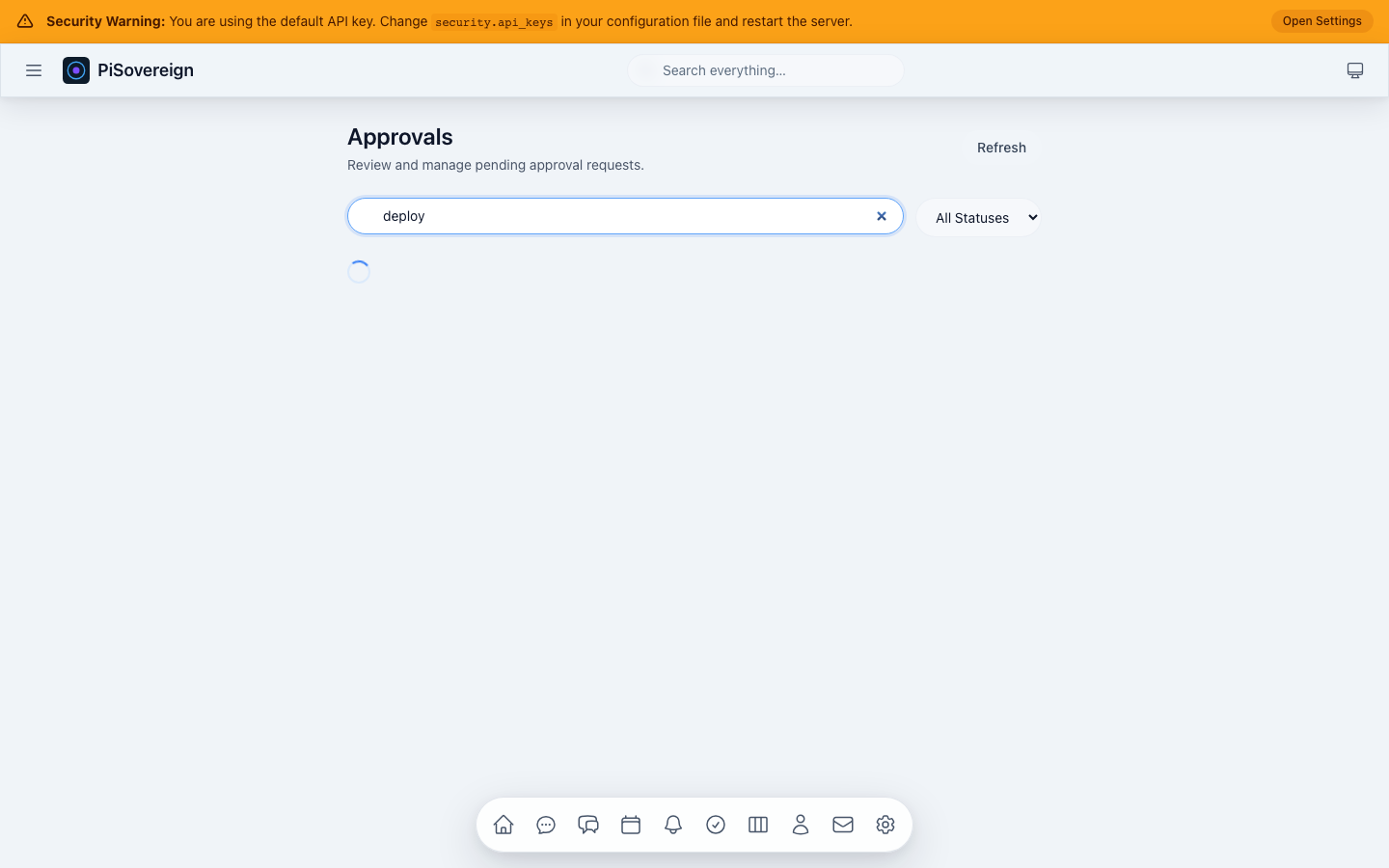 Searching approvals by keyword.
Agentic Workflows
Multi-agent orchestration for complex, multi-step tasks. Define a goal in natural language and let the system decompose it into sub-tasks executed by specialized agents.
Page Overview
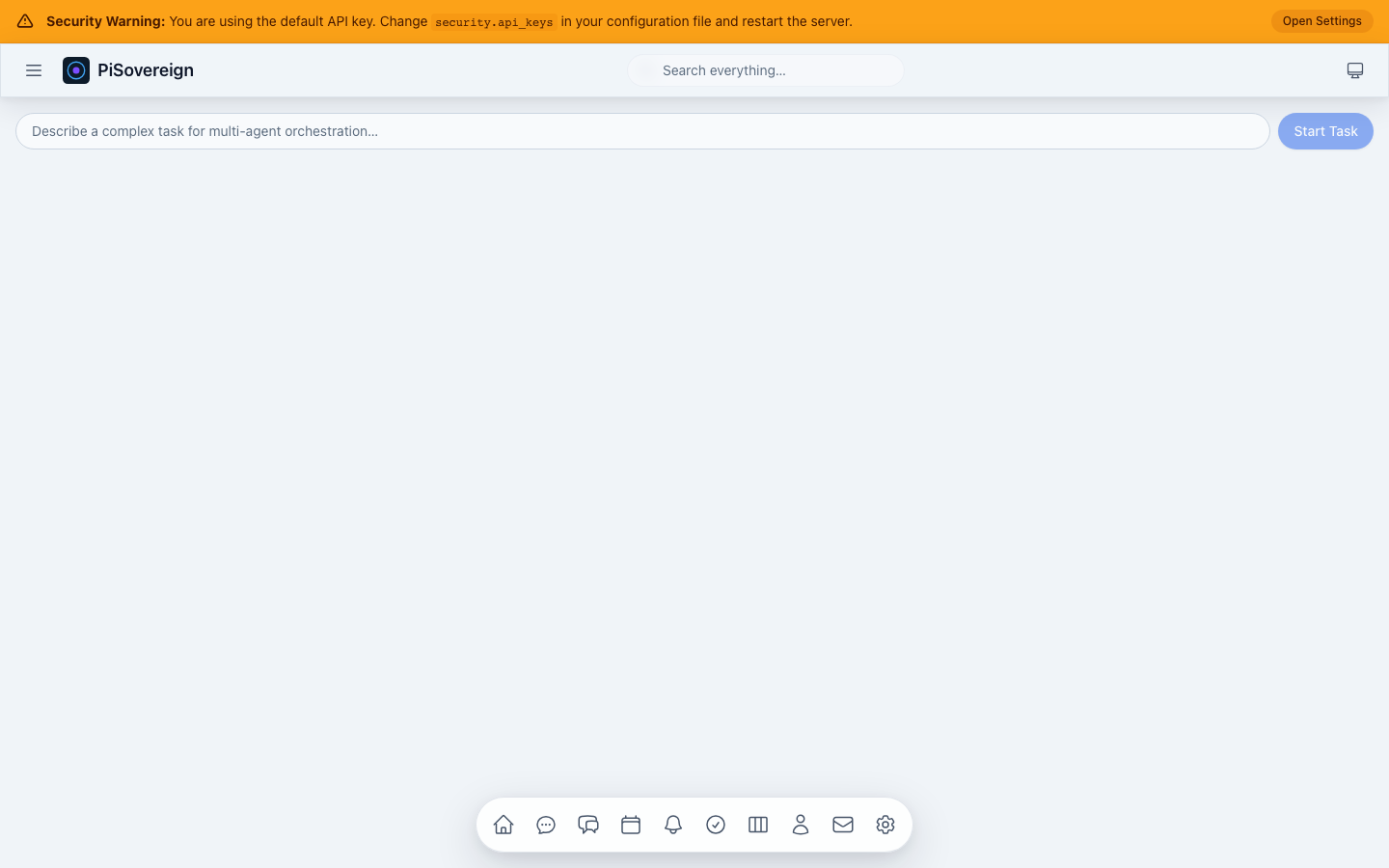 Agentic panel with task input, plan viewer, sub-agent grid, and result display.
Task Input
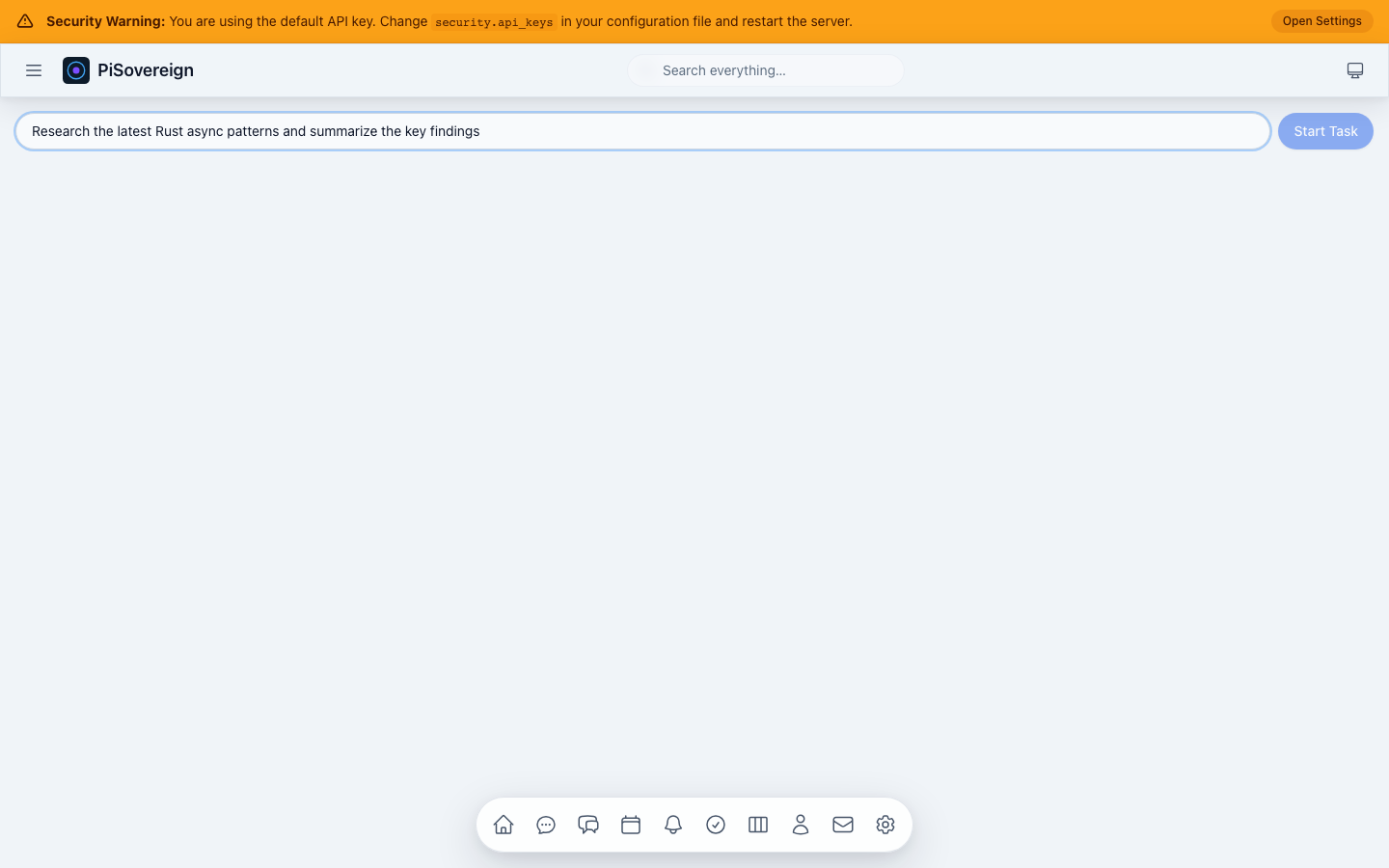 Describing a complex task for multi-agent orchestration.
System Status
Real-time system health monitoring showing application status, service health indicators, and available AI models.
Overview
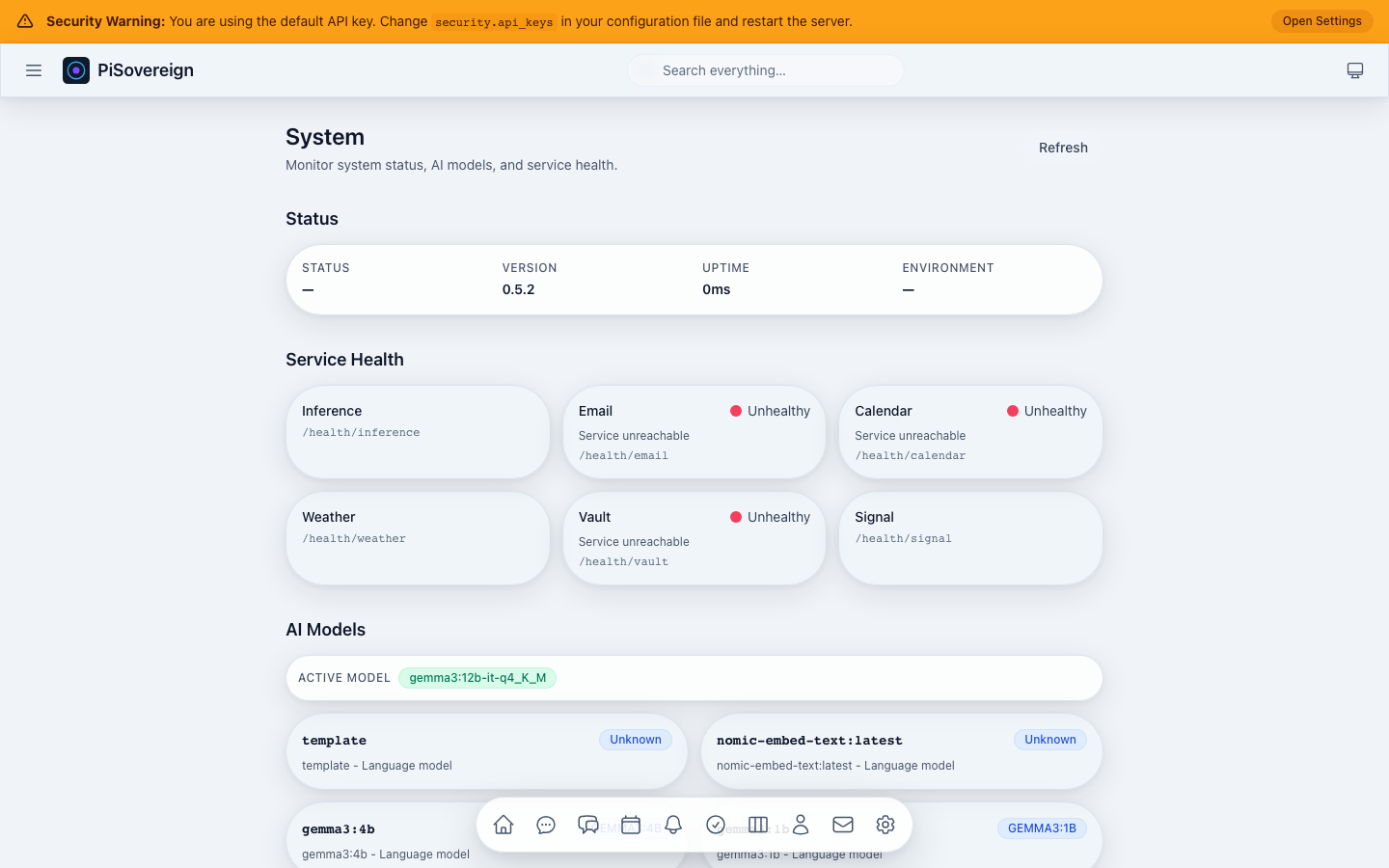 System page showing version, uptime, environment, service health cards, and AI model list.
Service Health
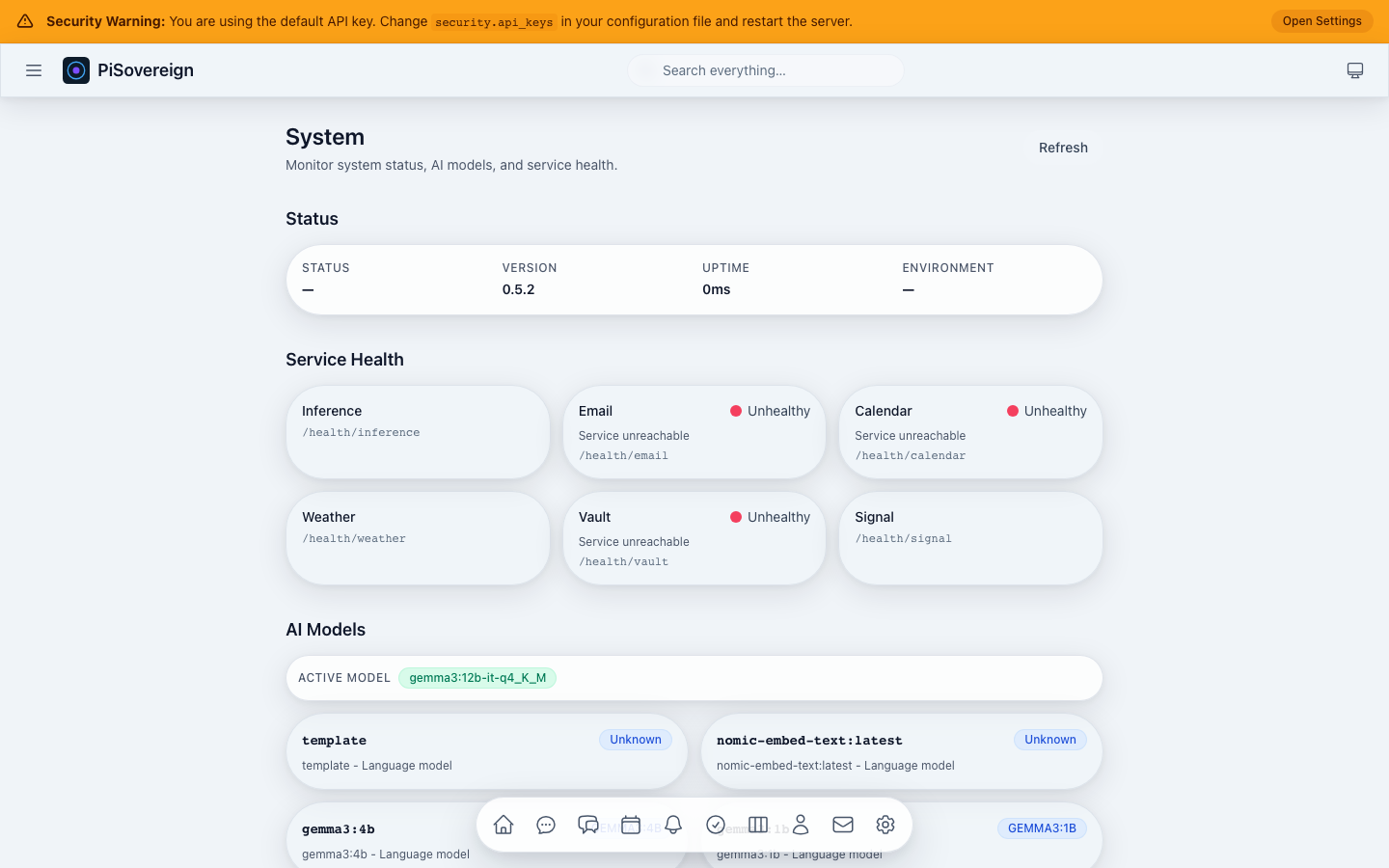 Grid of health-check cards for each integrated service (Ollama, CalDAV, IMAP, etc.).
AI Models
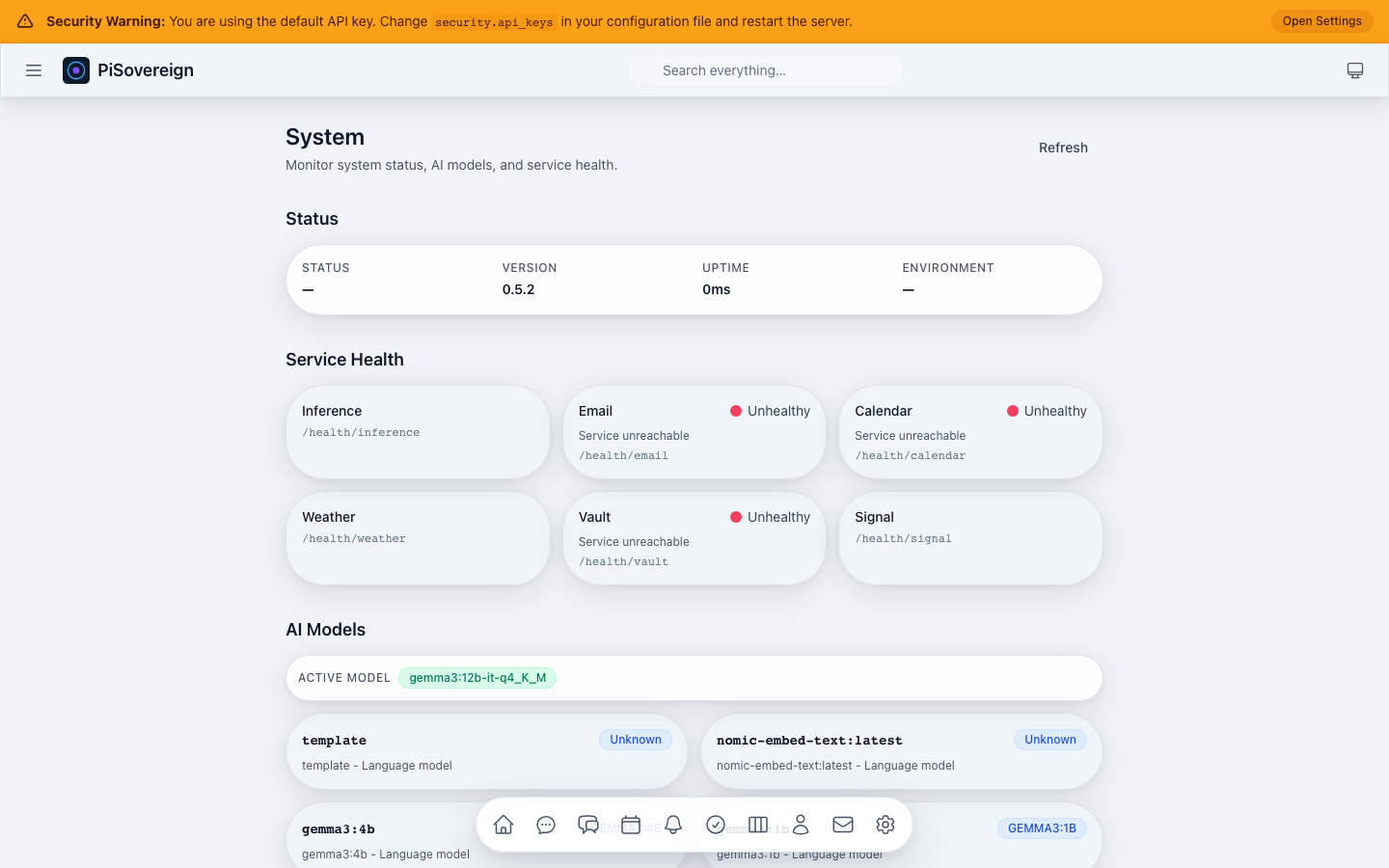 Available AI models with the active model highlighted. Shows parameter counts and descriptions.
Settings
Authentication, theme selection, and accessibility preferences.
Authenticated State
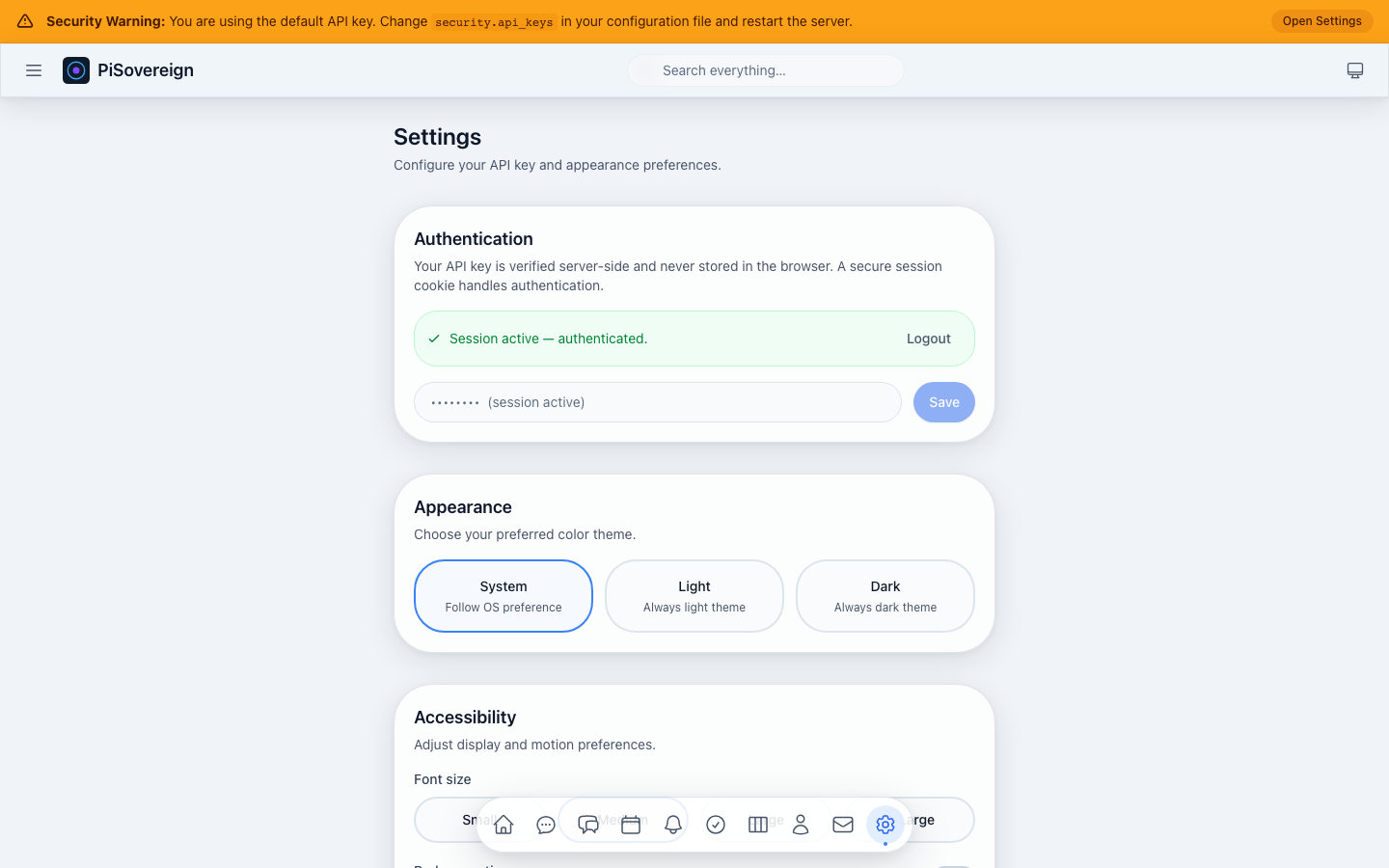 Settings page after successful API key authentication — session status, theme picker, and accessibility toggles.
Dark Theme
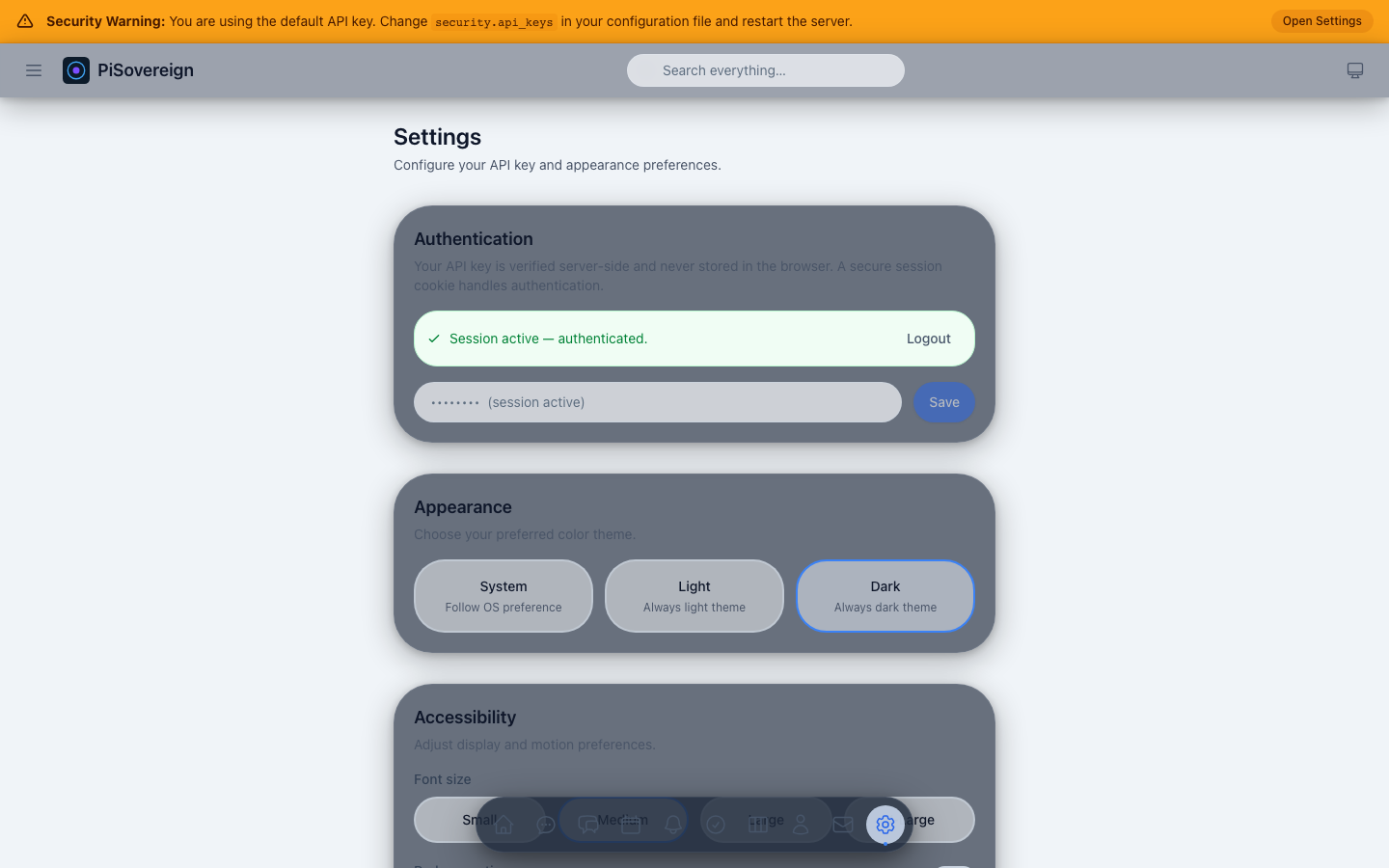 Switching to the dark colour scheme.
Light Theme
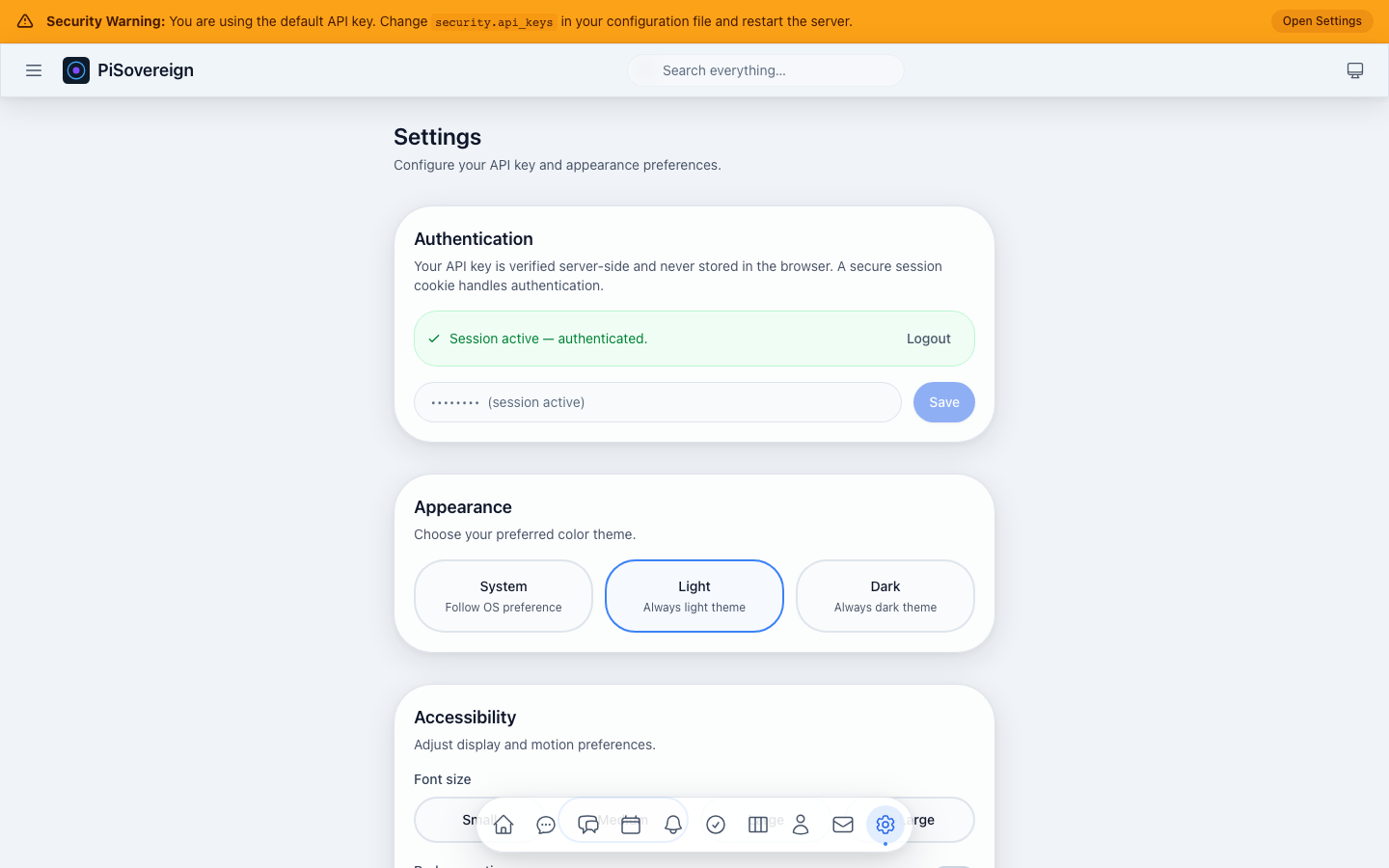 Switching to the light colour scheme.
Accessibility
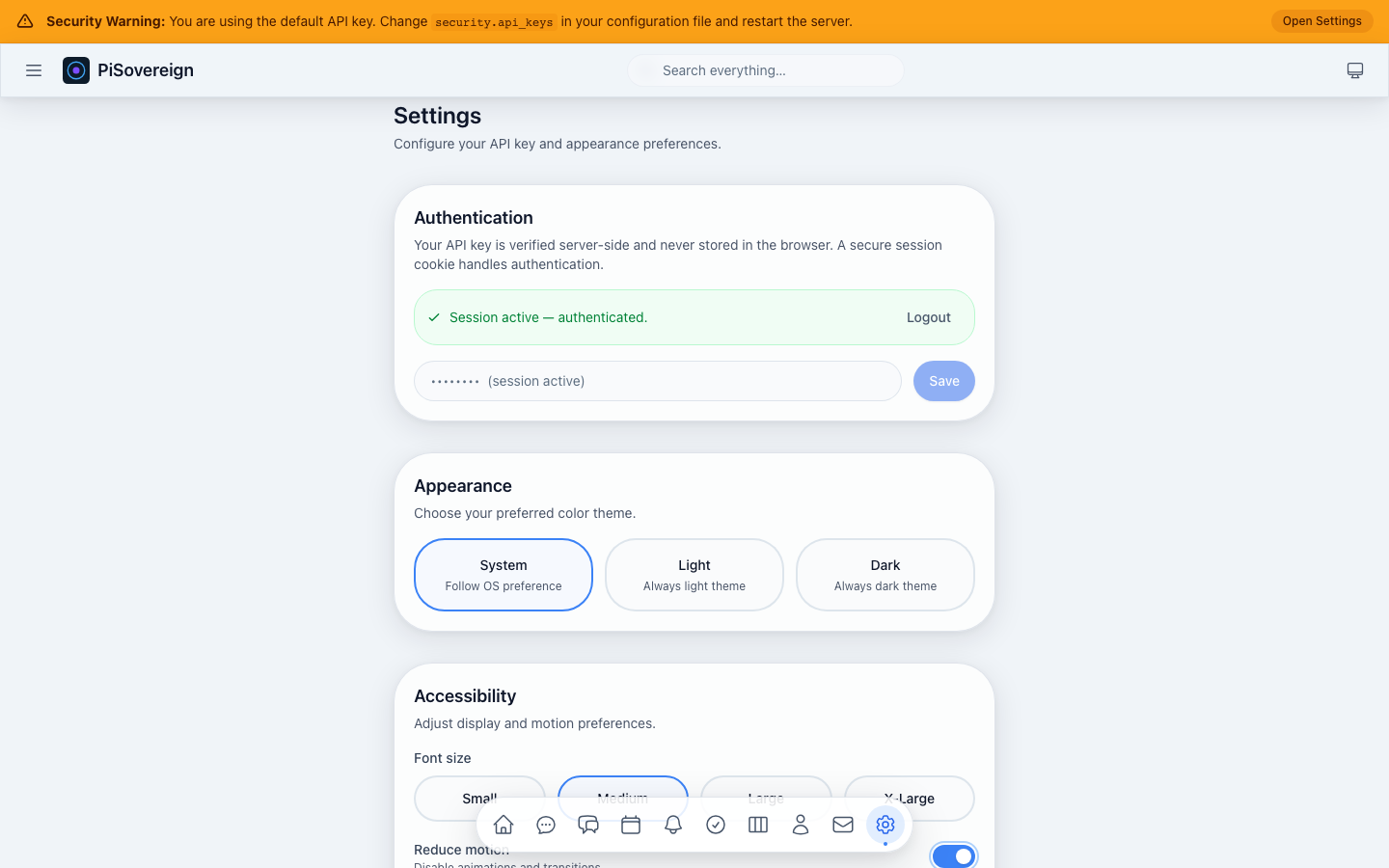 Font size selection, reduce-motion toggle, and high-contrast mode.
Navigation & Responsive Design
Sidebar Navigation
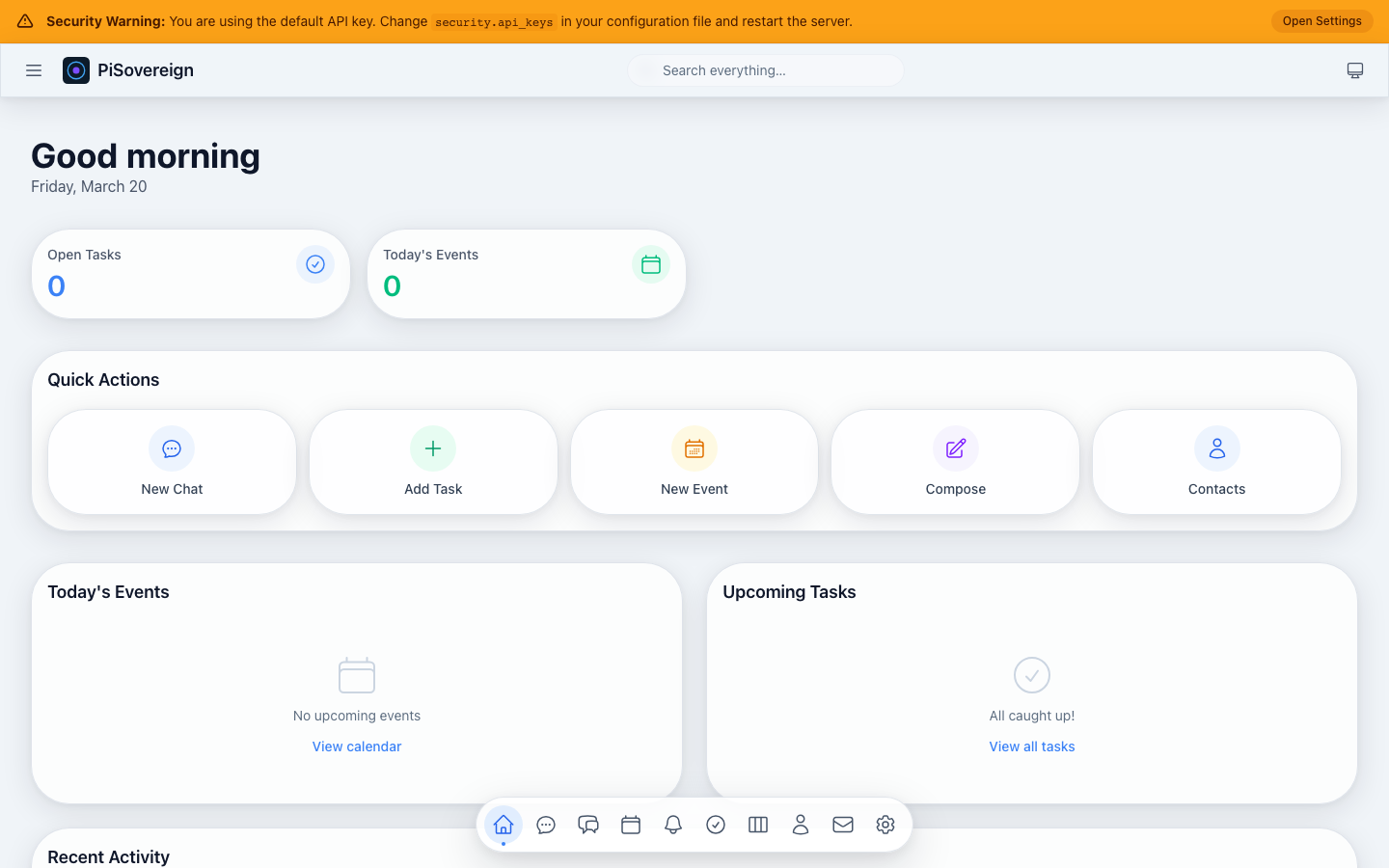 The main sidebar with links to all pages — always visible on desktop.
Mobile — Dashboard
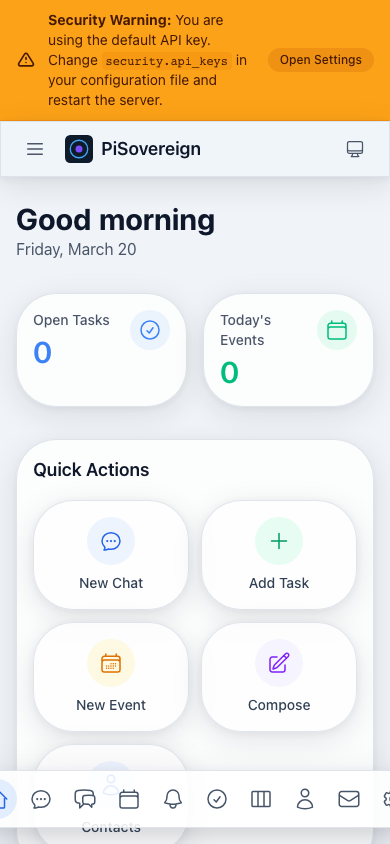 Dashboard on an iPhone-14-sized viewport (390 × 844). The layout adapts to a single-column flow.
Mobile — Memory
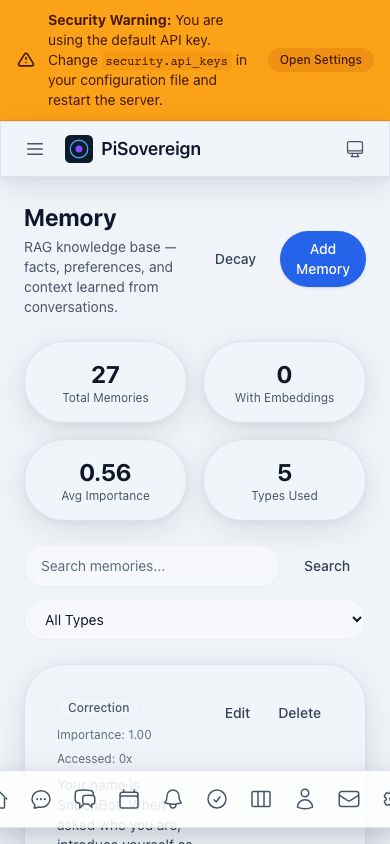 Memory page on mobile — stat cards stack vertically, controls remain usable.
Mobile — Chat
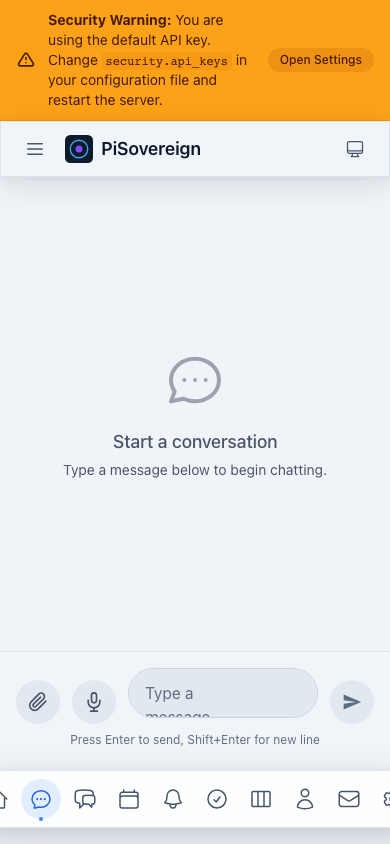 Chat interface on mobile — full-width message input at the bottom.